Each non-trivial or non-text layer would need an image reference. Additionally, image references can come in other contexts, for example, when applying a mask or an overlay.
Image references are specified using src command, or alternate commands such as mask, etc.
Image references should be image file names, without an extension. The image server will automatically select a best available image file version depending on the context.
For example if both PNG, JPEG, and SVG files are uploaded under the same name, the image server will prefer PNG source image for rasterized canvases and SVG for vector canvases.
Image file storage
Images shall be uploaded to the client’s image storage area. Contact the Drive Commerce Implementation Team or Support to set up the storage.
Once configured, the assets can be uploaded using Customizer Admin → Assets area:
-
Navigate to Customizer Admin
-
Select Assets Library from the sidebar menu
-
Alternatively, select Upload Assets to open the assets upload tool directly.
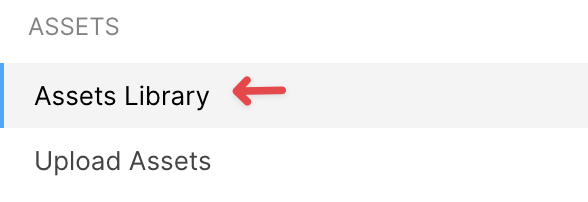
Please refer to the Customizer Admin documentation for more details about assets management in Customizer
Special image references
Groups
A previously defined group can be made a source for an image layer using g! prefix followed by a group name.
For example: src=g!GroupName
Groups can be referenced multiple times. Group sources will use the group image as it appears at the point of time when a layer is rendered; that is, a group image could also be updated after a group was used in a layer.
Boxes
Boxes can be used to quickly set up masks, give the canvas or groups dimensions, or add simple effects.
In some cases, it might be necessary to quickly specify a simply image, for example, a rectange of a specific color. To avoid having generate and upload such image, it is possible to use a BOX command instead.
Boxes can be specified in any context where an image reference is allowed, for example, in src, mask commands.
A box reference will create a rectangular image in sRGB format, using specified dimensions and background.
Simple boxes can be specified as:
BOX<width>X<height>C<rrggbbaa>
Where:
-
widthis a rectangle width -
heightis a rectangle height -
rrggbbaais a box color
For example: BOX2000X1000CFF0000FF will create a box of 2000x1000 with opaque red color
https://api.images.drivecommerce.com/api/v1/drive/image/BOX2000X1000CFF0000FF

Additionally, boxes can be used to create two boxes at the same time:
BOX<width>X<height>C<rrggbbaa>B<width2>X<height2>X<x>X<y>C<rrggbbaa2>
-
widthis a rectangle width -
heightis a rectangle height -
rrggbbaais a box color -
width2is an additional box width -
height2is the additional box height -
xandyare the offsets of the additional box from the top-left corner of the primary box -
rrggbbaa2is the additional box color.
For example: BOX2000X1000CFF0000FFB1000X500X500X250CFFFFFFFF creates a white rectangle on top of a red rectangle.