When a design is saved in the Customizer platform, a corresponding recipe is generated and stored within Drive Commerce systems. A reference to this recipe is typically included on order line items in the form of a recipe ID or a full recipe link. Order Management Systems (OMS) and Warehouse Management Systems (WMS) can retrieve the associated recipe JSON file to extract relevant information, such as selected components and associated image assets.
Depending on the capabilities of integrated downstream platforms, additional processing of recipes and orders may be required. This is commonly necessary when the Customizer platform facilitates the order management pipeline by transmitting production-ready files to manufacturing systems. For example, this may involve sending a DST file to an embroidery machine or a production-ready PDF to an engraving machine.
Delivery destinations for recipe files may vary and can include email addresses, SFTP servers, or other endpoints.
The Customizer platform supports direct sharing of recipe data with external systems. The following integration options are currently available:
-
Sending of recipe data to specified email addresses
-
Upload of recipe data to a designated SFTP location
-
Upload to AWS S3 or Azure Storage location
-
Triggering of a Zapier receive hook to trigger external workflows
Sharing recipe data
Customizer can share recipe data when the following events happen:
-
A recipe is created
The recipe data shall include:
-
Recipe JSON file
-
Recipe PDF pick ticket
-
Any production and preview files
-
Any attachements.
The uploaded files are named according to recipe file name convention: <recipeID>-<file name>.<file type>
Sharing order related data
The raw recipe feed includes data for all saved recipes, including both permanent and temporary entries, regardless of whether a given recipe was used to place an order.
In many implementations, this may result in unnecessary clutter in destination systems. It may also complicate file retrieval processes, particularly for manufacturing personnel who prefer to identify files by order number rather than by recipe ID.
To address this, the Customizer platform supports the creation and maintenance of explicit associations between orders and recipes. Additionally, it can trigger recipe-related workflows in response to order lifecycle events, such as:
-
Creation of a new order and its linkage to a recipe
-
Updates to an existing order
-
Cancellation of an order
Configuring order and outbound integrations
Because of potential PII implications, order and outbound integrations are enabled by the Drive Commerce integration team after a review with a customer.
Common integration settings
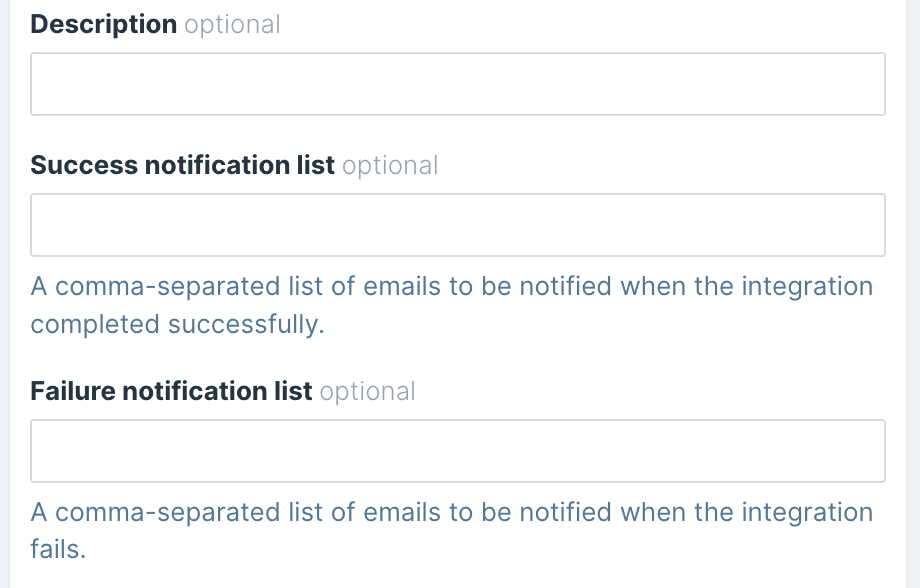
All integrations include a common set of settings:
-
Description — integration description
-
Success notification list — a comma-separated list of emails to be notified when an integration finishes successfully.
Success notification list is not used by some integrations. For example, Email Integration does not send a duplicate of emails.
-
Failure notification list — a comma-separated list of emails to be notified when integration fails, for example, if a file upload fails or emails are not sent.
Handling integration failures
Integration failures do not impact the ability to save recipes or place orders. If an integration attempt fails, the system will automatically retry the operation up to two times. After the final attempt, a failure notification will be issued.
For workflows where receipt of recipe data is critical to the order management process, it is recommended to configure a monitored notification inbox and establish a formal resolution process to ensure timely identification and handling of integration issues.
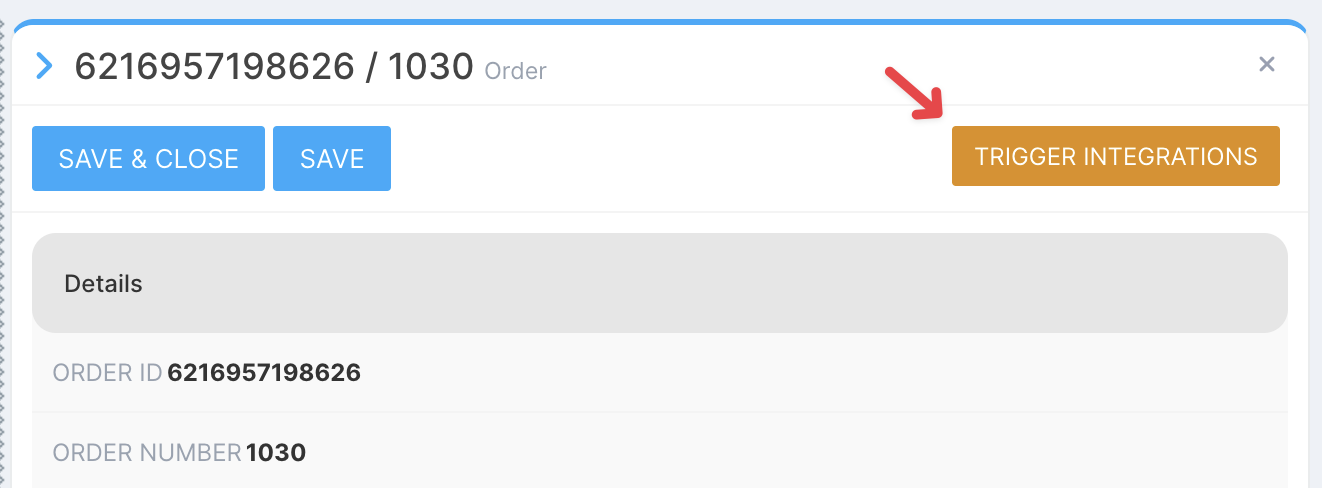
Integrations can be triggered manually for a failed recipe or an order:
-
Navigate to Review Recent Orders area using a link in the Sidebar
-
Locate necessary order by recipe ID, order ID, or order Number
-
Click Trigger Integrations
Email integration
Email integration allows to send the recipe or order data to a list of one or more recipients. Recipe data is sent via attachments.
If sending a recipe that is associated with an order, recipe files will be prefixed with an order number and order ID.
Integration settings
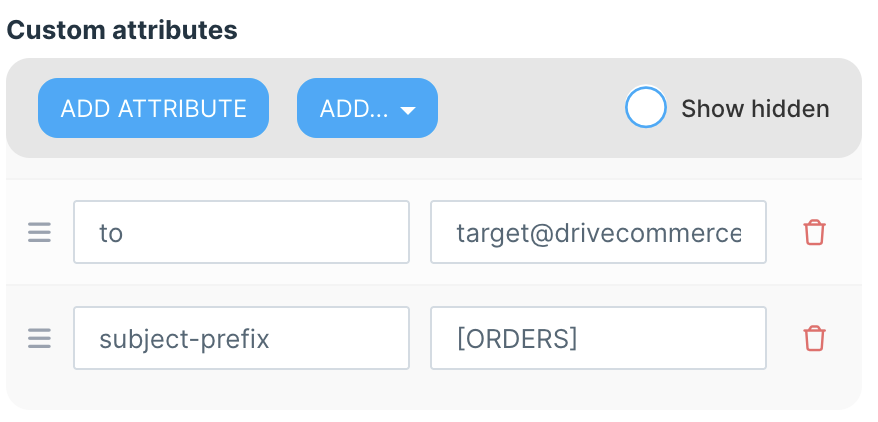
Applicable integration settings include:
-
toattribute — a list of comma-separated email addresses -
subject-prefixattribute — customer defined subject line prefix
Azure Storage integration
Recipe data can be uploaded to an Azure Blob Storage container.
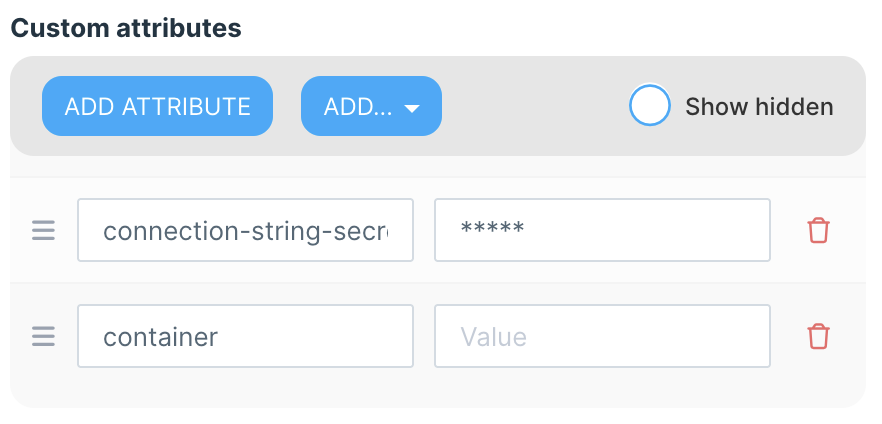
Integration settings
Azure Storage integration settings include:
-
connection-string-secure— A SAS connection string for the Storage account-
SAS signature must allow write access
-
-
container— A destination container name
AWS S3 integration
Recipe data can be uploaded to an AWS S3 bucket:
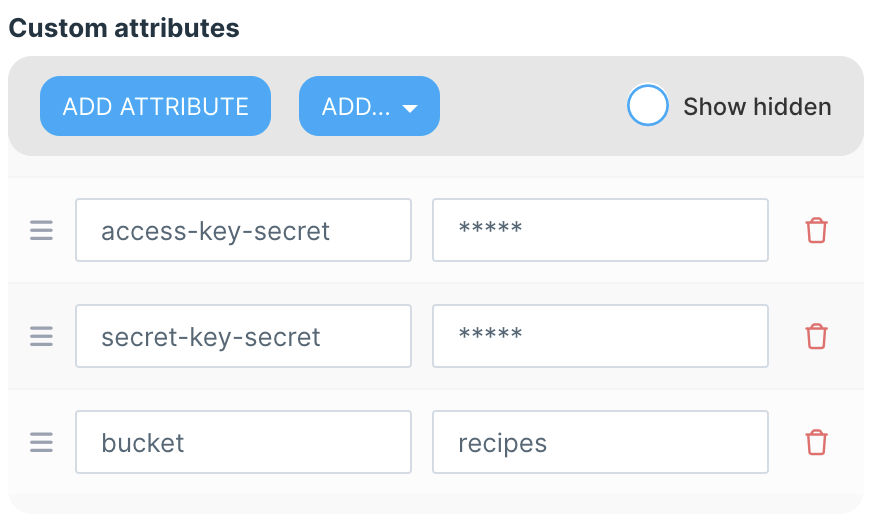
Integration settings
AWS S3 integration settings include:
-
access-key-secret— Access key-
Access key must have an attached policy that allows write access
-
-
secret-key-secret— Associated secret access key -
bucket— A destination bucket name
Zapier integration
Recipe data can be sent to a Zapier catch hook:
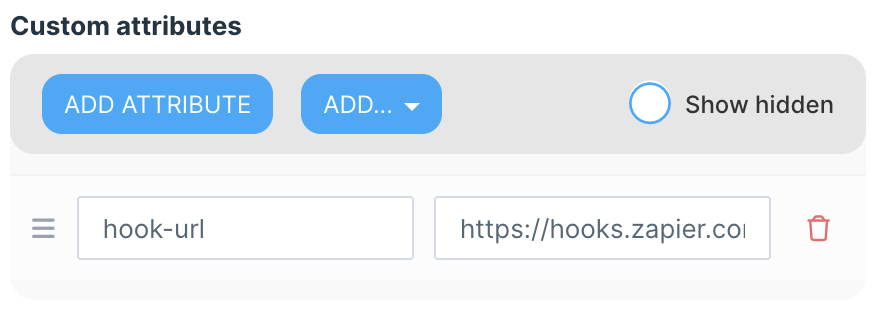
Integration settings
Zapier integration settings include:
-
hook-url— Destination hook URL
Data format
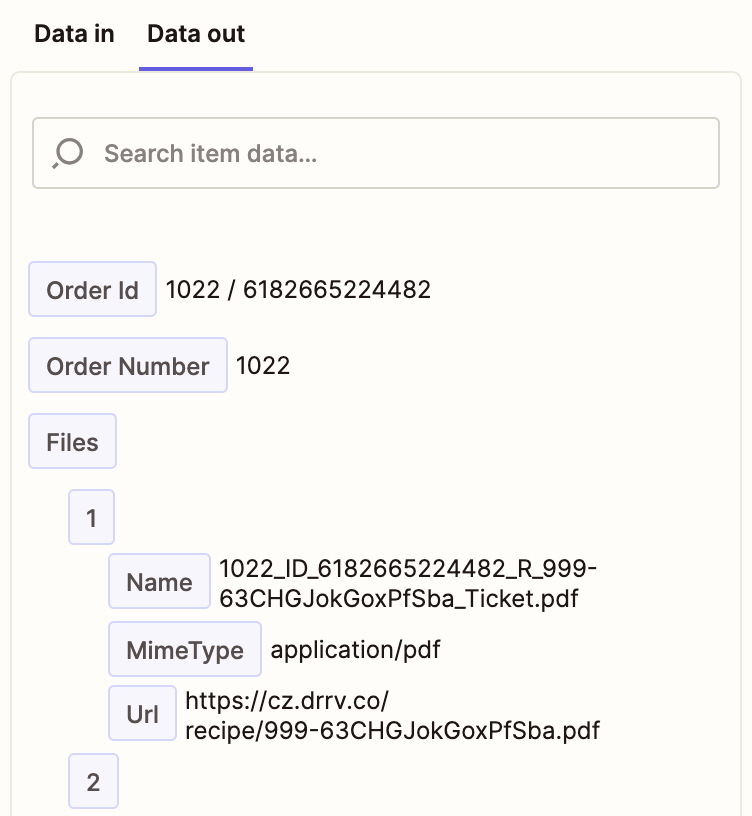
The data shall be sent to Zapier in a JSON format that includes the order information and links to recipe files rather than files themselves:
{
    "orderId": "6182665224482",
    "orderNumber": "1022",
    "files":
    [
        {
            "name": "1022_ID_6182665224482_R_999-63CHGJokGoxPfSba_Ticket.pdf",
            "mimeType": "application/pdf",
            "url": "https://cz.drrv.co/recipe/999-63CHGJokGoxPfSba.pdf"
        },
        ...
    ]
}
Zapier will convert the catch hook payload to a set of variables that are available in later steps: