
Customizer Admin provides access to the core management tools required for maintaining product configuration data. This includes tasks such as:
-
Defining and updating product structures and component options
-
Managing product metadata and placements
-
Configuring integrations with external systems
While Customizer Admin is focused on structured data and configuration management, Customizer Studio complements it by offering tools for testing custom product configurations and updating visual presentation layers.
Logging into Admin
Start by opening https://customizer.drivecommerce.com in your browser and enter your user login and password.
Blades
Customizer Admin employs a user interface metaphor known as Blades. Blades are vertical panels within the main Admin area, each representing a specific item from a product configuration. Multiple blades can be open simultaneously, and blades may display items of different types.
This interface model enables efficient navigation across various configuration elements, while maintaining context and avoiding disruptive transitions such as pop-ups or modal dialogs.
For example:
-
Load a product definition
-
Navigate to an active version
-
Locate a placement associated with that version
-
View or modify placement properties, or create and assign a new placement — all without losing context of the original product
Alternatively:
-
Open multiple component options side by side to compare attributes
-
Edit several items concurrently within a single view
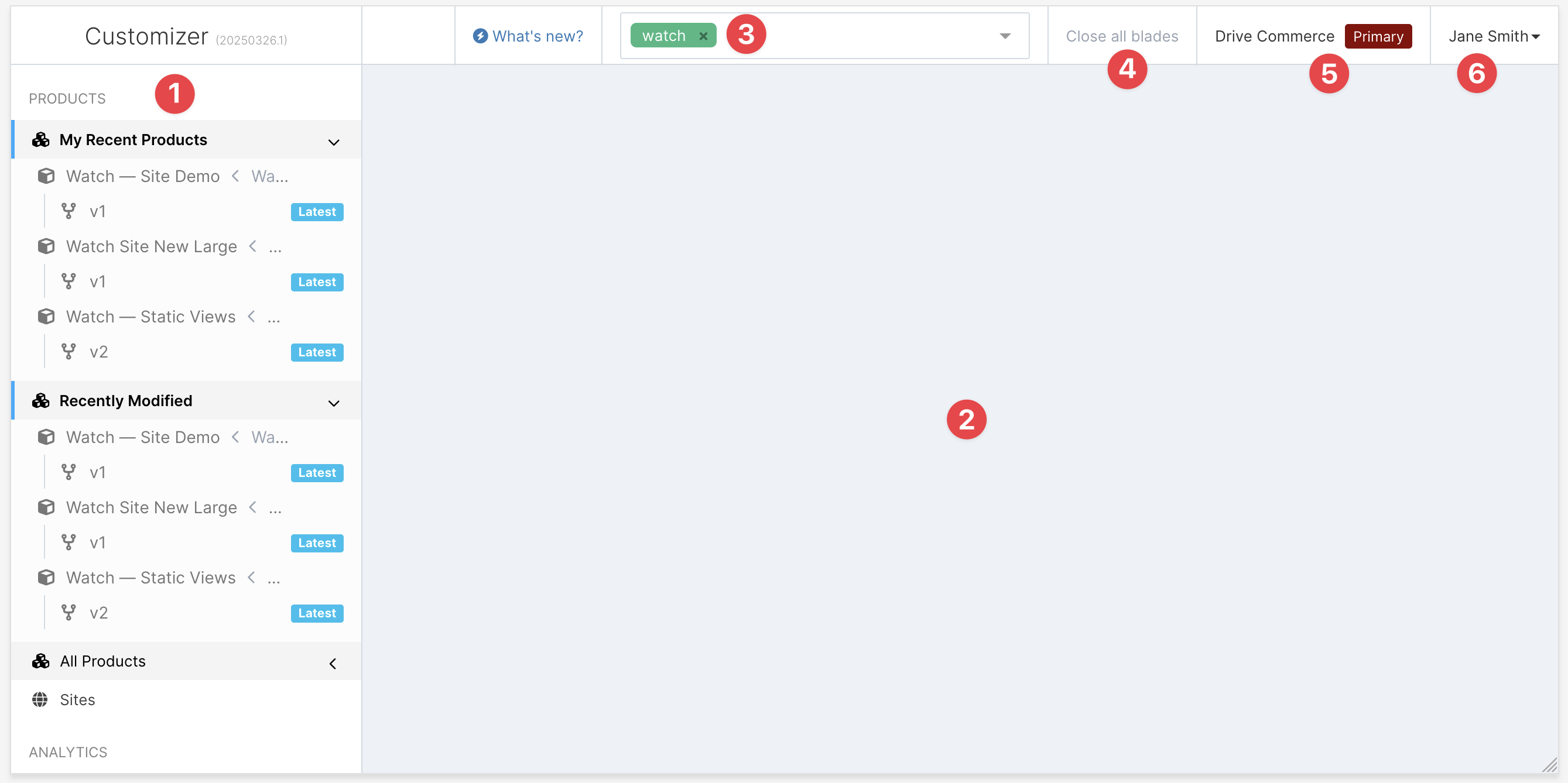
The important areas of Admin portal include:
-
Sidebar menu. Sidebar contains entry point links to various aspects of Customizer functionality:
-
Product listings
-
Configurator metadata such as definitions, options, placements
-
Analytics
-
Integrations
-
-
Main area. Opened blades will appear in the main area.
-
Global filters menu. Apply tag filters to focus your view on specific items only. See Managing multiple brands for examples of usage.
-
Close all blades. Allows to quickly dismiss all opened blades and clean up the view.
-
Company and workspace name. Displays the name of the company instance you are currently logged in, and a currently selected workspace name.
-
Account menu. Account menu allows to perform actions such as selecting a current workspace; editing your current profile; or, if you have an admin role, invite other users and create API keys.