
In order to upload recipe data to Google Drive, a few steps are required to create necesary accounts and permissions.
Create a project
-
Login to https://console.cloud.google.com/ using your Google Workspace or Personal account
-
Open a project picker (macOS:
Cmd-O, Windows:Ctrl-Oand create a new project if necessary:

-
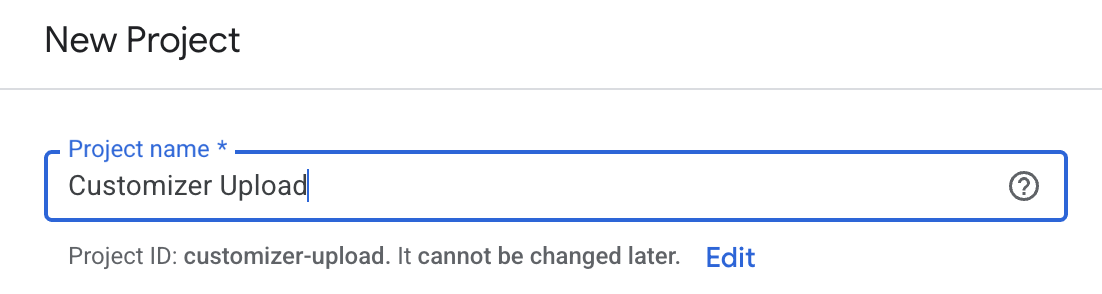
Give project a name and click Create
Enable Google Drive API
-
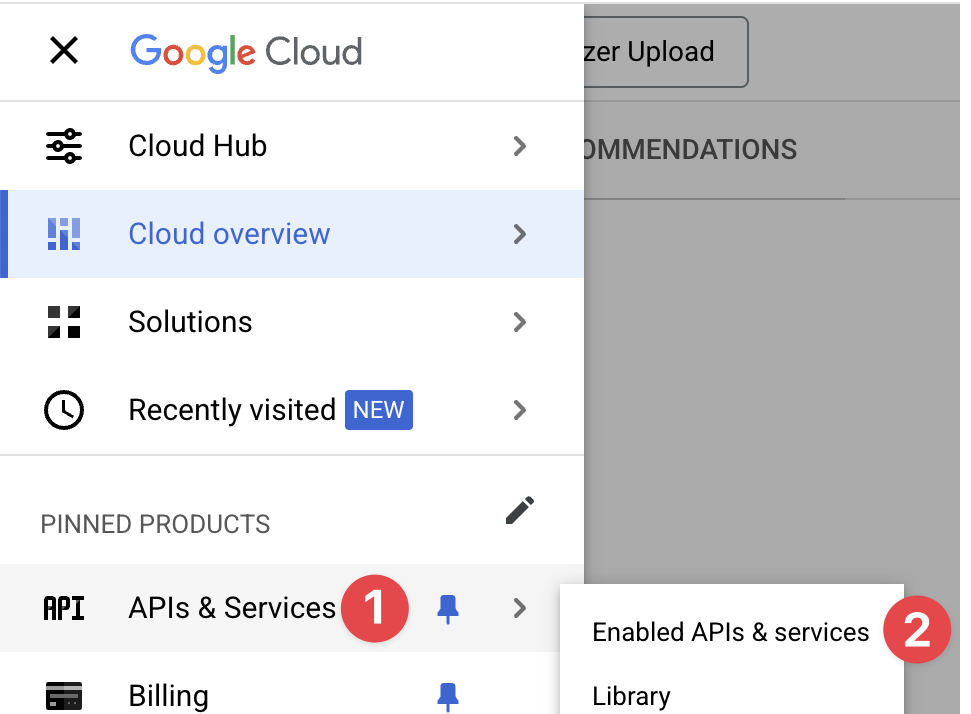
Using the Cloud Console menu, navigate to APIs & Services → Enabled APIs
-
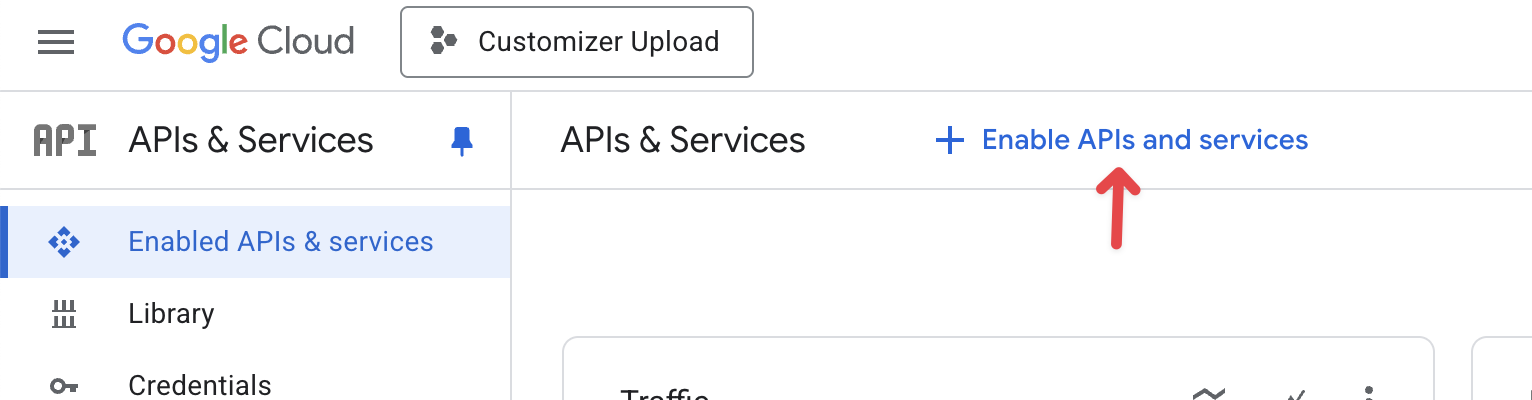
Click Enable APIs
-
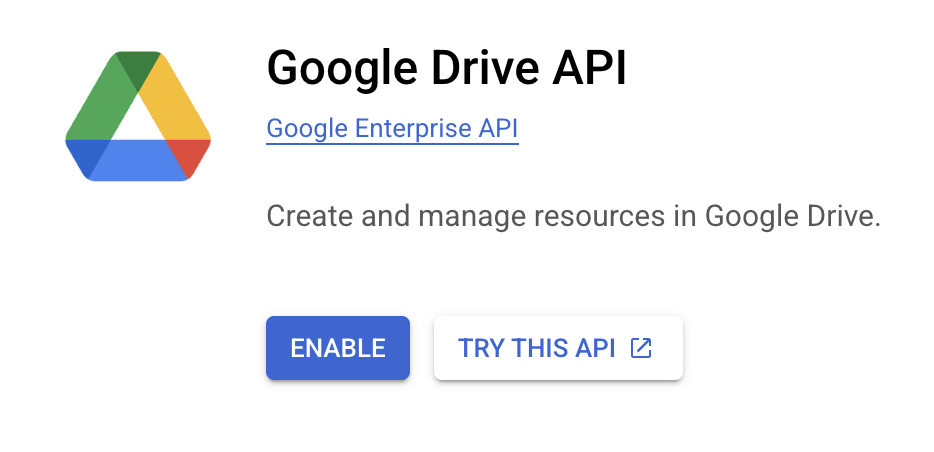
Search for Google Drive API and enable it
Create a service account
-
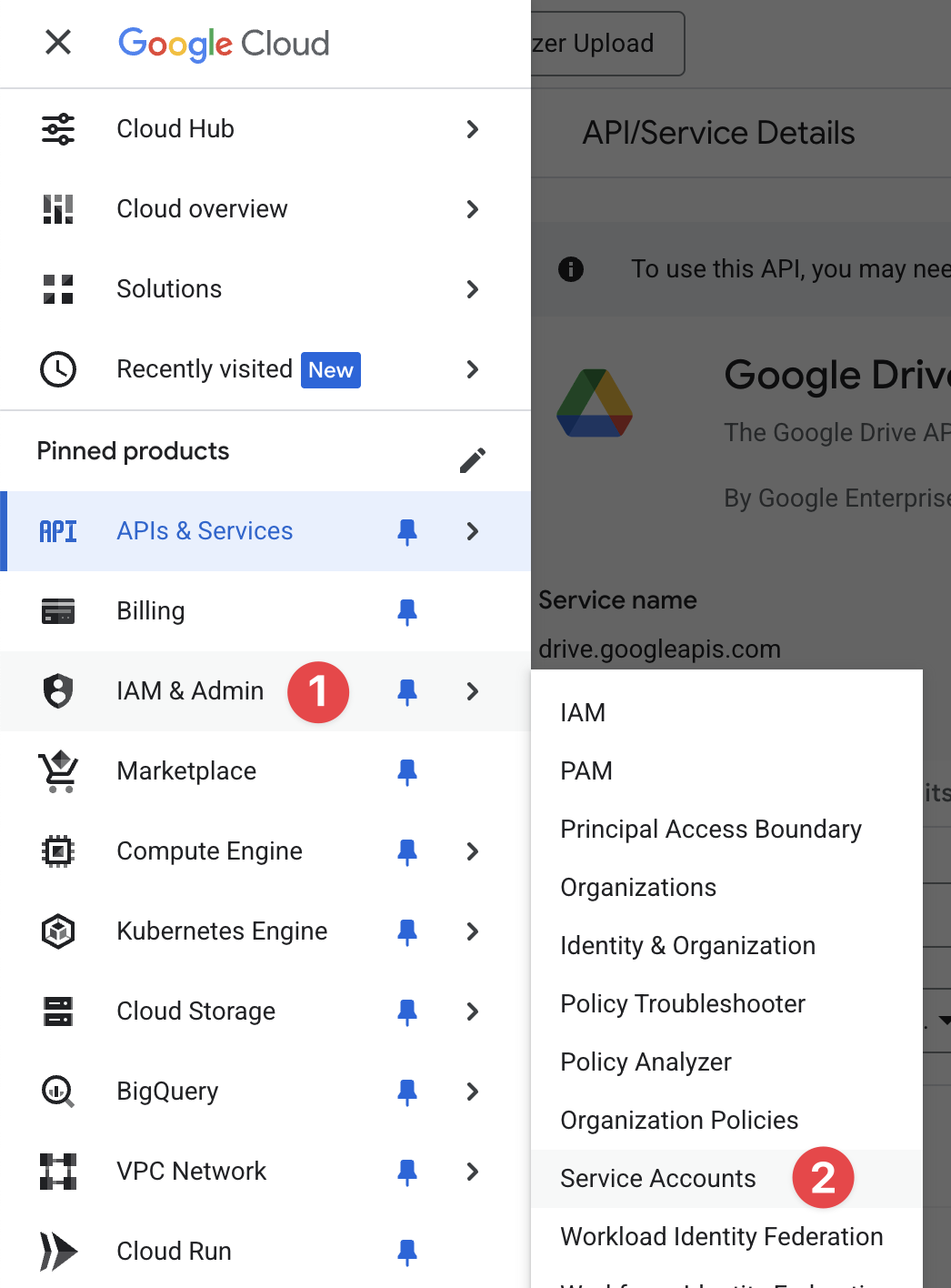
Using Cloud Console menu, navigate to IAM & Admin → Service Accounts
-
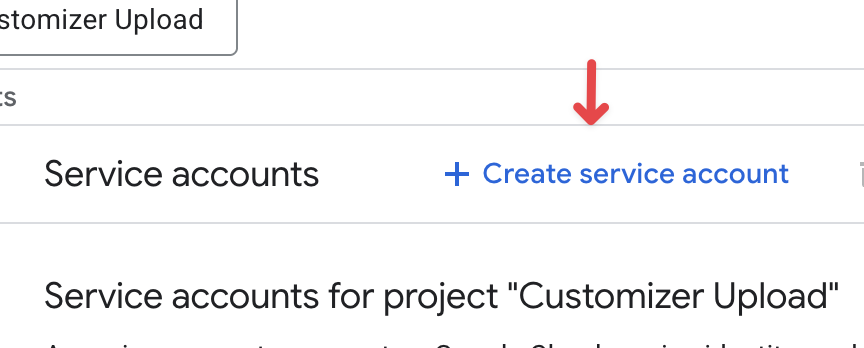
Select Create a service account
-
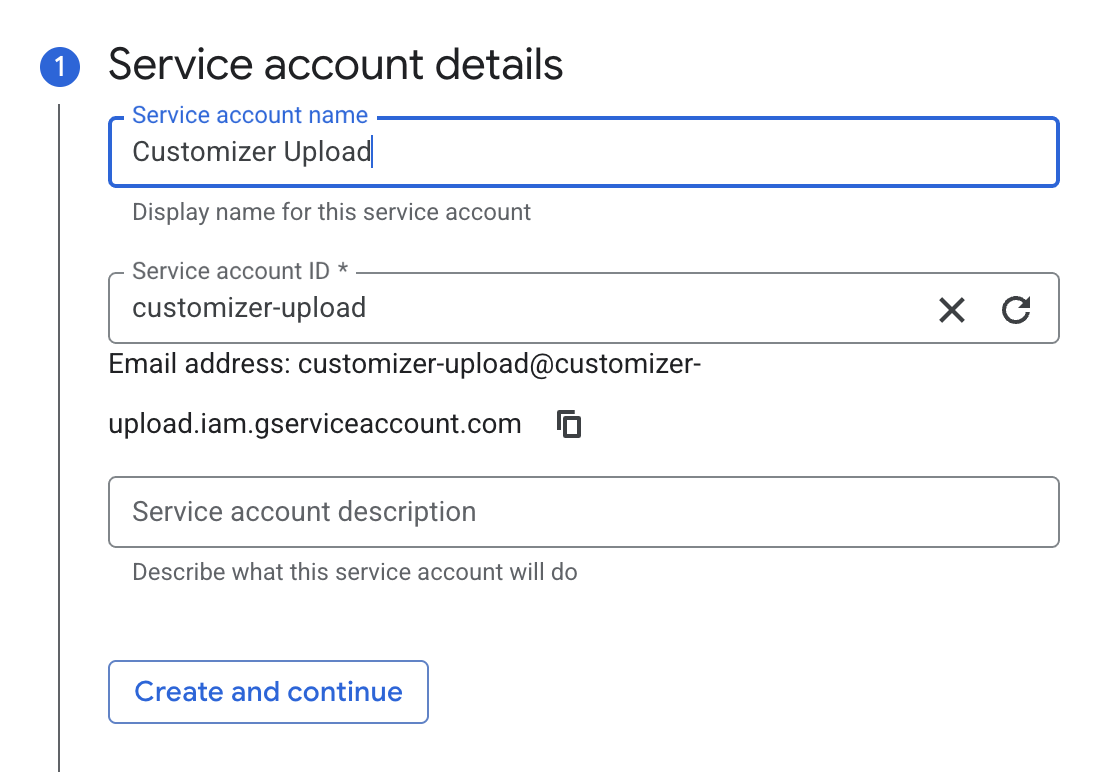
Enter a name and click Continue
-
Skip role assignment
-
Click Done
Capture service key parameters
-
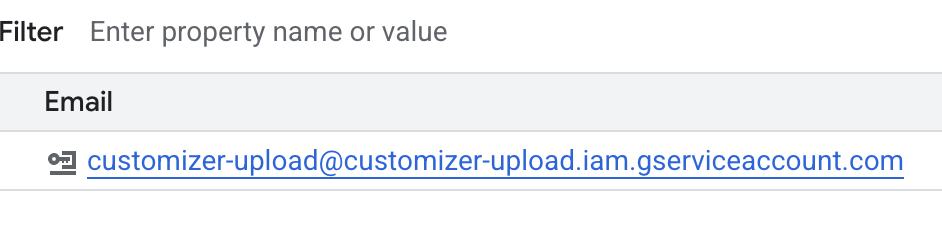
Save the service email
-
Save OAuth 2 Client ID
-
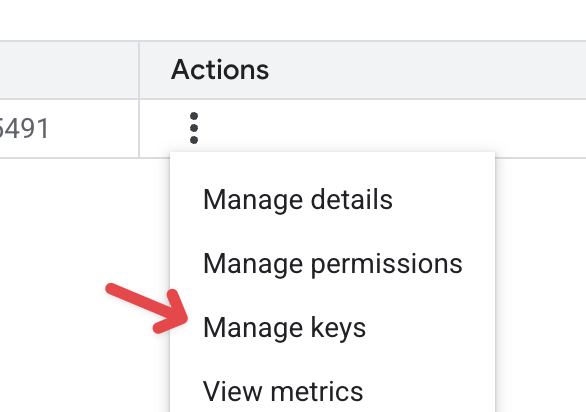
Click into Actions → Manage Keys
-
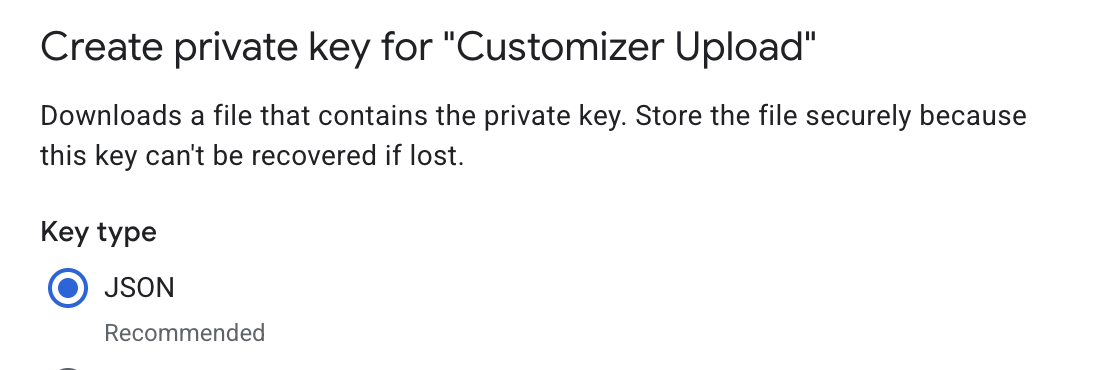
Create a new key in JSON format
-
A key file should download to your computer
Service accounts provide powerful access to your organization resources. Protect the key file and store it securely, or destroy it after uploading to Customizer.
Share the folder
-
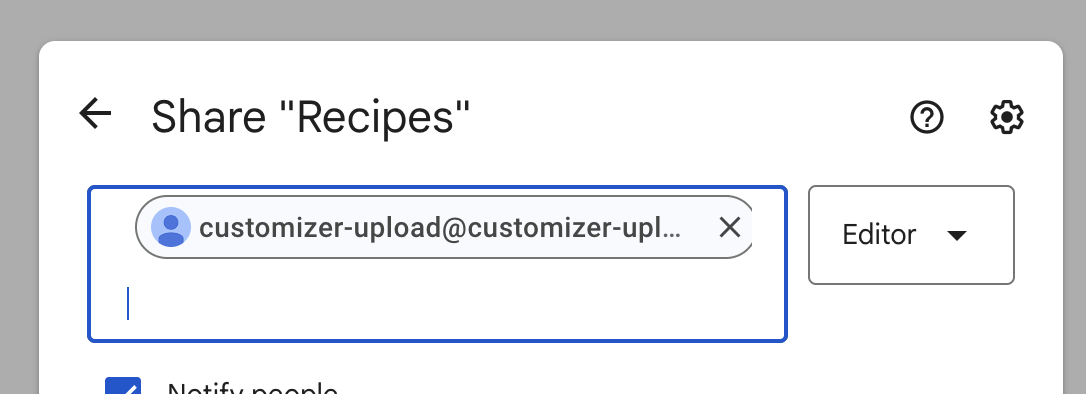
Share the desired destination folder with the service account email
-
Note the folder ID as displayed in the address bar

Configure the integration
-
Open the downloaded JSON file with service account credentials and populate service-account-secret variable.
The value of the secret variable will not be displayed again after saving and reopening the integration.
-
Populate the folder variable