
The Customizer Shopify app can automatically detect new and updated orders and initiate the corresponding integrations. This functionality relies on Shopify’s order webhook subscription feature, which delivers a complete order payload upon order creation or update.
These payloads include user information such as customer names, email addresses, and shipping addresses. As a result, some merchants may have concerns about transmitting personally identifiable information (PII) to third-party systems through these hooks.
The standard Customizer Shopify app utilizes the order tracking API as described in the Tracking orders documentation. While the app provides a convenient and ready-to-use method for enabling order tracking and recipe association, equivalent workflows can also be implemented using the Shopify Flow automation builder.
Caveats
Shopify Flow can be triggered only when an order is created or cancelled. When an order is edited in Shopify Admin—e.g., changing quantities or removing line items—the automation workflow will not be triggered, and some order → recipe information may become outdated. Please ensure the appropriate teams are notified if order changes are made.
Creating a Flow automation
-
Navigate to Shopify admin and click into Flow app
-
Create a new workflow
-
Select a desired trigger — Order Created or Order Cancelled
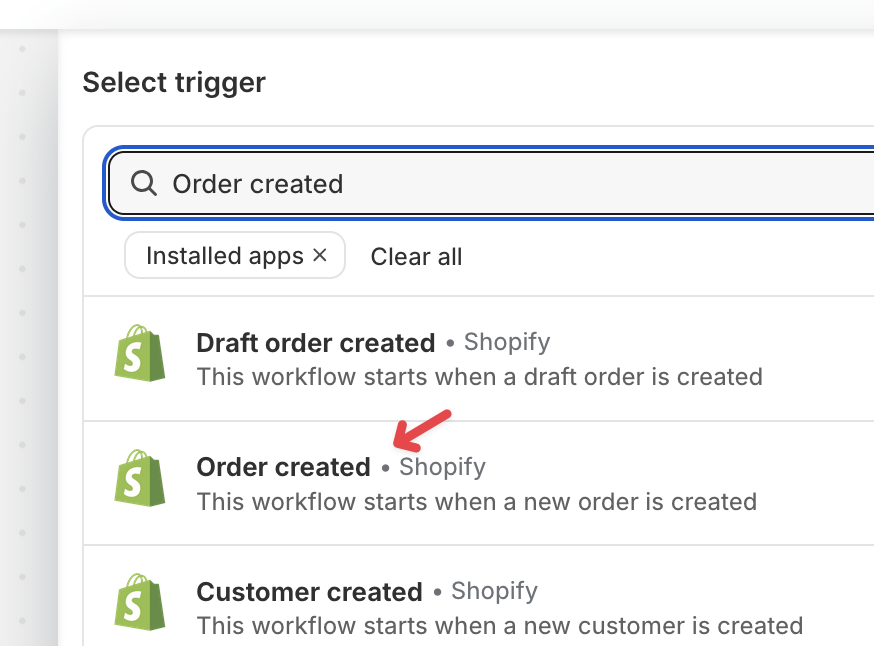
-
Add a new Action
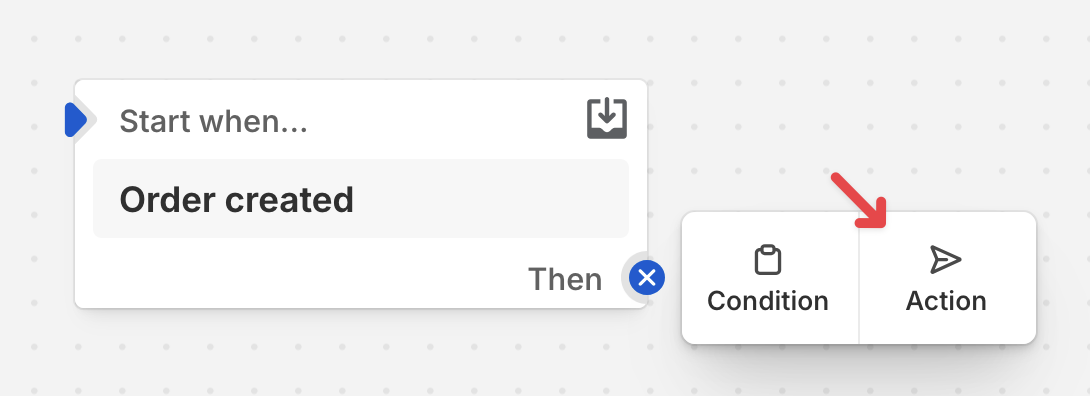
-
And select Sent HTTP Request under Flow category
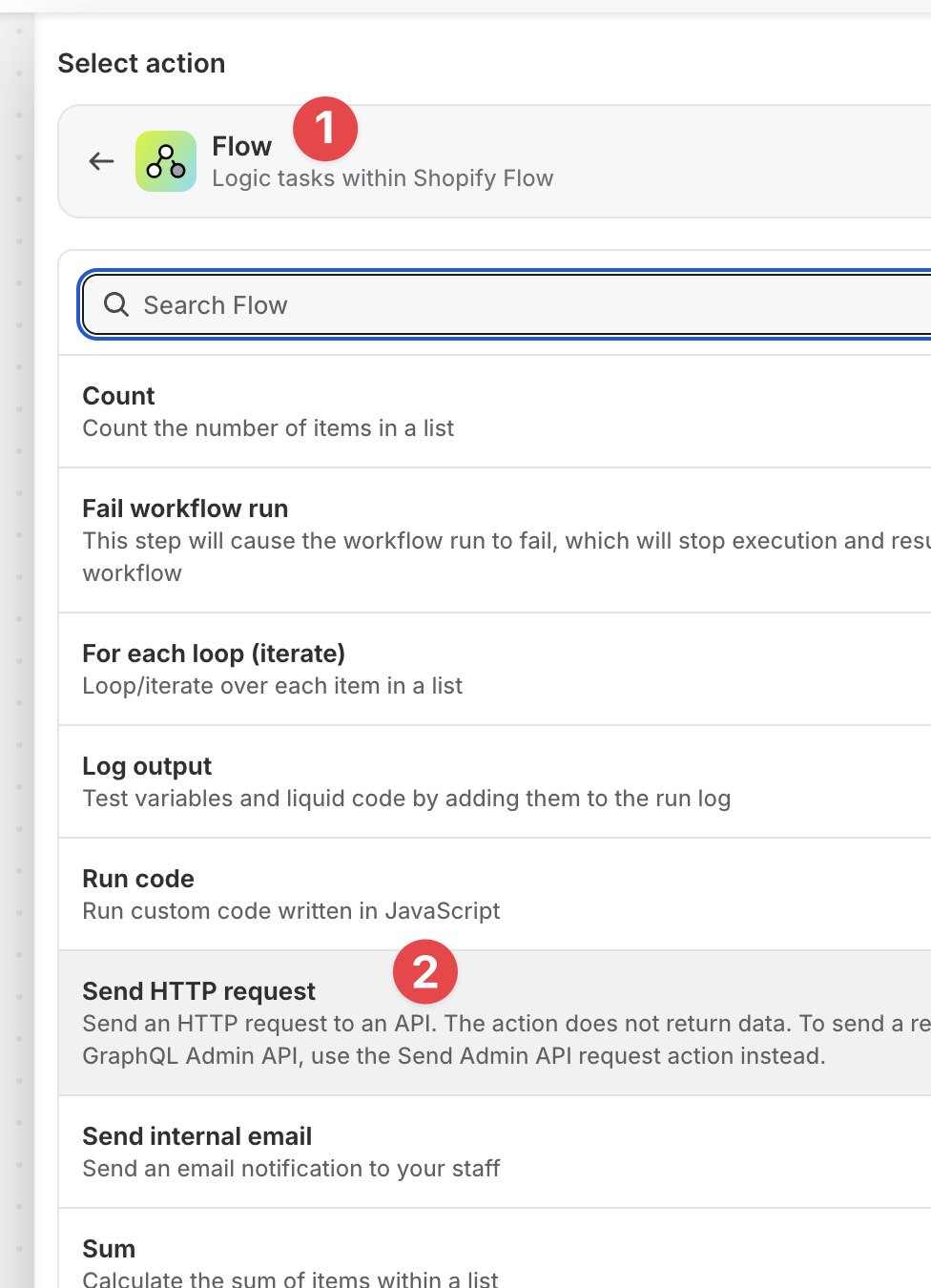
-
Edit the action settings as follows
-
Change the HTTP Method to POST

-
Click Add Variable next to the URL field
-
Select Shop
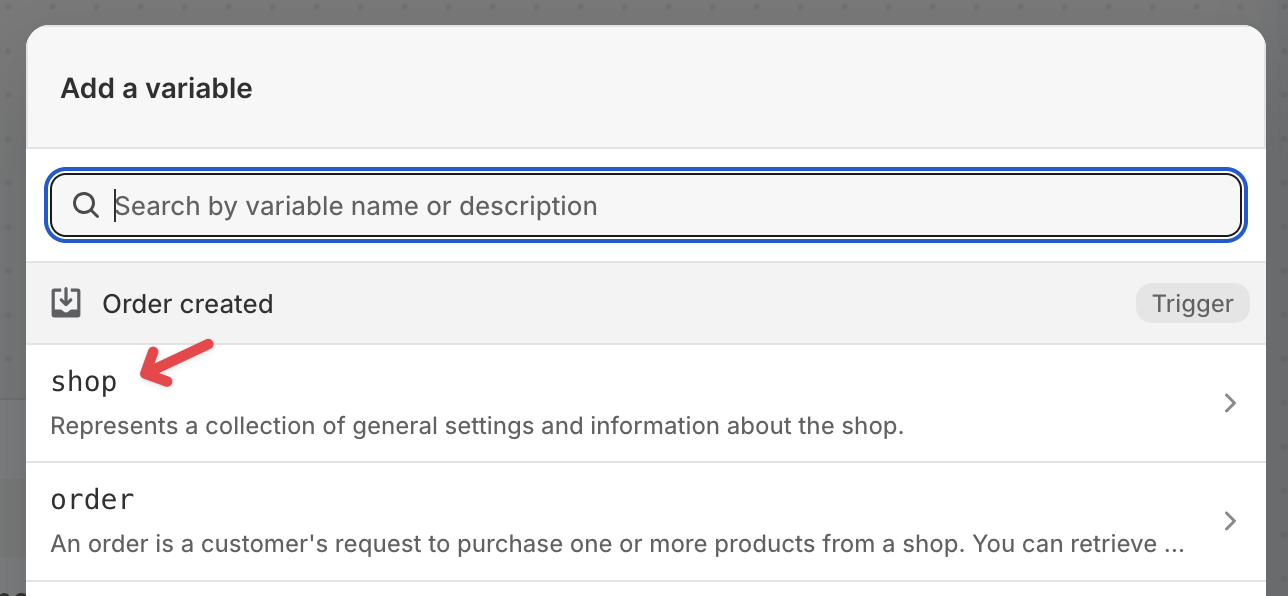
-
Search or scroll down to find and select metafield variable
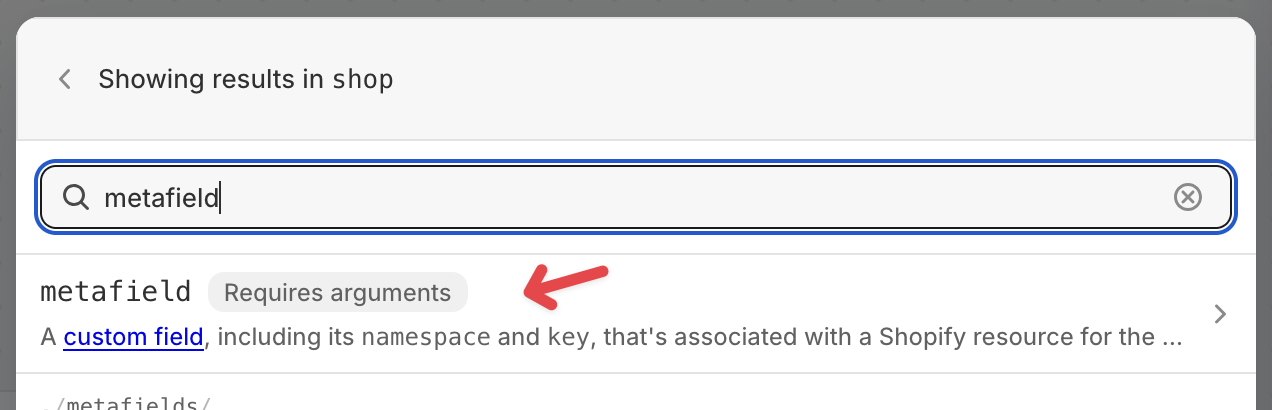
-
Select Use unstructured
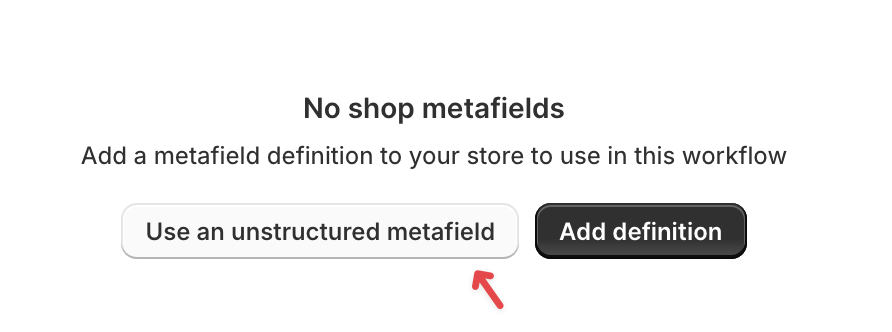
-
Paste the following text as Namespace and key
drive_commerce_settings.primaryRuntimeOrdersKey
-
Leave other settings as-is and select Add
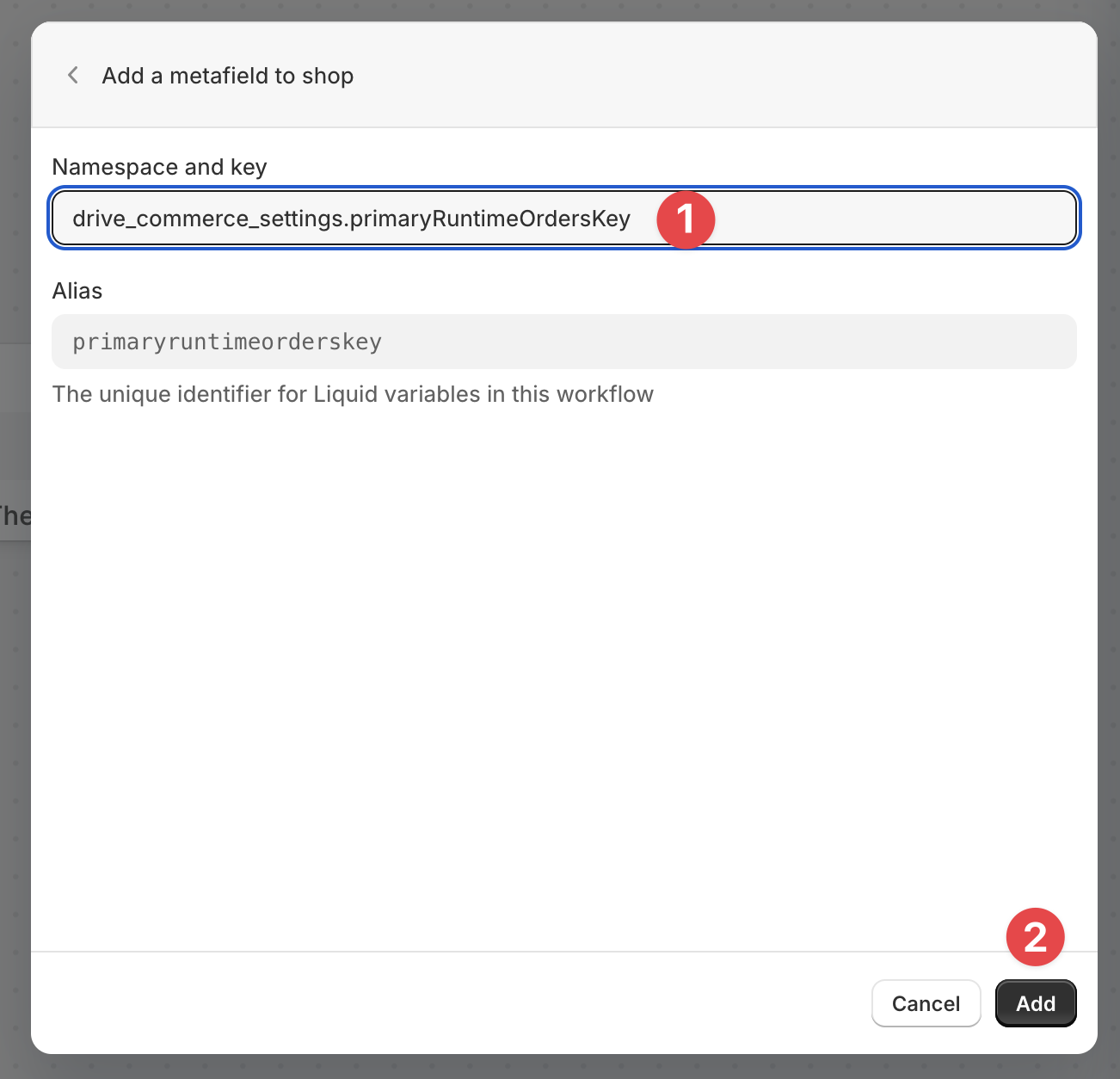
-
On the next screen select value
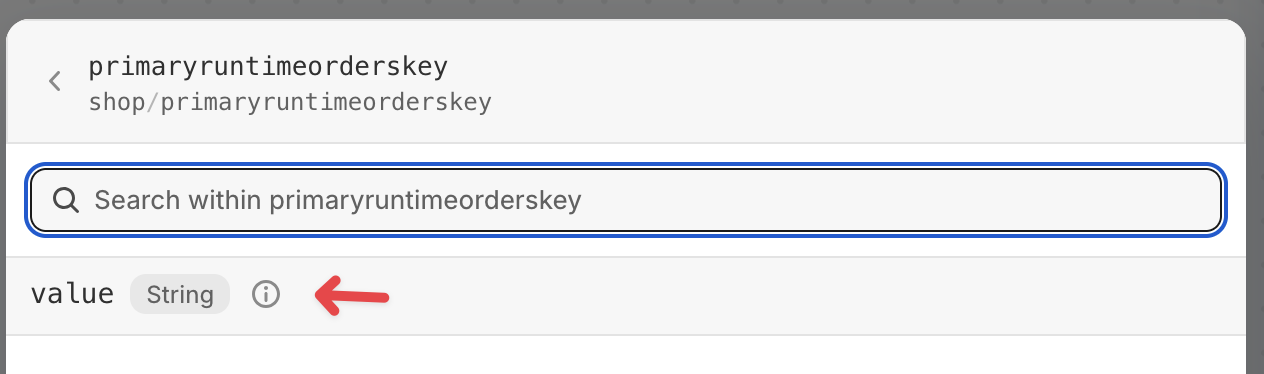
-
The URL field should change to
{{shop.primaryruntimeorderskey.value}} -
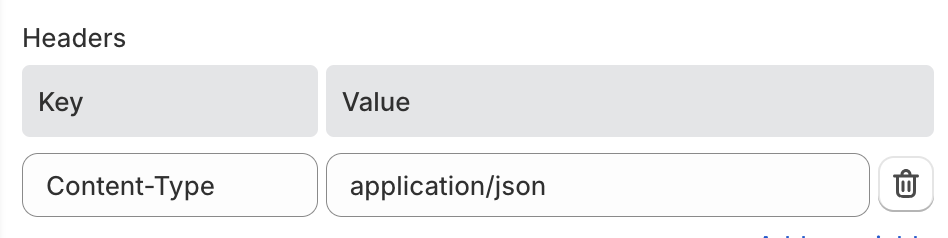
Add Headers setting:
Content-Typewith valueapplication/json
-
Paste the following URL into the URL field:
https://api.customizer.drivecommerce.com/api/v2/recipe/order?apikey={{shop.primaryruntimeorderskey.value}}
-
Paste the following code into the Body field:
{% capture json_body %}
[
  {% assign first_item = true %}
  {% for item in order.lineItems %}
    {% if forloop.first != true and first_item != true %},{% endif %}
    {% assign has_recipe_id = false %}
    {% assign is_primary = false %}
    {% assign recipe_id_value = "" %}

    {% for attribute in item.customAttributes %}
      {% if attribute.key == '_Drive Recipe ID' %}
        {% assign has_recipe_id = true %}
        {% assign recipe_id_value = attribute.value %}
      {% endif %}
      {% if attribute.key == '_Drive Type' and attribute.value == 'Primary' %}
        {% assign is_primary = true %}
      {% endif %}
    {% endfor %}

    {% if has_recipe_id == true and is_primary == true %}
      {% assign order_id_str = order.id | remove: 'gid://shopify/Order/' %}
      {% assign item_id_str = item.id | remove: 'gid://shopify/LineItem/' %}
      {% assign order_number_clean = order.name | remove_first: '#' %}
      {
        "recipeId": {{ recipe_id_value | json }},
        "orderNumber": {{ order_number_clean | json }},
        "orderId": {{ order_id_str | json }},
        "itemId": {{ item_id_str | json }},
        "itemQuantity": {{ item.quantity }}
      }
      {% assign first_item = false %}
    {% endif %}
  {% endfor %}
]
{% endcapture %}
{{ json_body }}
-
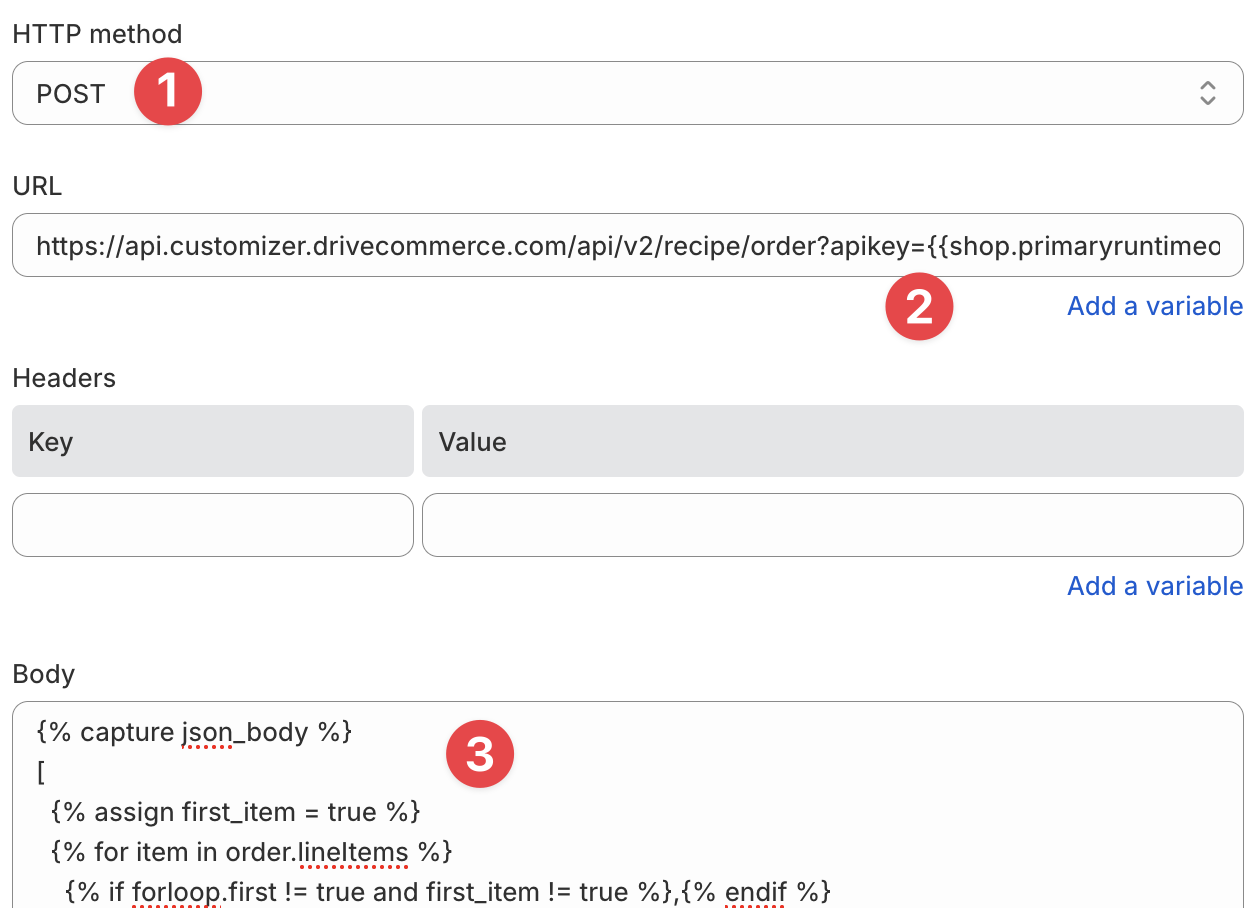
Double-check settings:
-
POST http method
-
URL that points to Customizer and uses the variable
-
Body with the template code
-
-
Save and activate the workflow
Creating additional automations
The automation flow created on the previous set is triggered when an order is created. It is recommended to create additional automation to trigger when the order is cancelled.
Follow the previously described steps to create a flow; however, change the HTTP method to DELETE:
