While batches can be created manually or via ETL, editing them inside Customizer Admin is most convenient when starting with an existing object rather than creating one from scratch. Many customization metadata objects can be exported as batches, including:
-
Placements
-
Component options
-
Products and versions
Exporting placements
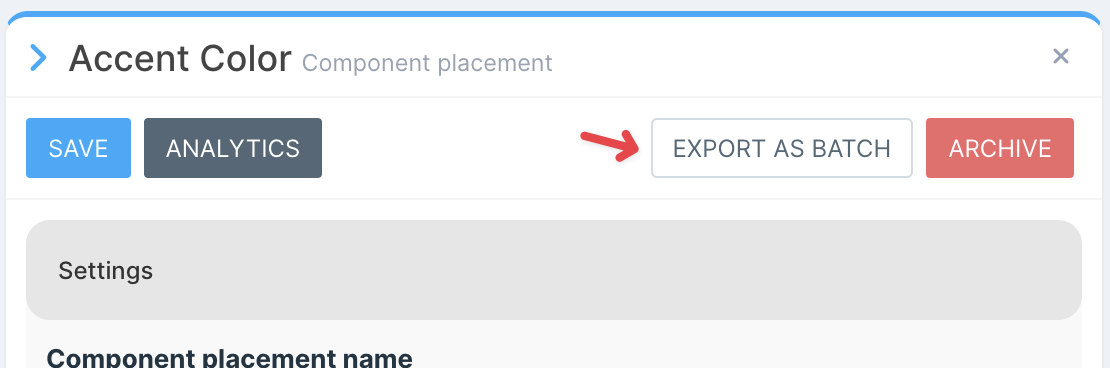
To export a single placement, navigate to the placement in the Customizer Admin editor and select Export as Batch.
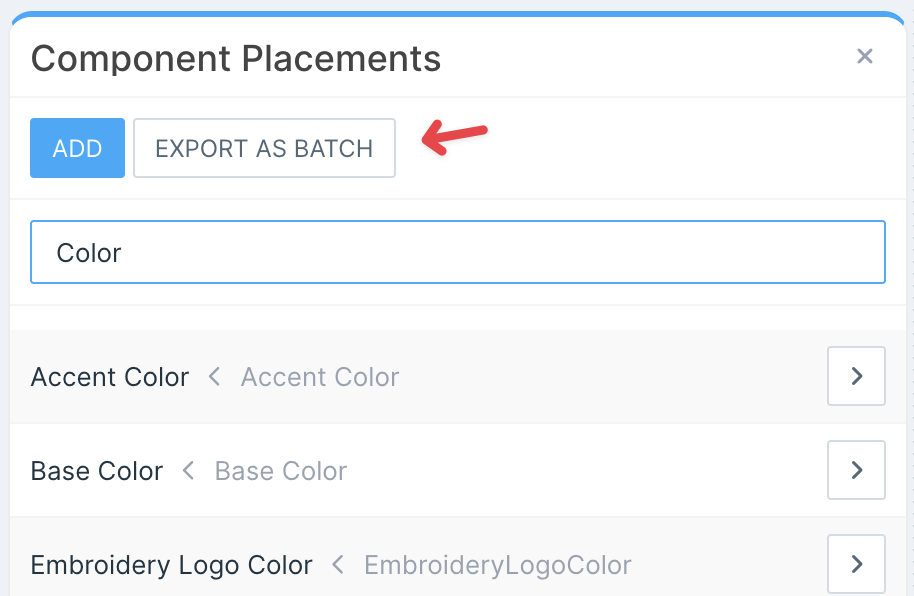
Multiple placements can be exported by opening the Component Placement list, applying a filter, and then clicking Export as Batch. Note that a filter must be applied for the export option to become available.
Exporting component options
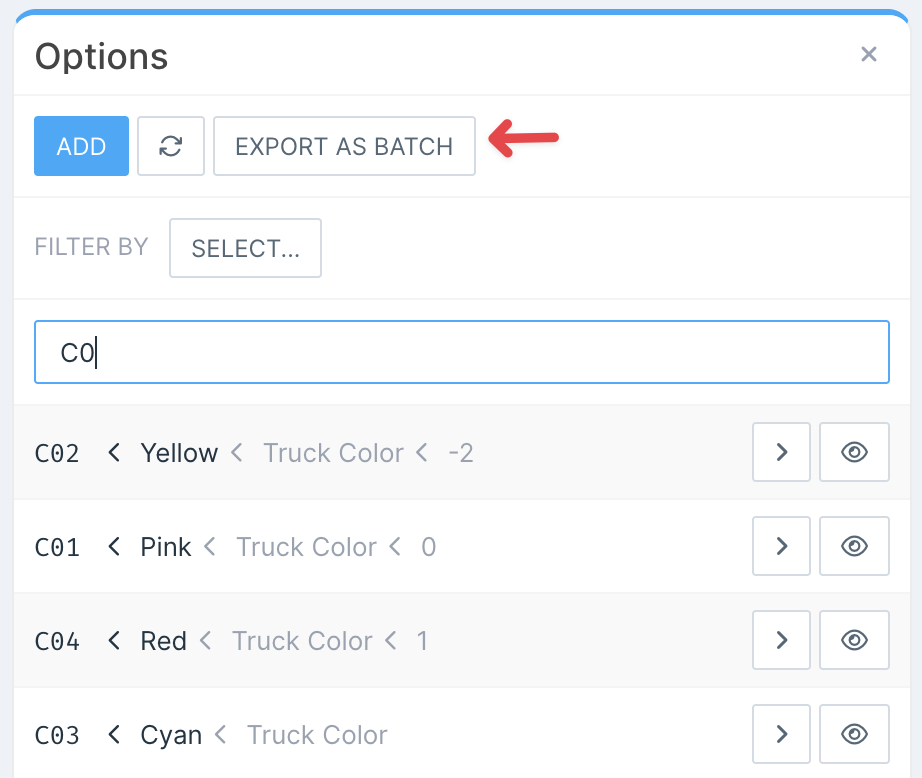
Similarly, component options can be exported individually by opening a specific option in the editor or in bulk from the list of all options. Note that a filter must be applied to enable the bulk export option.
Exporting products
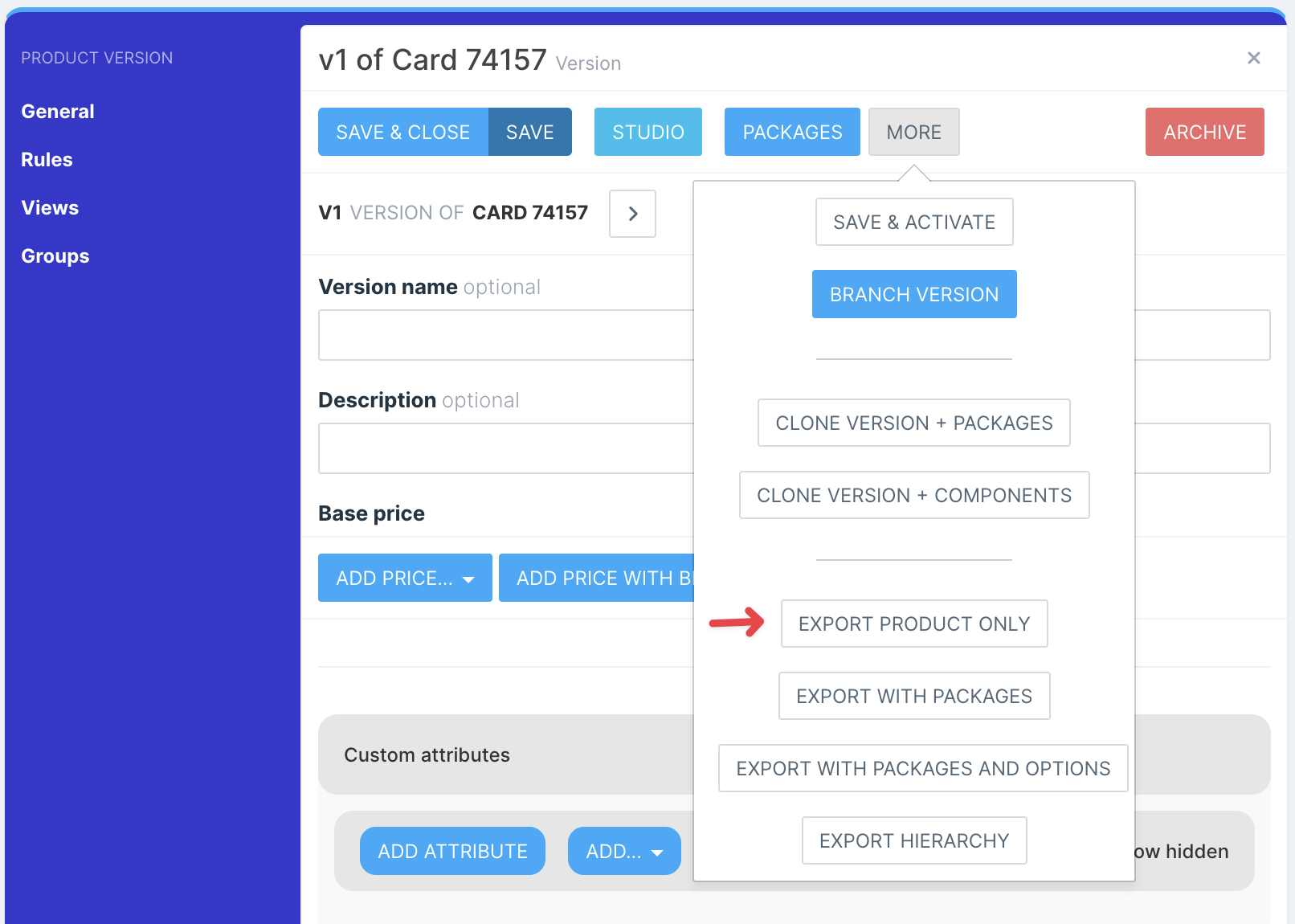
To export a product, navigate to a product version and select the desired option from the More menu dropdown.
Products have several export modes:
Export product only
Exports only the base product definition along with direct product and version attributes such as name, style codes, and custom attributes. This export mode is most useful for making edits to the product itself, such as adding or removing product tags or attributes.
Export with packages
Includes everything from the Export Product Only option but also exports product packages—meaning that component option-to-product assignments are included. However, this method does not copy the component options themselves. If the target environment does not already contain the required component options, importing the batch will fail. This is particularly relevant when copying a batch to another workspace.
Export with packages and options
Includes everything from Export with Packages and also copies the component options themselves. This ensures that option assignments reference valid component options, preserving all option settings.
Export Hierarchy
The most comprehensive export mode, this option includes everything related to the product—definitions, options, placements, and more. If the product has parent products, they will be copied in their entirety as well.