
Overlay images are applied to the current image layer directly, before the layer is composited onto the canvas, meaning that the overlay is only applied to the opaque areas of the layer.
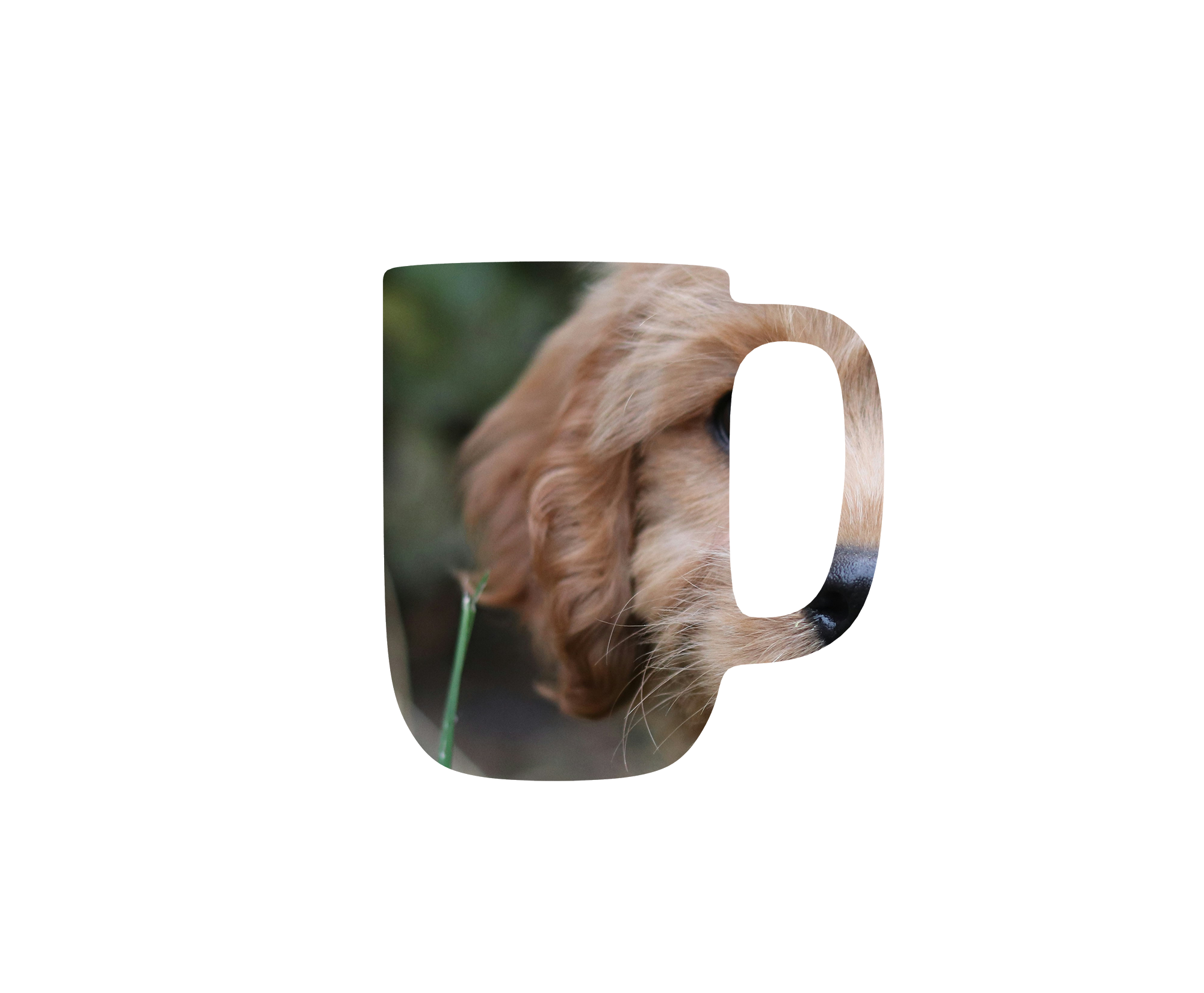
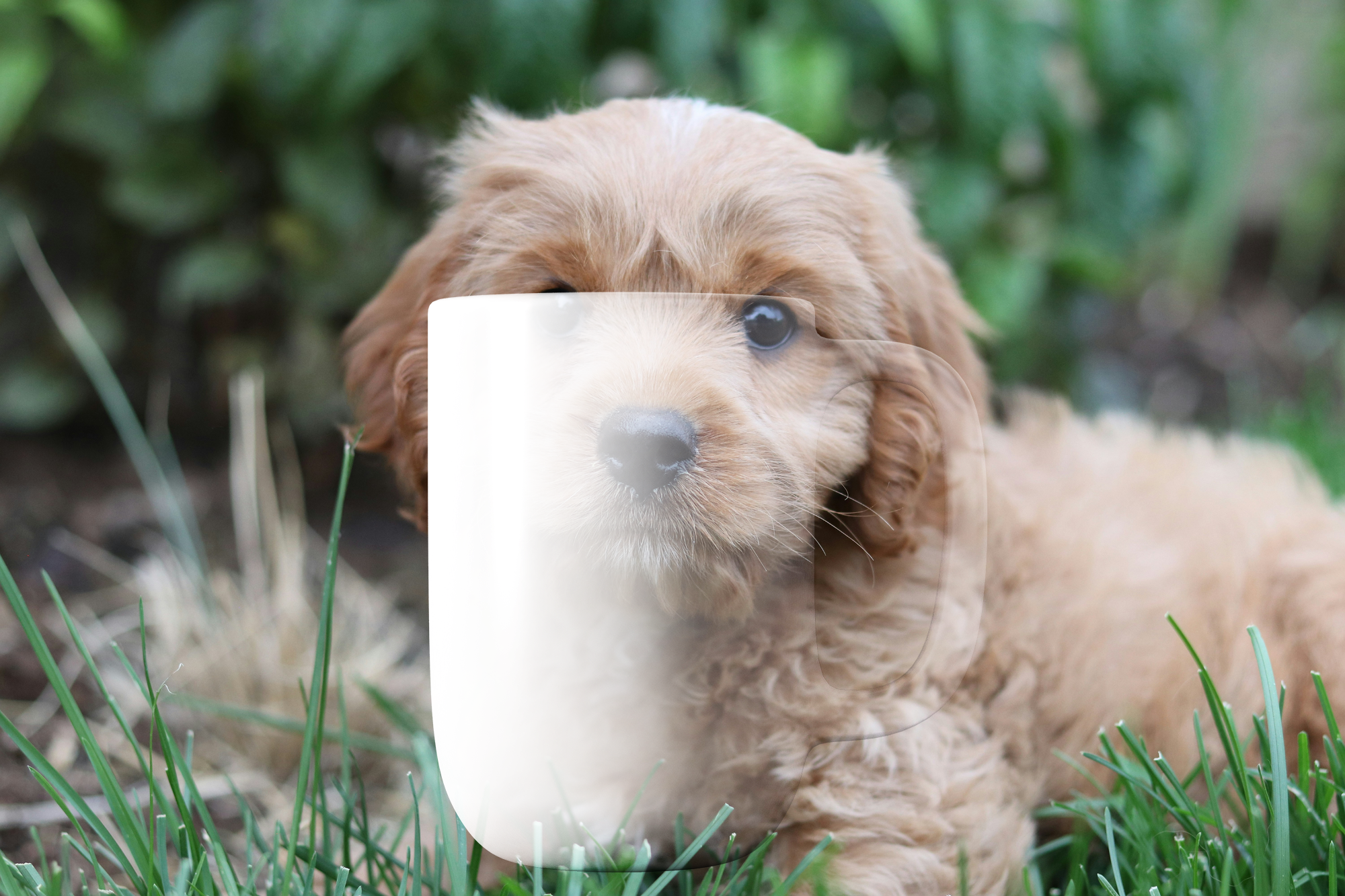
In the simplest form, overlays are simply displayed on top of the image:
https://fx.images.drivecommerce.com/api/v1/drive/image/?layer&src=dog&sz=2000,1650&over=coffee

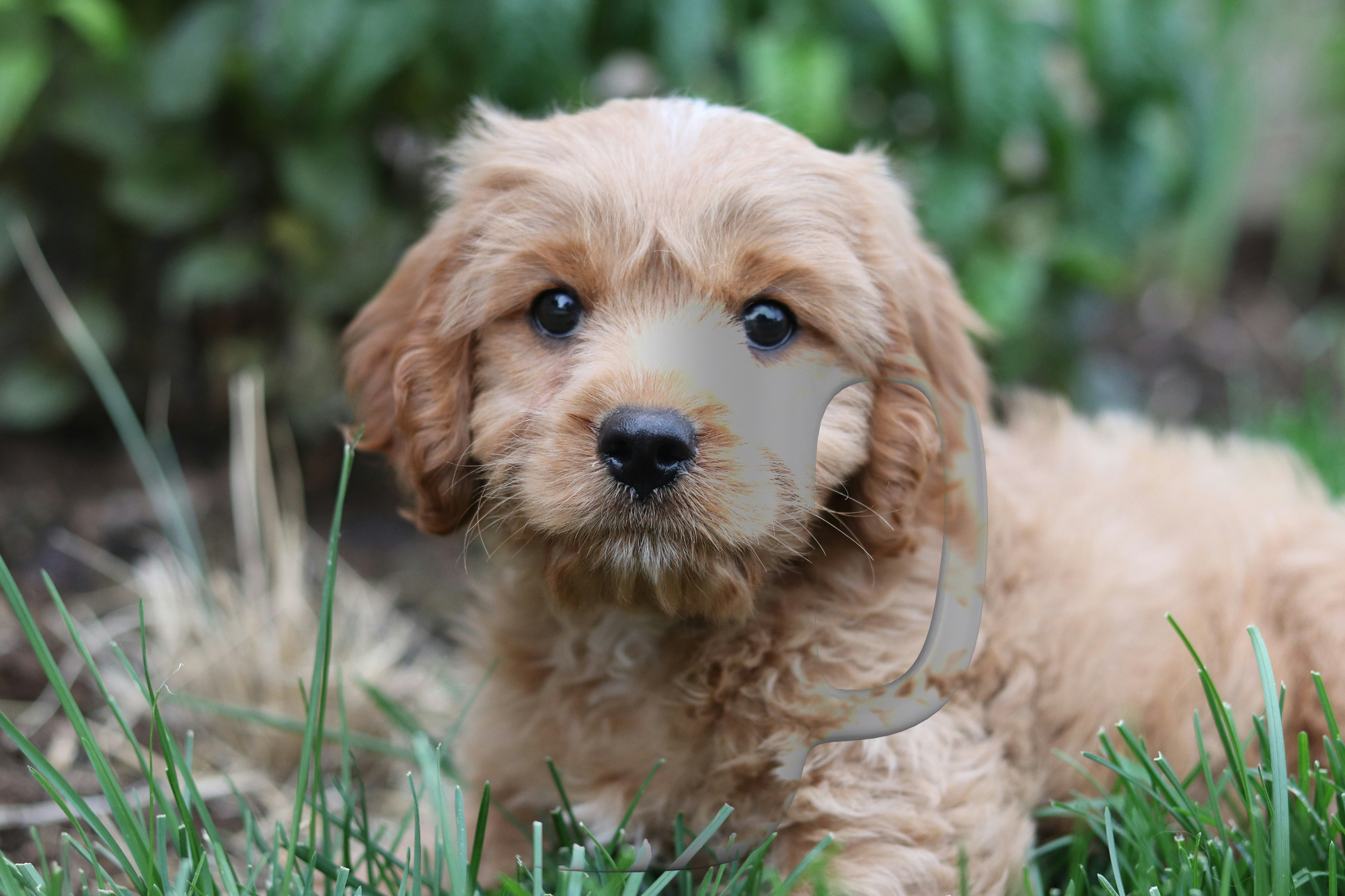
Overlays retain the underlying image transparency. For example, swapping the dog and the coffee mug images in the previous example:
https://fx.images.drivecommerce.com/api/v1/drive/image/?layer&src=coffee&sz=2000,1650&over=dog
Overlay color
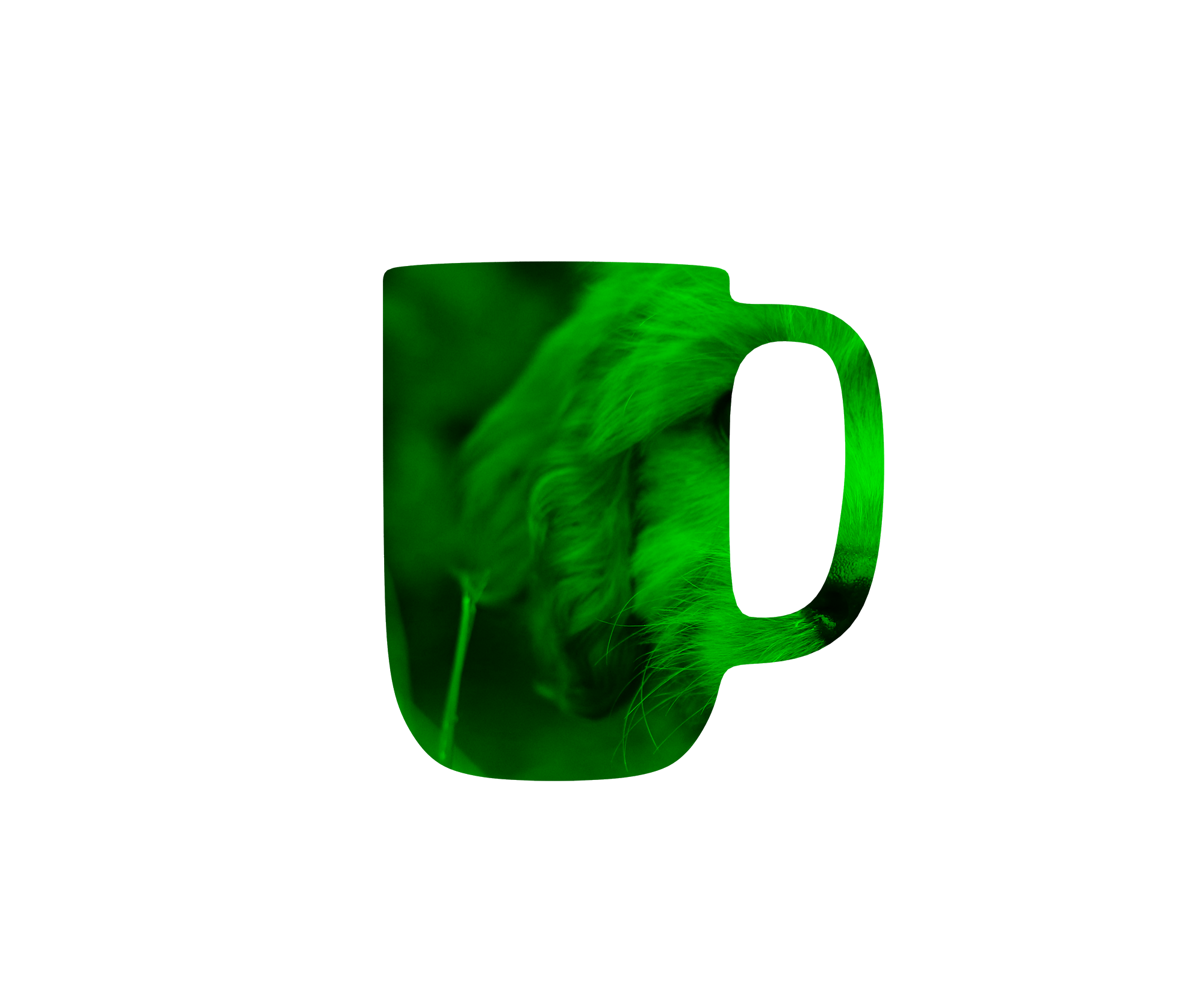
If overcolr parameter is specified, the overlay image will be colored first by multiplying every pixel of the overlay image by the color reference:
For example:
Overlay blending
While the default application of overlays simply renders one image on top of another, a more practical real-life usage is to use blending modes, controlled by overblnd parameter. Blending modes allow to choose how pixels of an overlay image are merged with the underlying image.
The blending parameter supports the typical Porter-Duff operators, including some additional special modes.
|
Operation |
Example result |
|---|---|
|
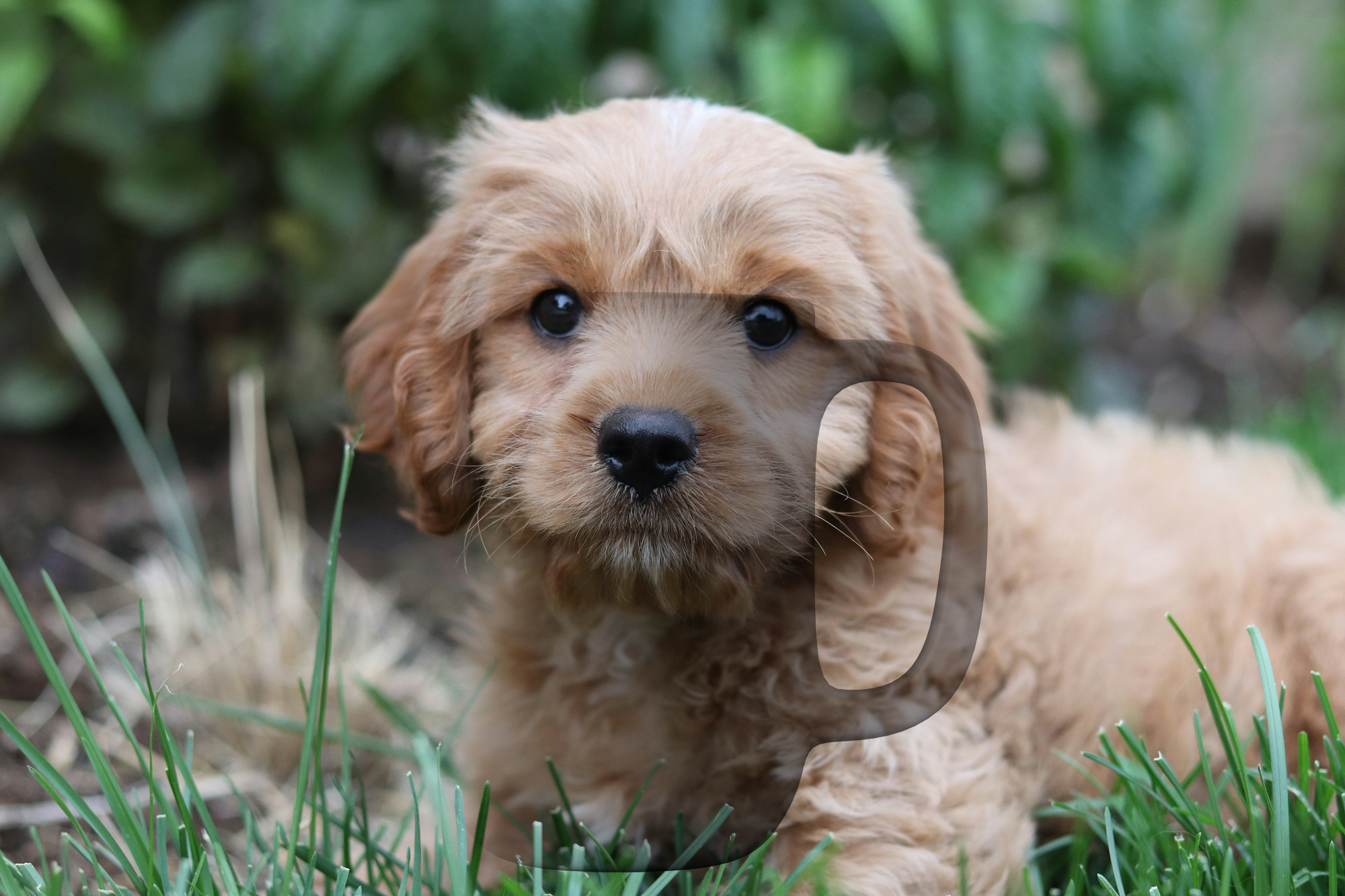
Pixels of the overlay are multiplied with the underlying image |
|
|
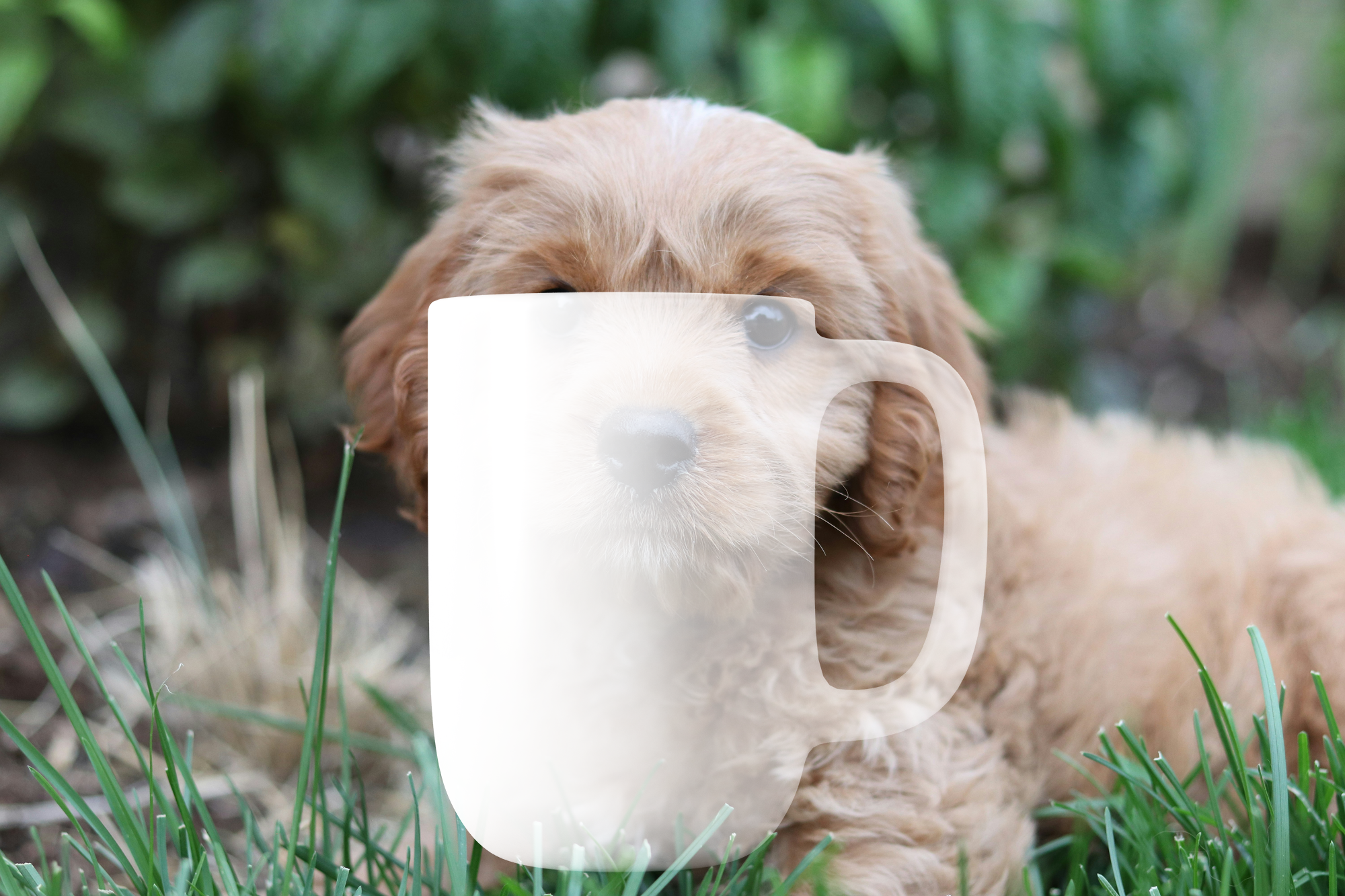
Pixels of the overlay are added to the underlying image |
|
|
If pixel of the overlay image has the brightness over 128 (half of the range), the pixel is added to the target image, otherwise it is multiplied with the target image. This mode essentially applies highlights and shadows in one step
|
|
|
Apply a darkening or lightening effect to the image |
|
|
Apply a specific aspect of the overlay image to the target. |
|
Example: Transparent areas masking for digital printing
Overlays can be used to implement a variety of effects and use cases. For example, some Digital Printing software may require that production images be delivered in a format that does not include a transparency channel:
-
All transparent pixels must be converted to pure-white color
-
All non-transparent white areas are to be adjusted to be slightly off-white
Such requirements can be implemented by combining a canvas background color command with an overlay:
-
bgccommand is used to setffffffbackground color -
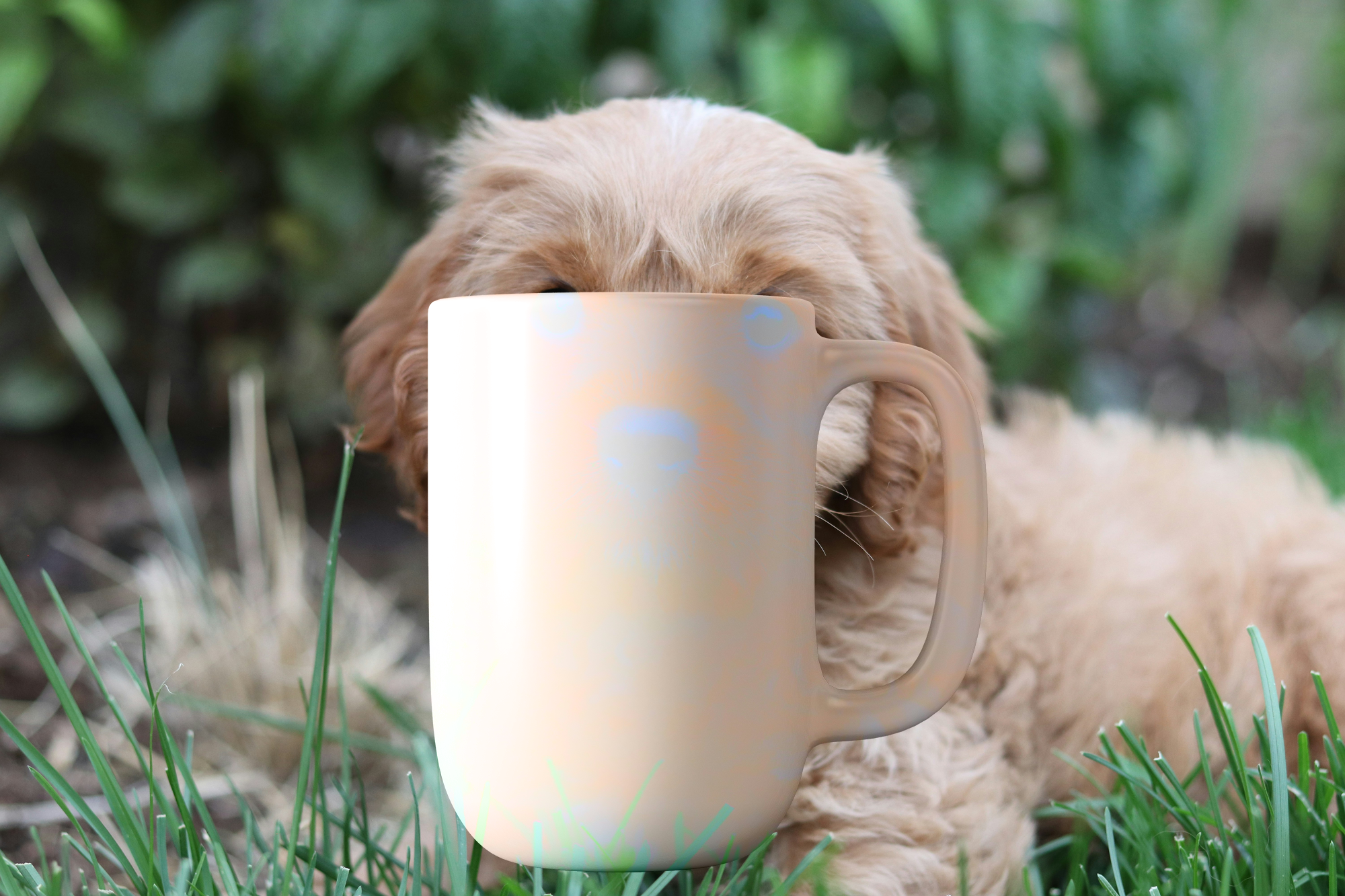
overoverlay image is set to produce a slightly off-white color image, for example, a slightly yellow color:BOX<width>X<height>CFFFFFCFF -
overblndis set tomultiplyto colorize the desired image
Combining the above: https://fx.images.drivecommerce.com/api/v1/drive/image/?layer&src=coffee&over=BOX2000X1650CFFFFFCFF&overblnd=multiply&bgc=ffffff