
Prepare images for upload
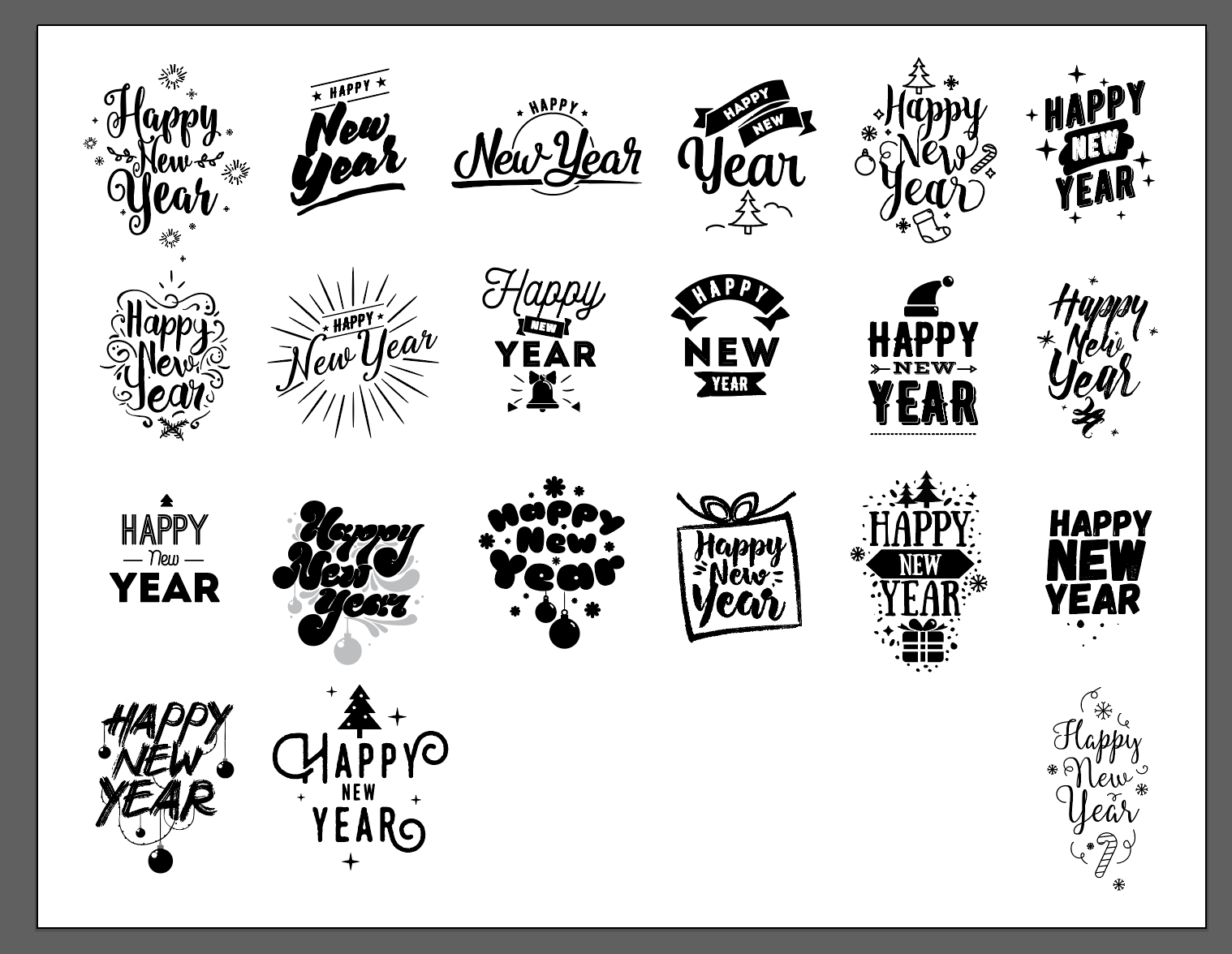
In order to upload assets to the customizer gallery, the images must be first separated into individual files. Typically, this comes up when receiving stock images from an asset library:
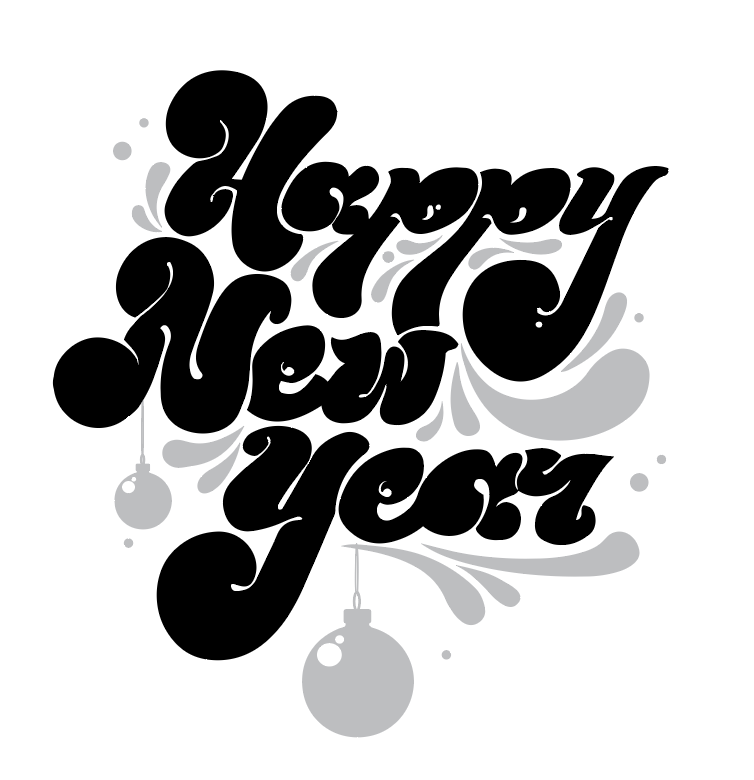
Some assets may be applicable only to a specific personalization type. For example, laser engraving files typically require a pure black/white image asset without halftones. An image like the one below would need to be avoided when setting up laser engraving:
Depending on the type of the source file, the preparation flow may differ.
Using Adobe Illustrator
-
Open the file in Illustrator
-
Select the desired icon (which may be multiple vectors) and Group them together
-
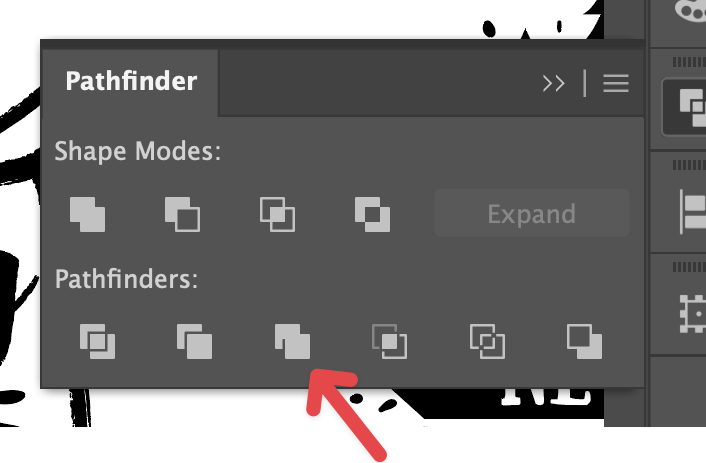
Using Pathfinder panel, use Merge tool to flatten the design:
-
Make sure that the tool have not introduced any artifacts
-
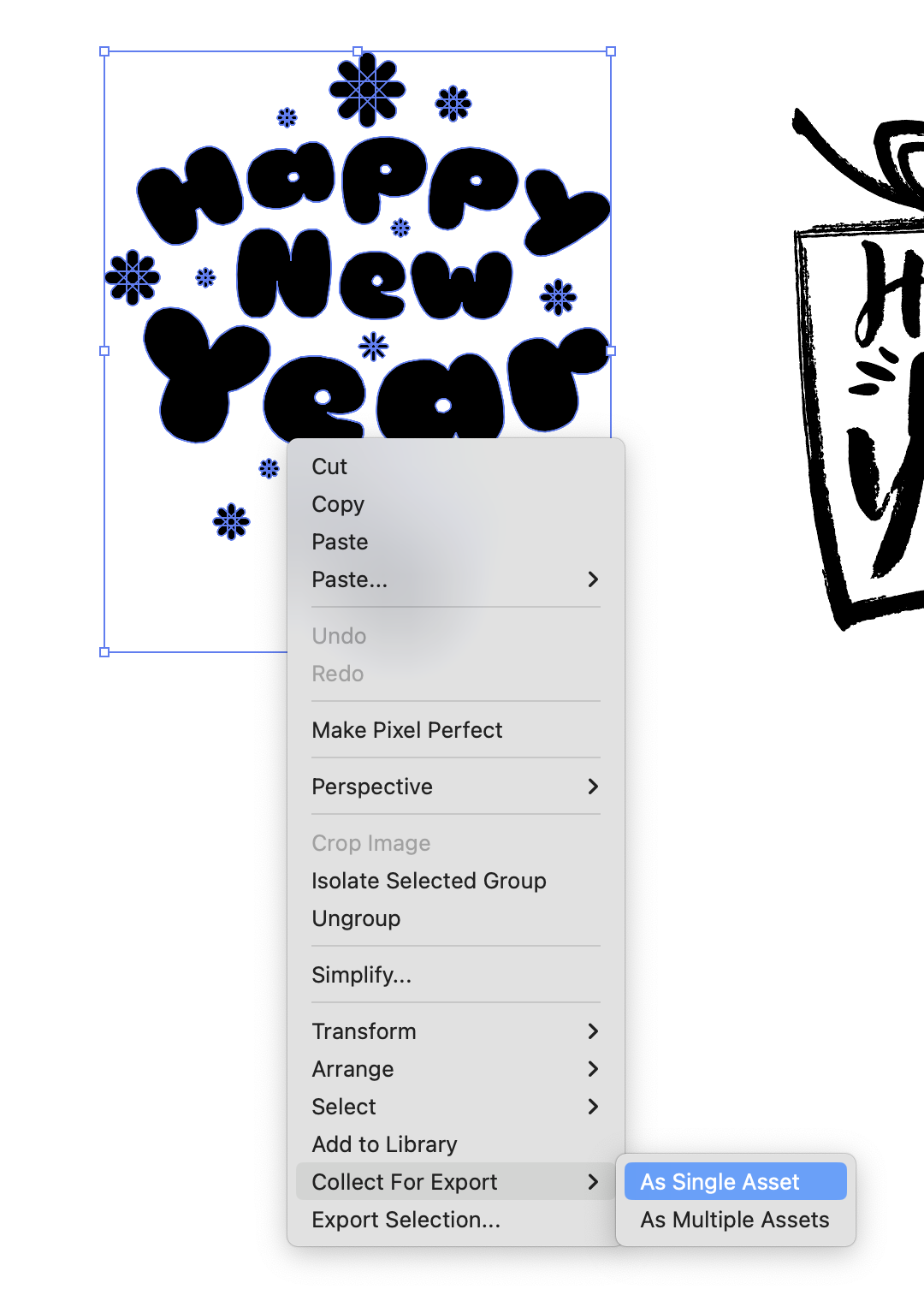
Add the selected group to Assets panel
-
Either drag the group the panel
-
Or right click on the group and click Collect for Export → As Single Asset
-
-
Using the Assets panel, set up the desired export format
-
For Illustrator assets, that would typically be SVG
-
-
Select all collected assets and Export