
Navigating to the gallery
To open the gallery management panel, navigate to the product that is designated for holding gallery options, and select Manage Gallery option from the More menu.
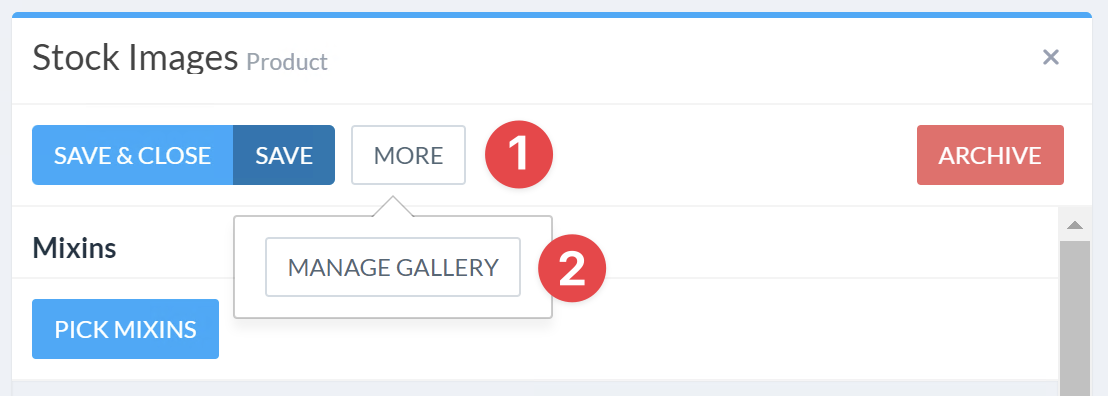
Gallery overview
Main and category list view
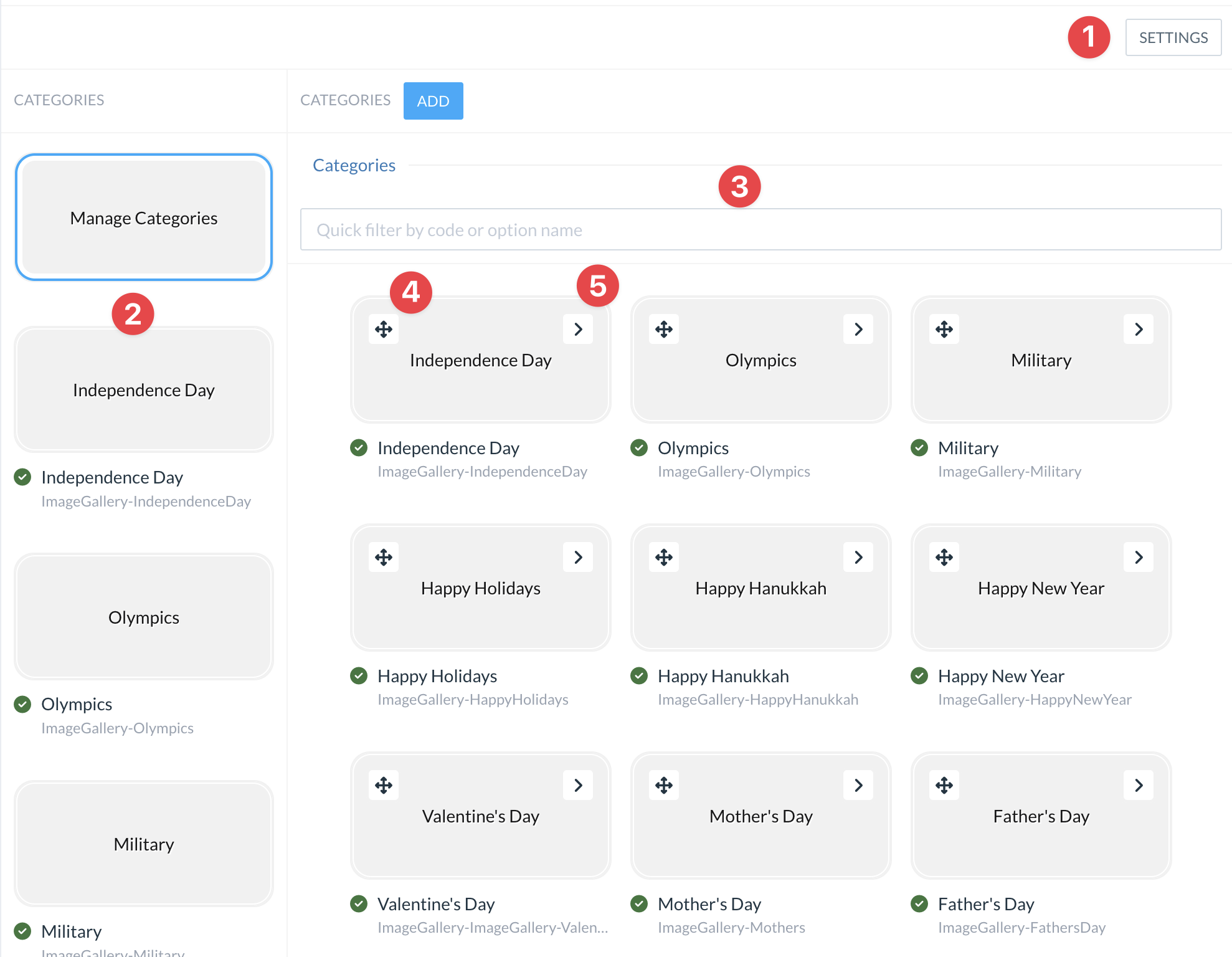
After the gallery management UI is loaded, the user is presented with the category management screen:
-
Settings mode button
-
Categories list
-
Click on a category tile to view category contents
-
-
Category detailed list. The details list includes category cover images, name, and the enabled or disabled status.
-
Order modification drag handle. Move categories in the desired order and confirm the choice then done
-
Category items view. Similar to the category item selection in the left column, it allows to view the category contents.
Adding a new category
In order to create a new category, click Add button and fill in the category details.
Editing category details
Click on the category tile in the category list to view the details.
Category items view
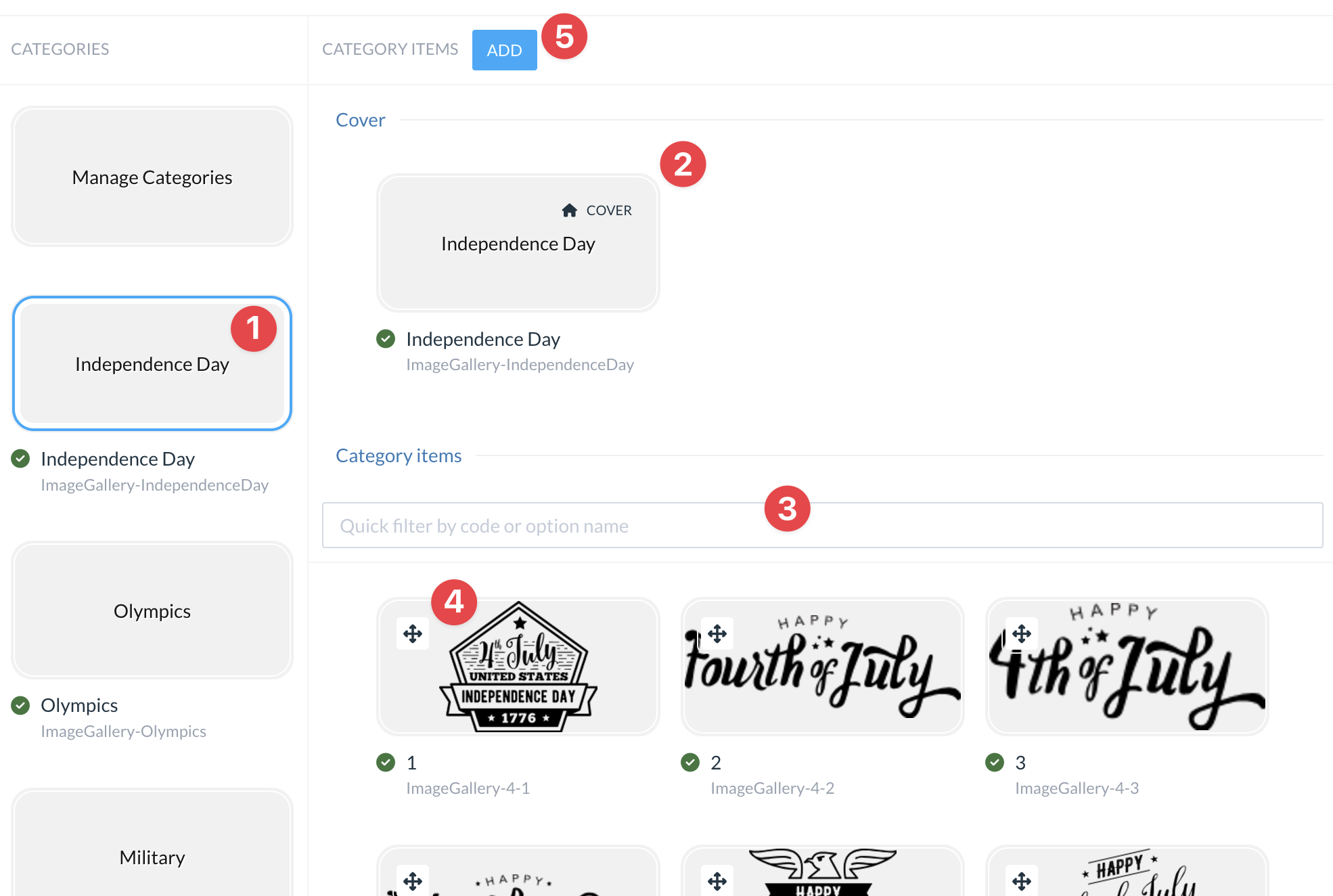
Items view will be displayed after selecting the category details:
-
Selected category
-
Selected category cover page
-
Items list with item details
-
Items order drag handle
-
New item trigger.