
Patterns
Pattern filters repeat a single image layer many times across its canvas. Two filters are available:
-
gridfills the whole canvas with an all-over pattern, such as a straight grid, a brick layout or a honeycomb. -
bordplaces the copies along the edges of the canvas to produce a border or a wreath.
Both are filter commands and are enabled using the fx command, see Filter options.
The canvas in question is the canvas the layer is rendered into: either the main image canvas or, if the layer belongs to a group, the group canvas. To fill a masked product area, such as a phone case, render the pattern layer into a group of the desired size and apply the mask to the group, see Group options.
Size and spacing
All copies of a pattern share the same size. The canvas is divided into square slots, one per copy, and every copy is centered in its slot.
-
ssets the slot size as a fraction of the shorter side of the canvas, sos:0.25places four slots across the shorter side. The default value is0.2. The value is limited to the range between 0.02 and 2. -
gsets how many times the copy fits into its slot. The image is scaled so that its longer side equals the slot divided byg, while its proportions are preserved. Withg:1the copies touch, withg:2each copy takes up half of its slot and the rest is empty. The default value is1.3.
Because both values are relative to the canvas, the same pattern definition produces a consistent look on canvases of different resolutions, and the number of copies across does not change with g.
Grid pattern (grid)
Grid pattern arranges the copies on a regular lattice that is symmetric about the canvas center. The number of copies across is the number of slots that fit across the canvas, rounded to the nearest whole number. With an odd count one copy sits on the center; with an even count the copies straddle the center instead, so that a canvas two slots wide shows two whole copies rather than one whole copy and two halves. Rows follow the same rule. Copies that cross the canvas edge are clipped.
For example: fx=grid(s:0.2)
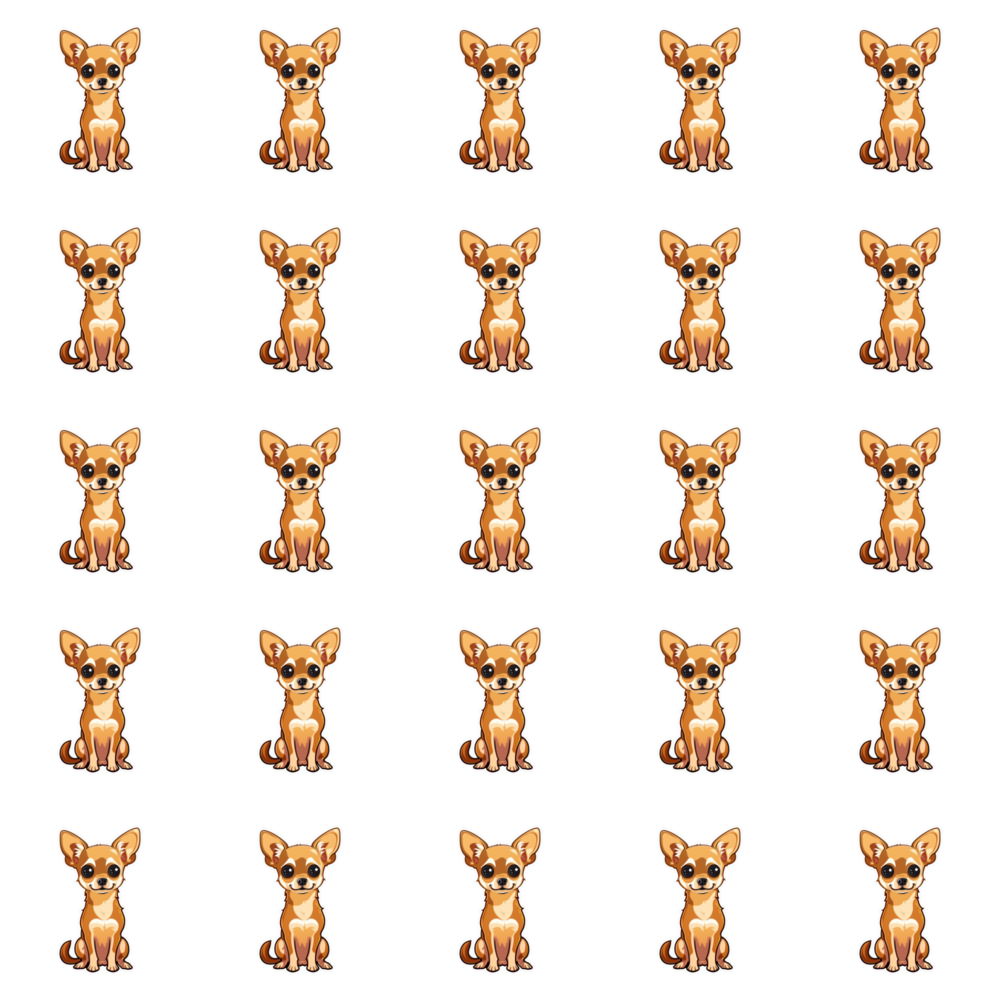
Spacing (g, sx, sy)
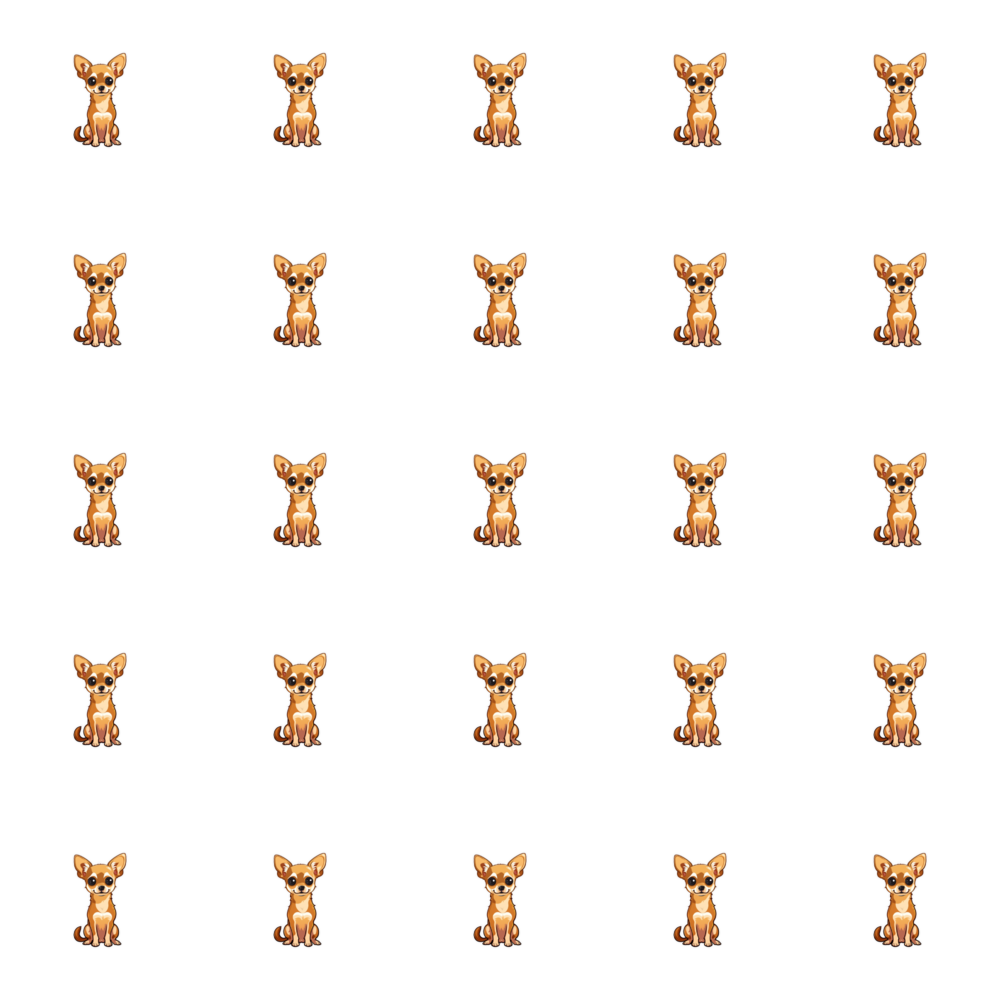
The same slots with smaller copies in them: fx=grid(s:0.2;g:2)
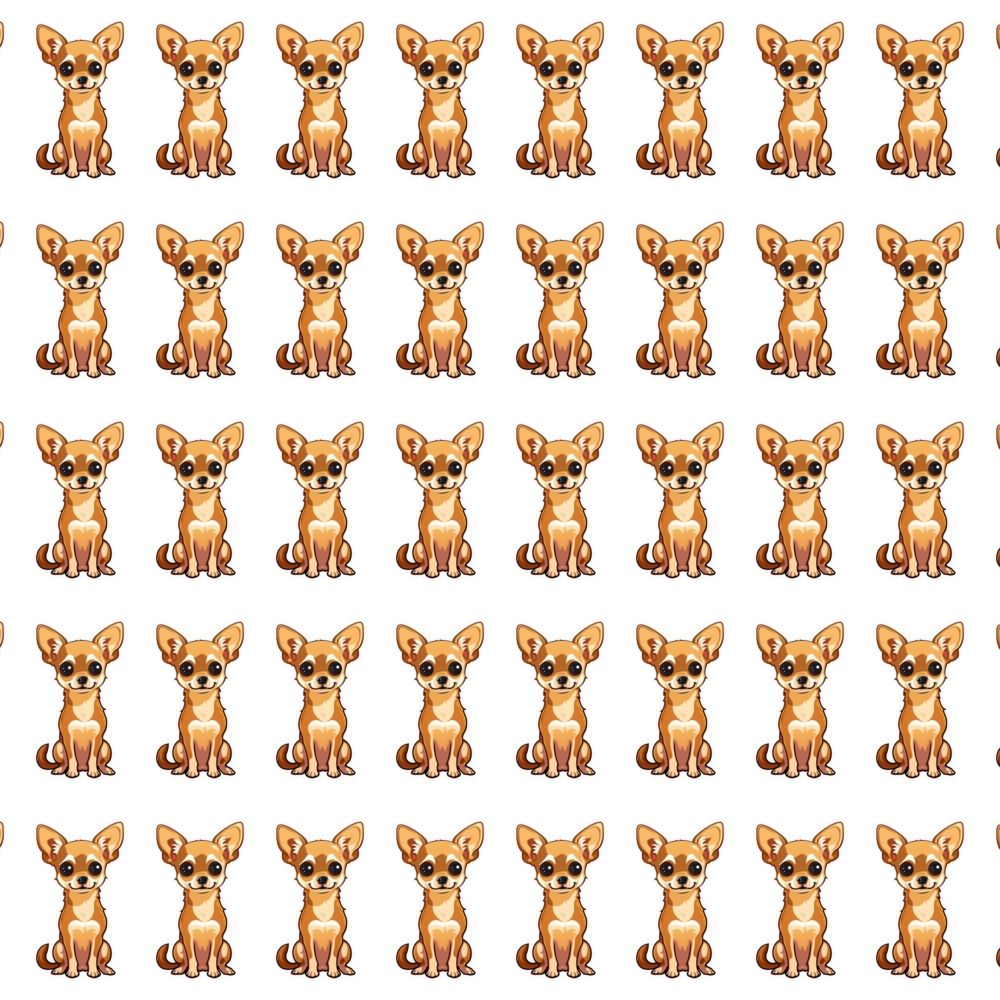
Slot width and height can differ. sx and sy multiply the slot size along one axis, so sx:0.6 packs the columns closer together while the rows keep their spacing: fx=grid(s:0.2;g:1.2;sx:0.6)
Layouts (t)
The t parameter selects one of the common repeat layouts:
-
grid— straight rows and columns, the default -
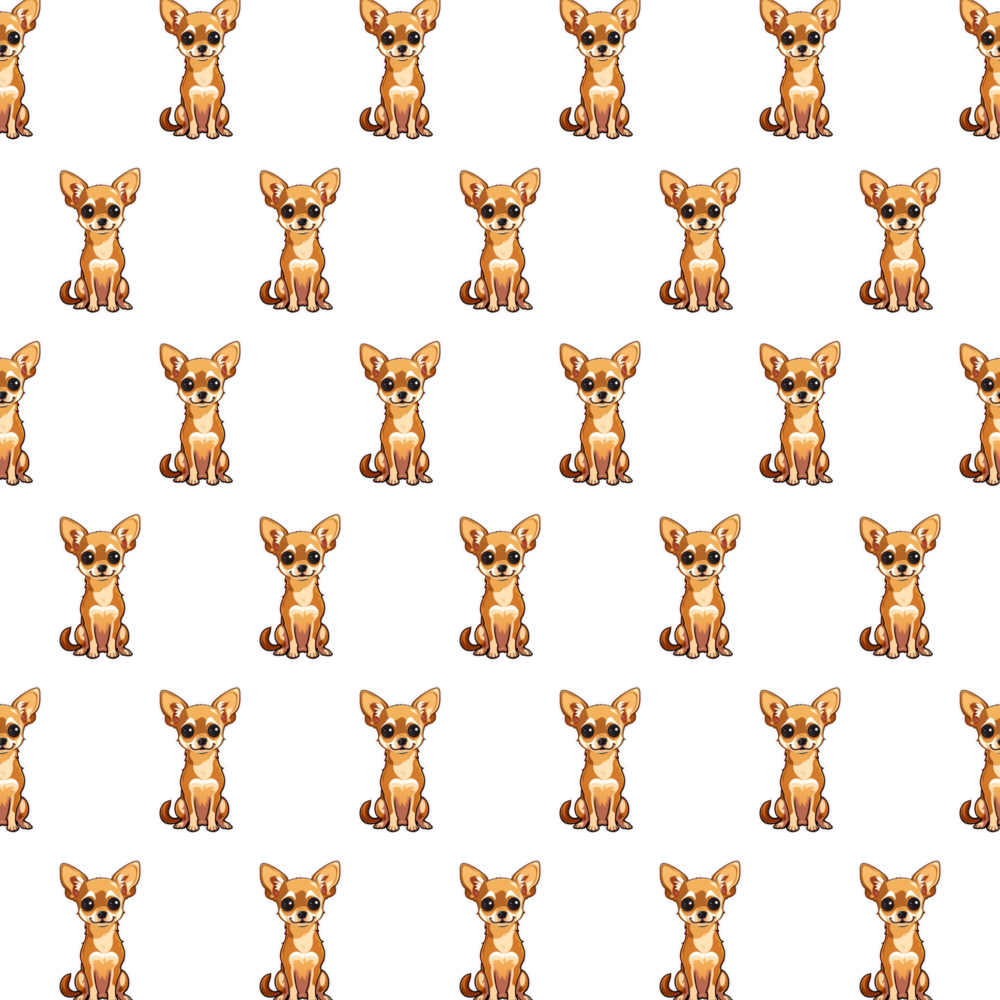
brick— every other row is shifted by half a slot, like a brick wall -
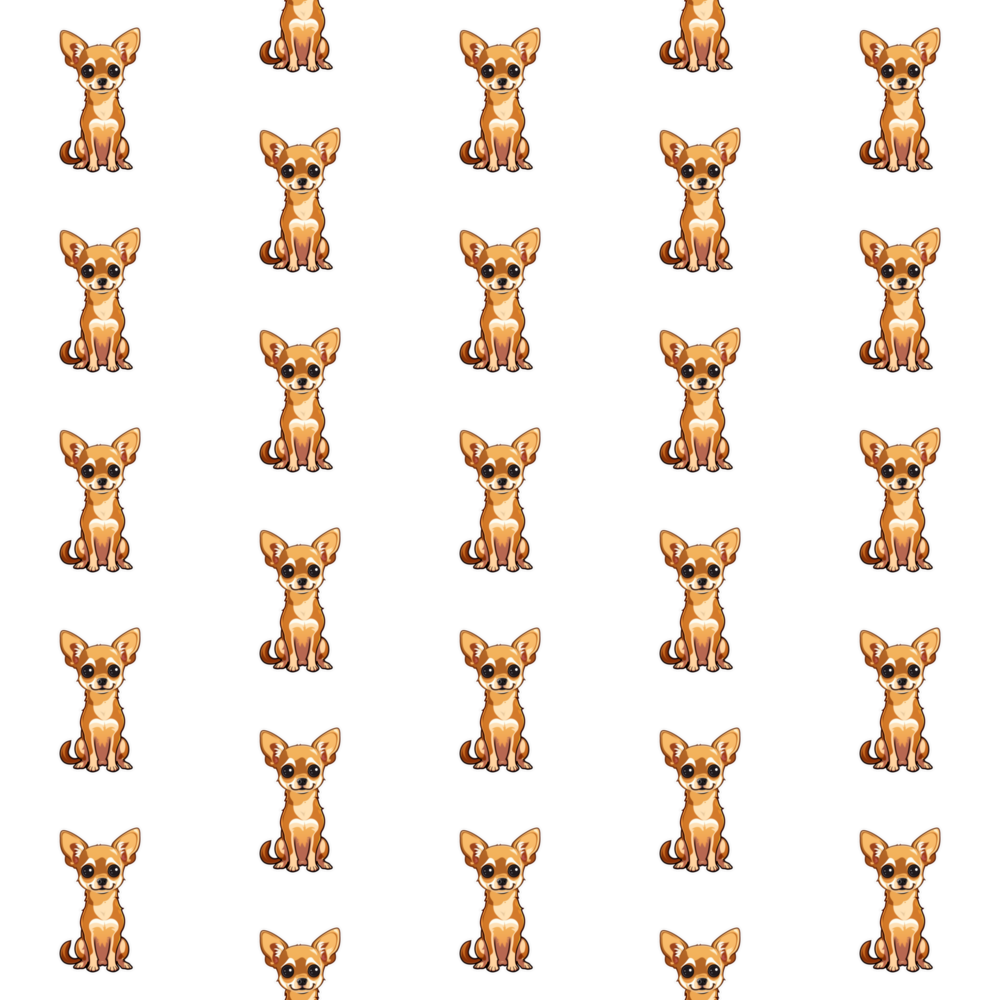
drop— every other column is shifted by half a slot, the classic half-drop repeat -
hex— a honeycomb, where rows are shifted like bricks and packed closer together vertically
Brick layout: fx=grid(s:0.2;t:brick)
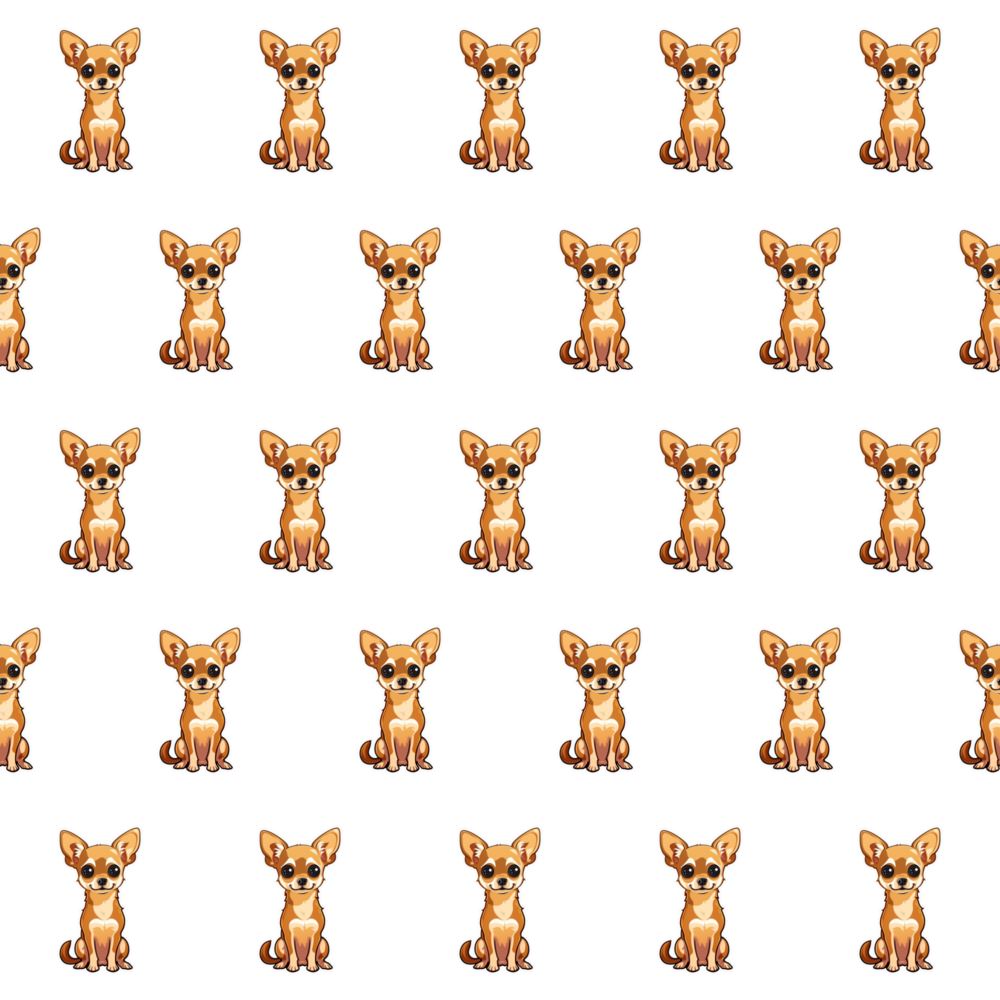
Half-drop layout: fx=grid(s:0.2;t:drop)
Honeycomb layout: fx=grid(s:0.2;t:hex)
The layouts are shortcuts for two lower-level parameters, which can be used directly to build custom arrangements:
-
oshifts every other row by the given fraction of the slot width -
oyshifts every other column by the given fraction of the slot height
For instance, t:brick is equivalent to o:0.5, while a one-third brick offset would be o:0.33. Explicit values override the layout defaults.
Rotation (r)
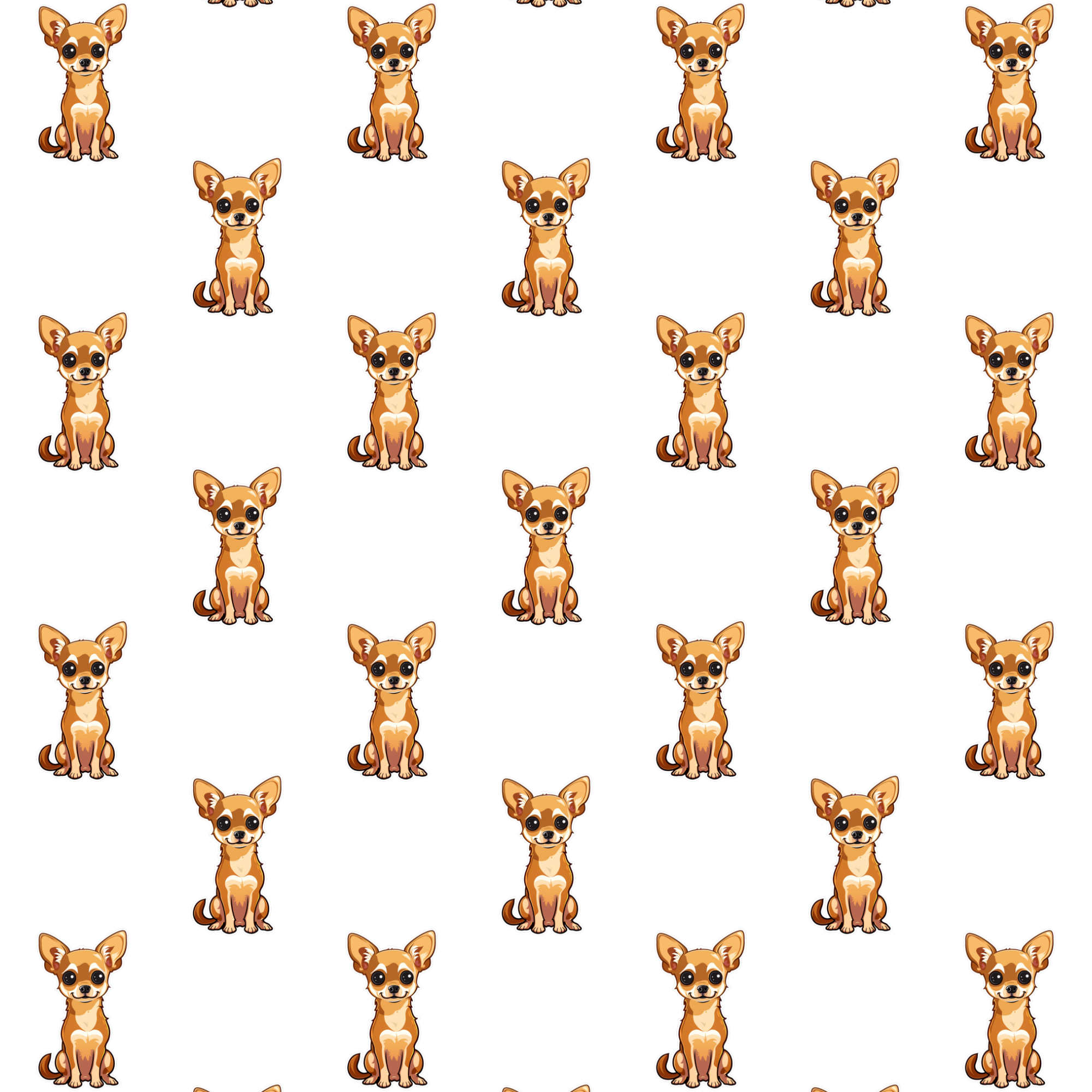
The r parameter rotates the whole lattice around the canvas center by the given angle in degrees. The copies themselves stay upright. Rotating a straight grid by 45 degrees produces a diamond layout: fx=grid(s:0.2;r:45)
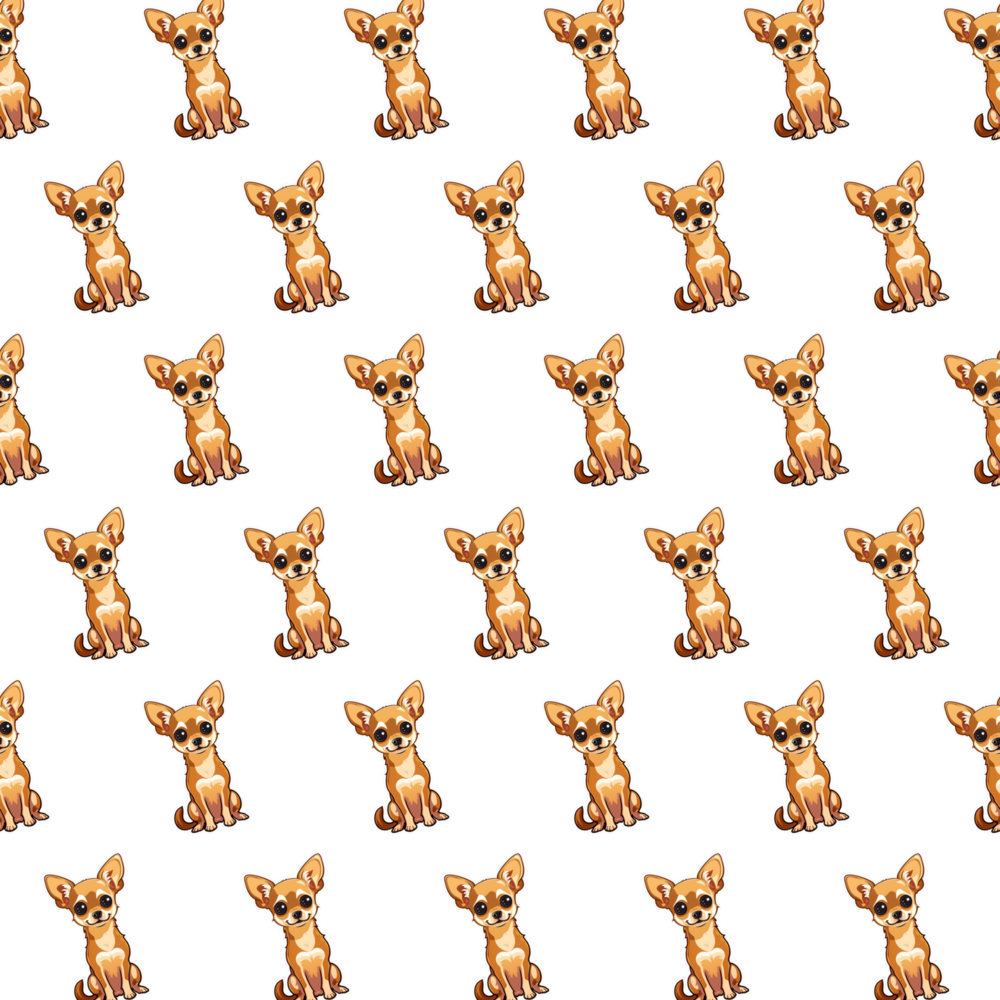
To rotate every copy instead, use the layer rotate command, which is applied to each copy individually: fx=grid(s:0.2;t:hex)&rotate=-15
Partial copies (clip)
Copies along the canvas edge are usually cut off, which is the expected look of an all-over pattern. The clip parameter controls what happens to them:
-
allow— partial copies are drawn and clipped by the canvas, the default -
hide— copies that would be clipped are left out, so only whole copies remain -
fit— copies whose center lies on the canvas make up the pattern. The pattern is scaled down around the canvas center just far enough to make them whole, provided the result covers more of the canvas than leaving the partial copies out, and only whole copies are drawn. Copies beyond the edge that turn out whole at the chosen size are added, which completes the rows of staggered layouts. The pattern never shrinks below half of the requested cell size, and it keeps the centering that the number of slots at the requested size dictates, so a canvas two slots wide fits as two-up rather than as one large or three small copies -
fitloose— the same asfit, except that once the size is settled the partial copies along the edges are drawn as well, as long as at least 5% of a copy lies inside the canvas. The fitted copies stay whole while the edges are filled as withallow
The check uses the actual outline of each copy, so a copy rotated by the layer rotate command or by rotation jitter counts as clipped as soon as one of its corners crosses the edge.
Default: fx=grid(s:0.28;g:1.2)
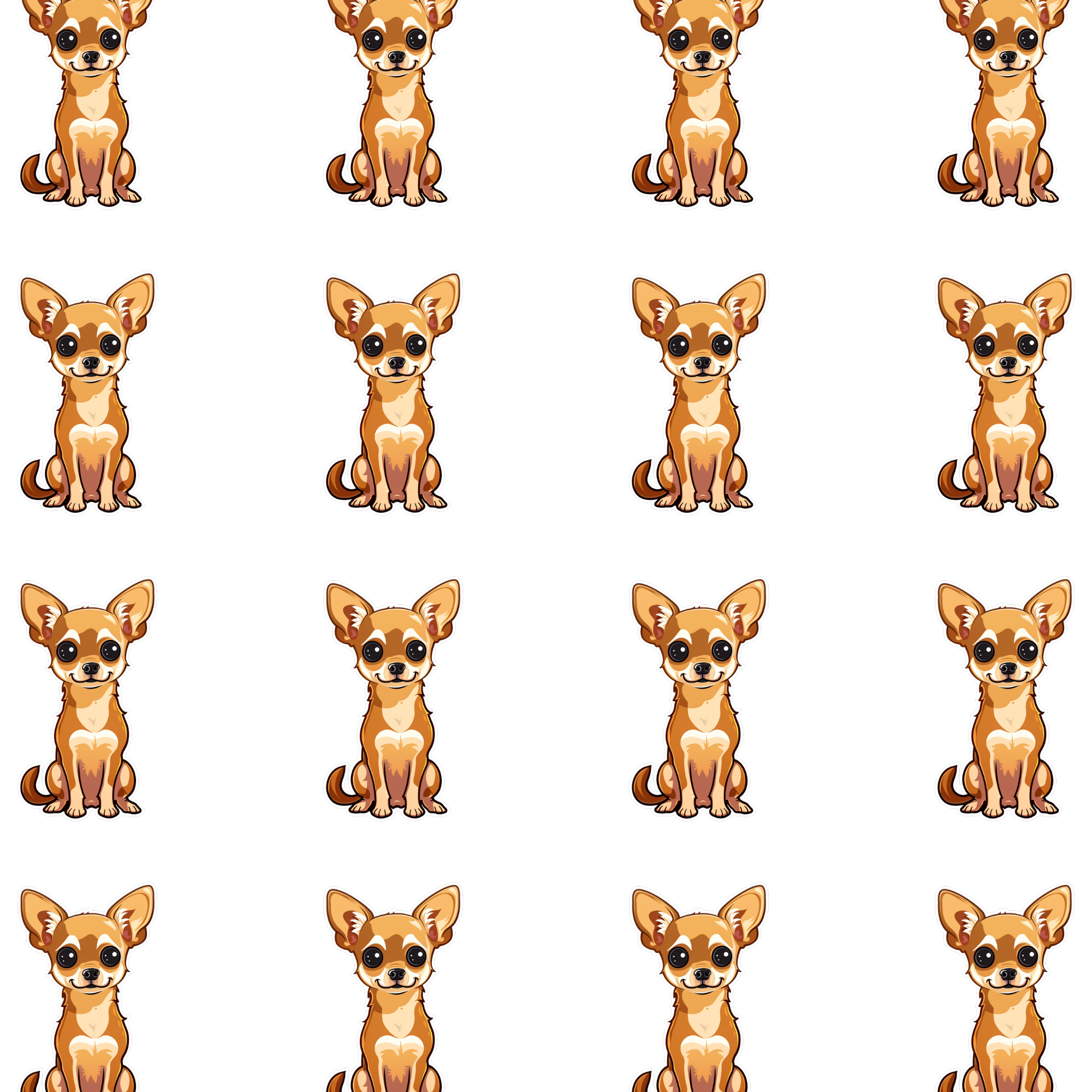
Whole copies only: fx=grid(s:0.28;g:1.2;clip:hide)
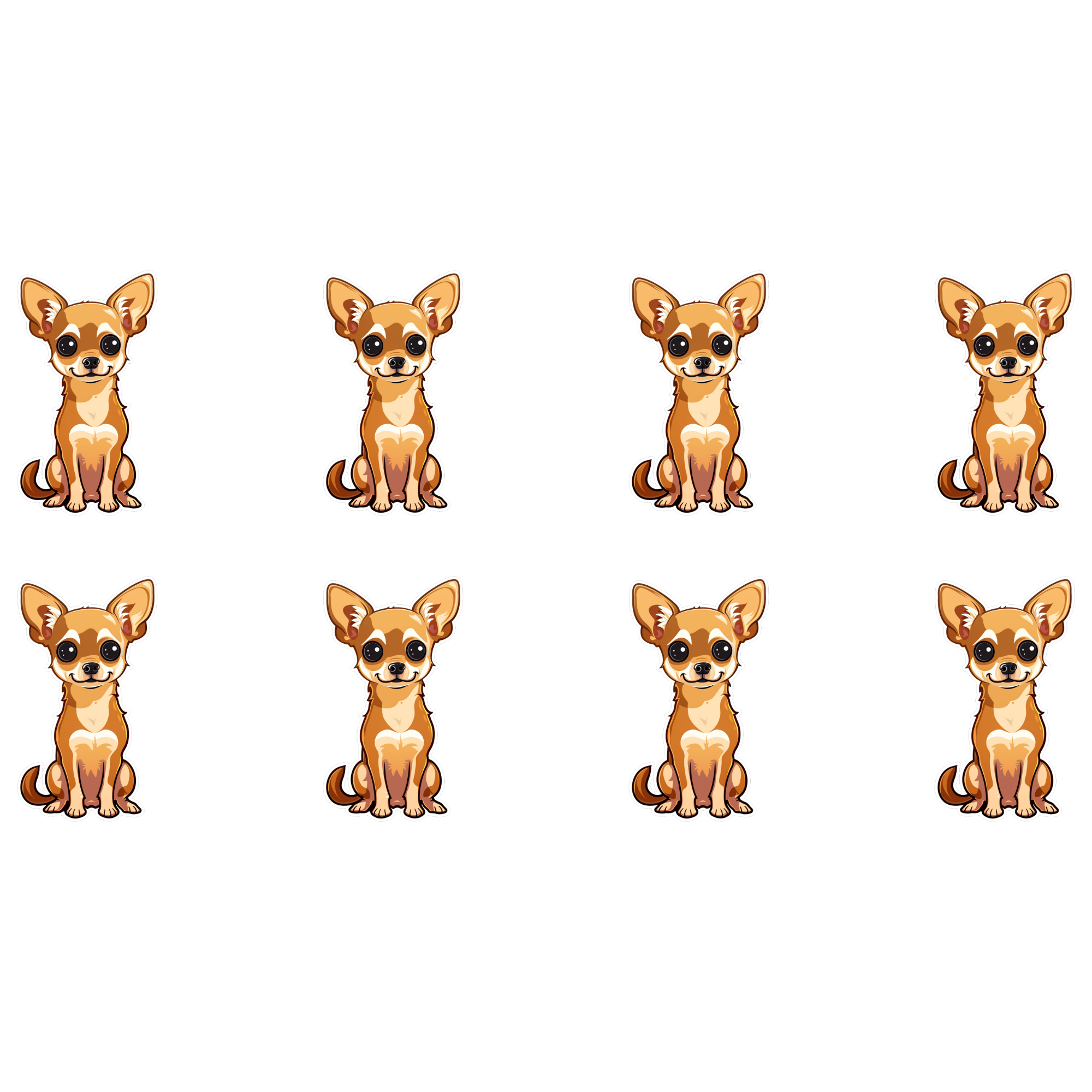
Scaled to fit: fx=grid(s:0.28;g:1.2;clip:fit)
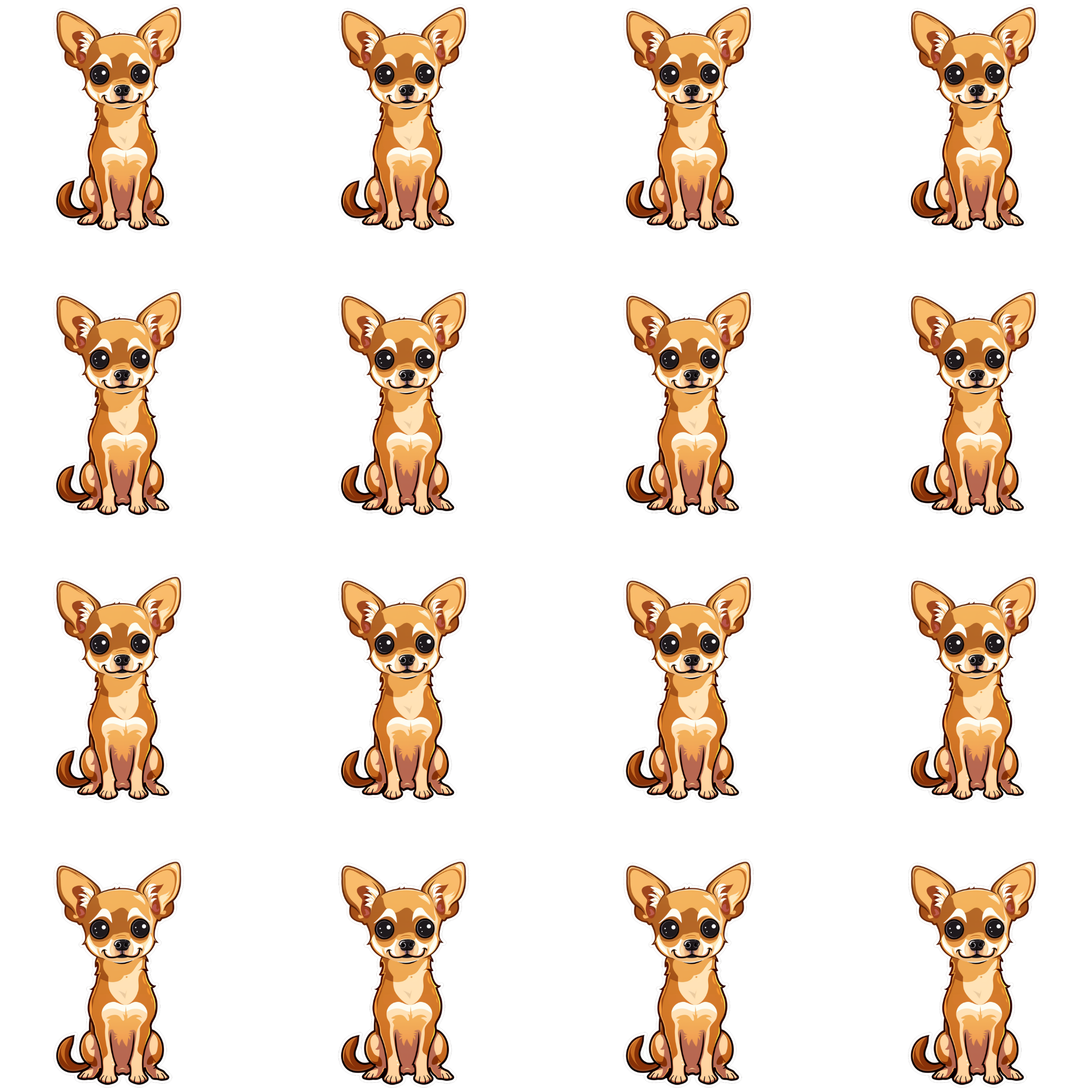
Fitting is most useful with staggered layouts, where the extra row completes the zigzag: fx=grid(s:0.28;g:1.2;t:hex;clip:fit)
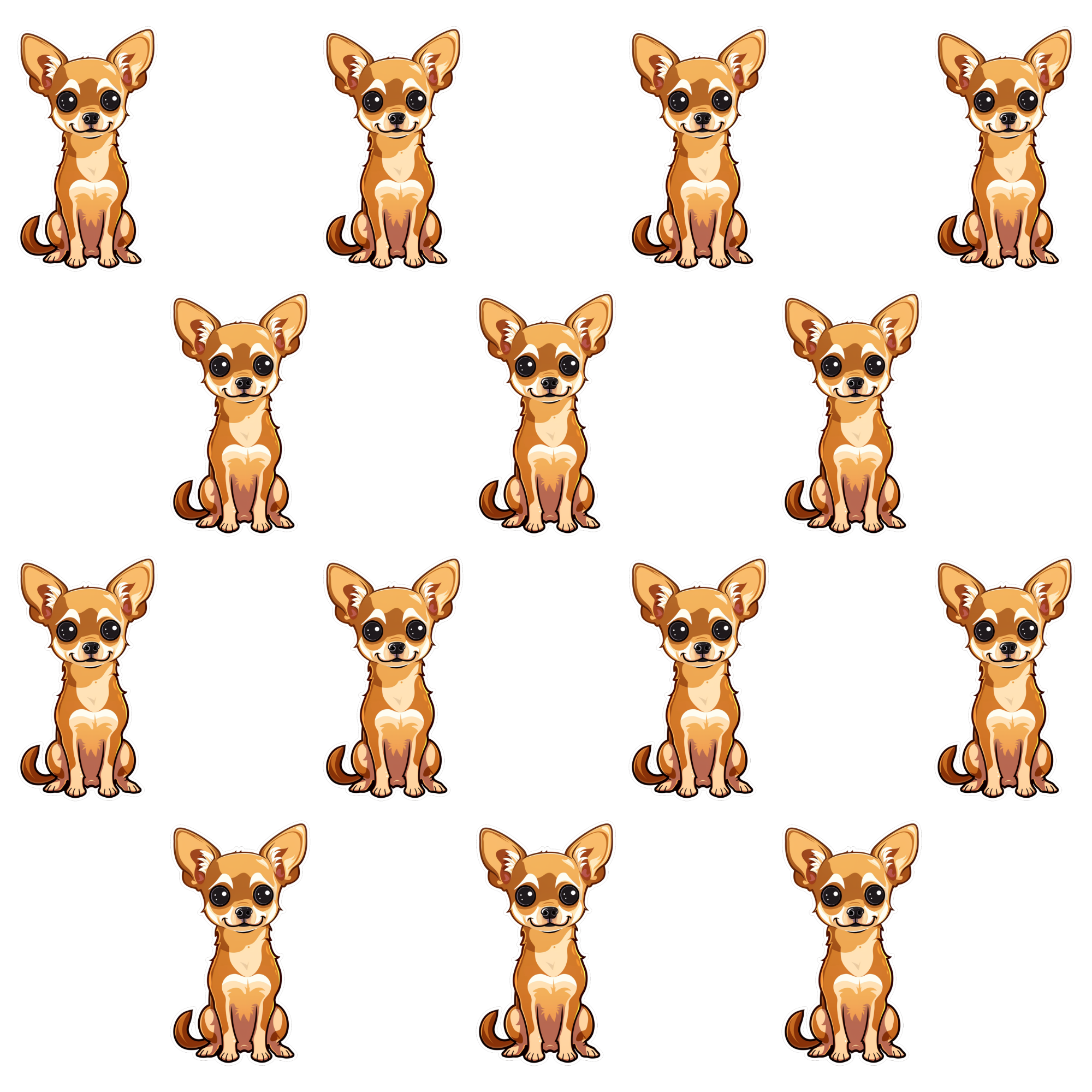
The same applies to the half-drop layout, where the alternating columns end up with a different number of whole copies: fx=grid(s:0.28;t:drop;clip:fit)
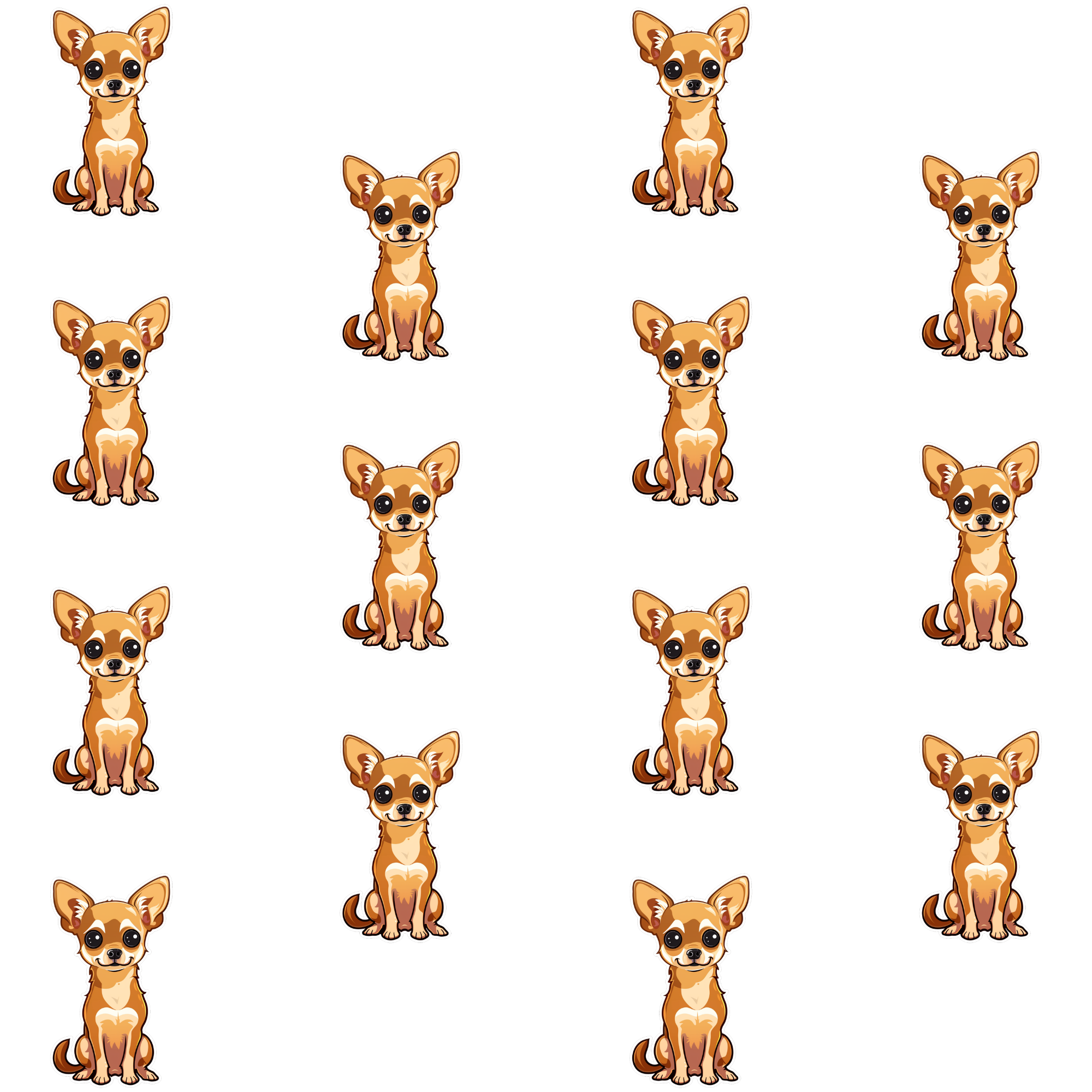
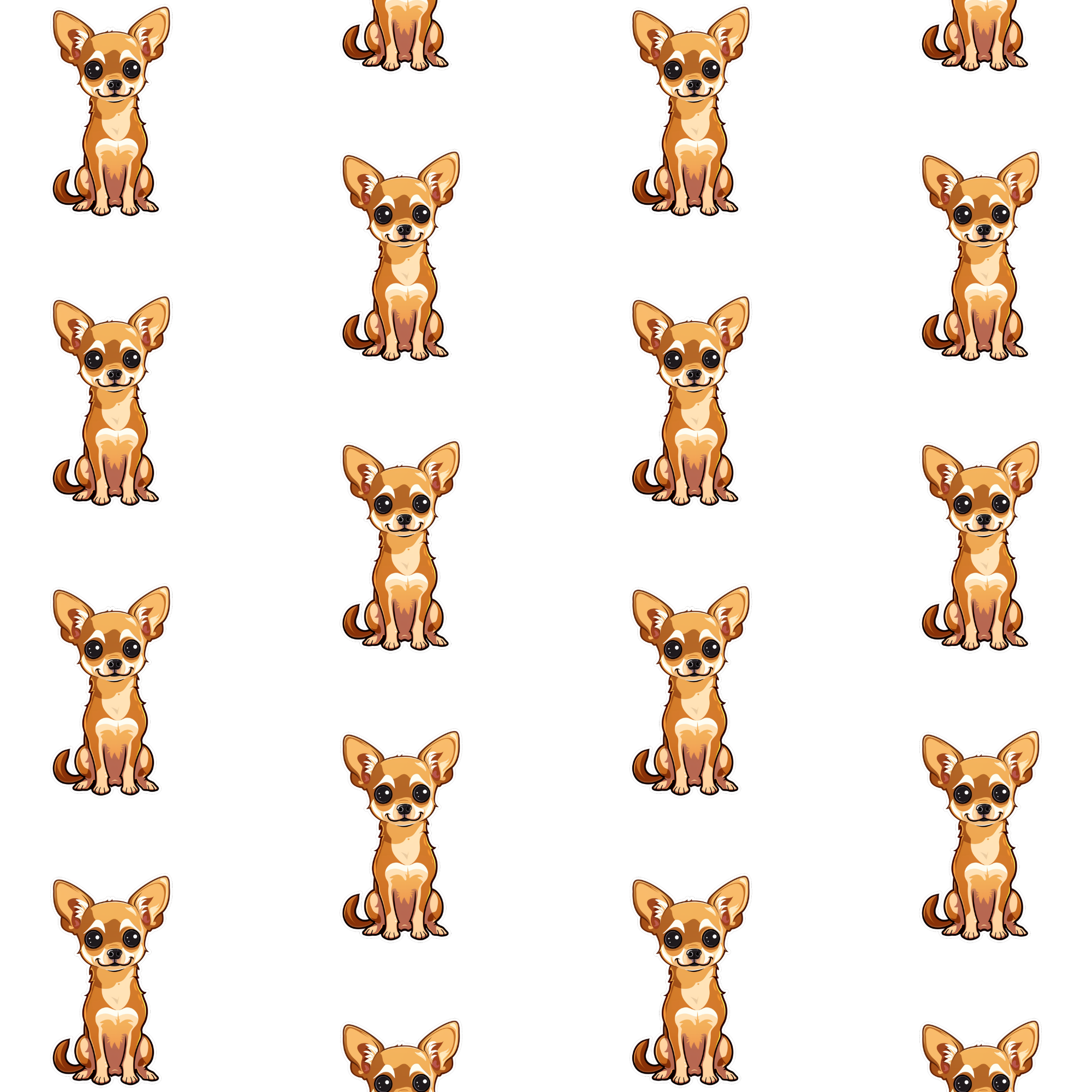
Fitting leaves the edges empty where partial copies were dropped. fitloose fills them again with clipped copies while the fitted copies stay whole: fx=grid(s:0.2;t:drop;clip:fitloose)
Border pattern (bord)
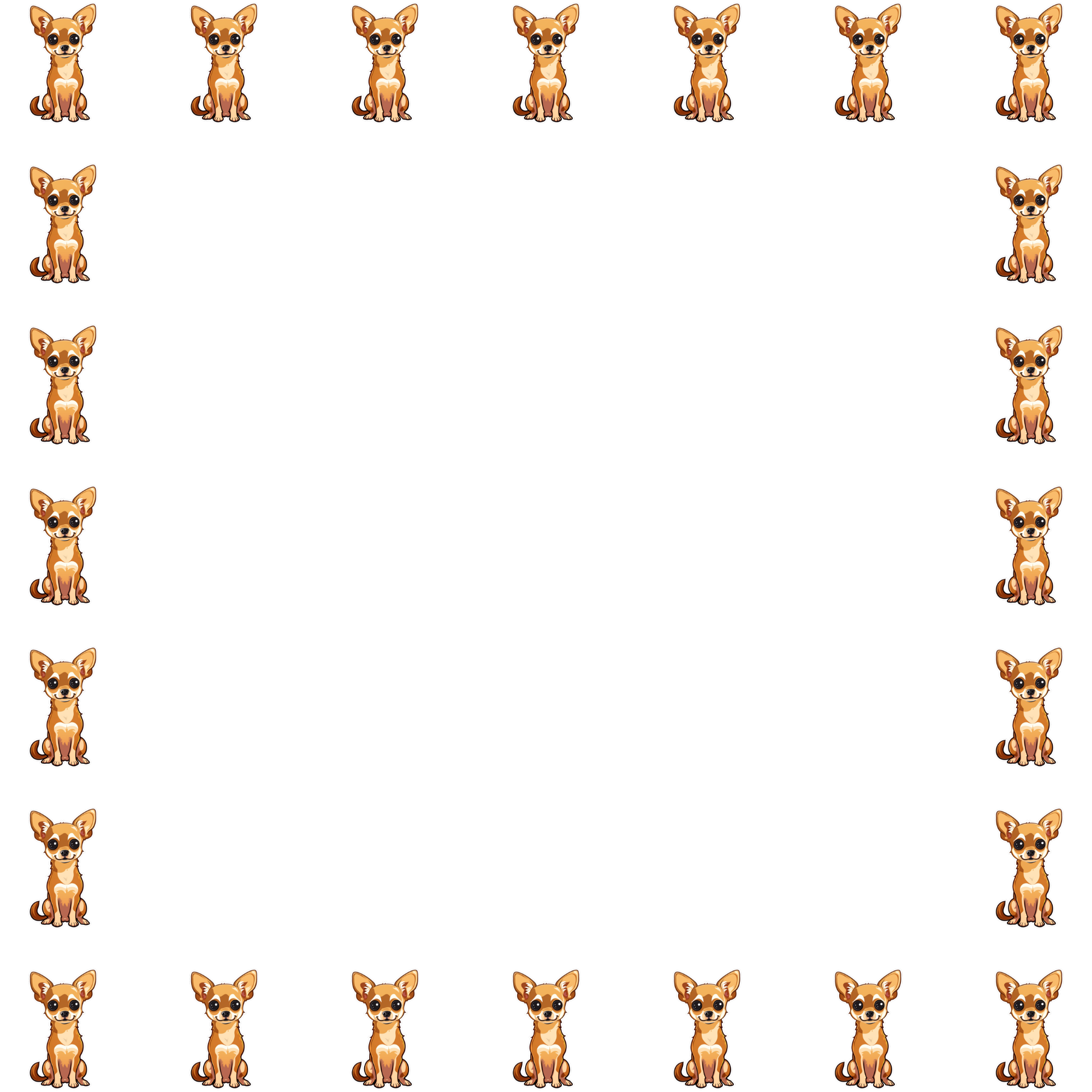
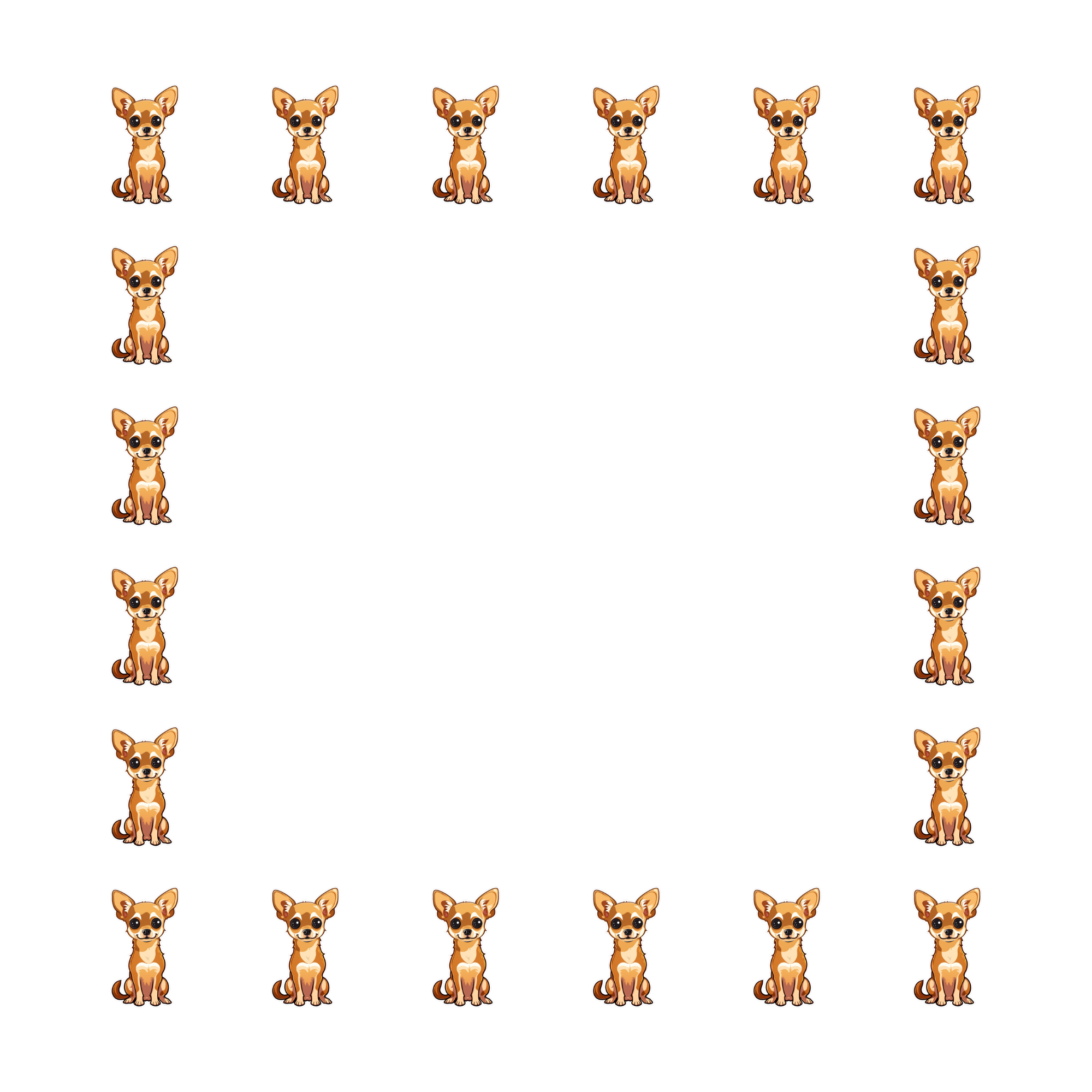
Border pattern places the copies along the outline of the canvas and leaves the middle empty. The copies touch the canvas edge, the four corners are always occupied, and each side receives a whole number of evenly spaced copies. The spacing along a side may therefore differ slightly from the slot size.
For example: fx=bord(s:0.15)
Copy size and inset (g, in)
The g parameter shrinks the copies within their slots without changing the spacing, in the same way as for grids: fx=bord(s:0.15;g:1.8)
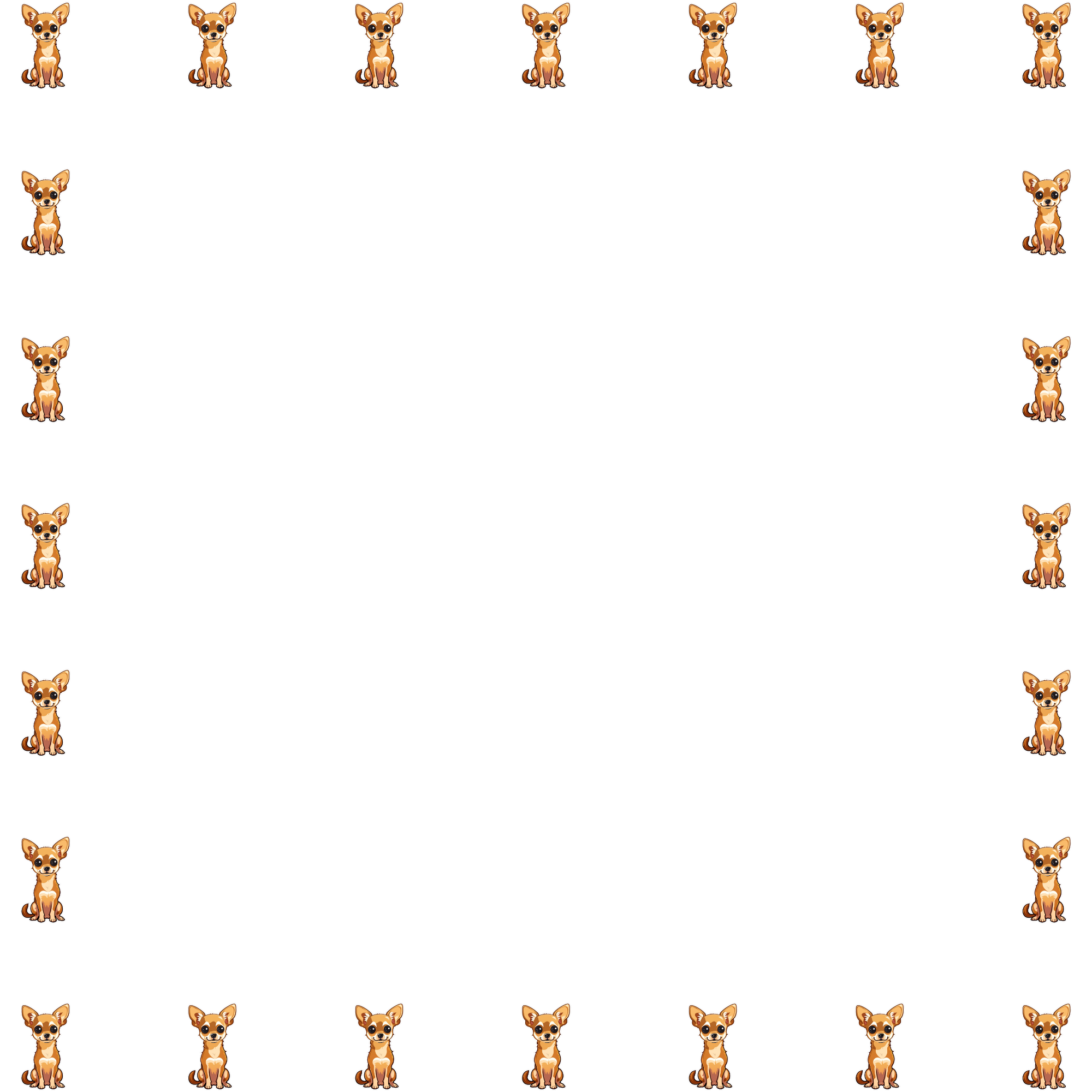
The in parameter moves the border inwards, away from the canvas edge. The value is measured in slots, so in:0.5 leaves half a slot of empty space between the copies and the edge: fx=bord(s:0.15;in:0.5)
Rounded corners and circles (rc)
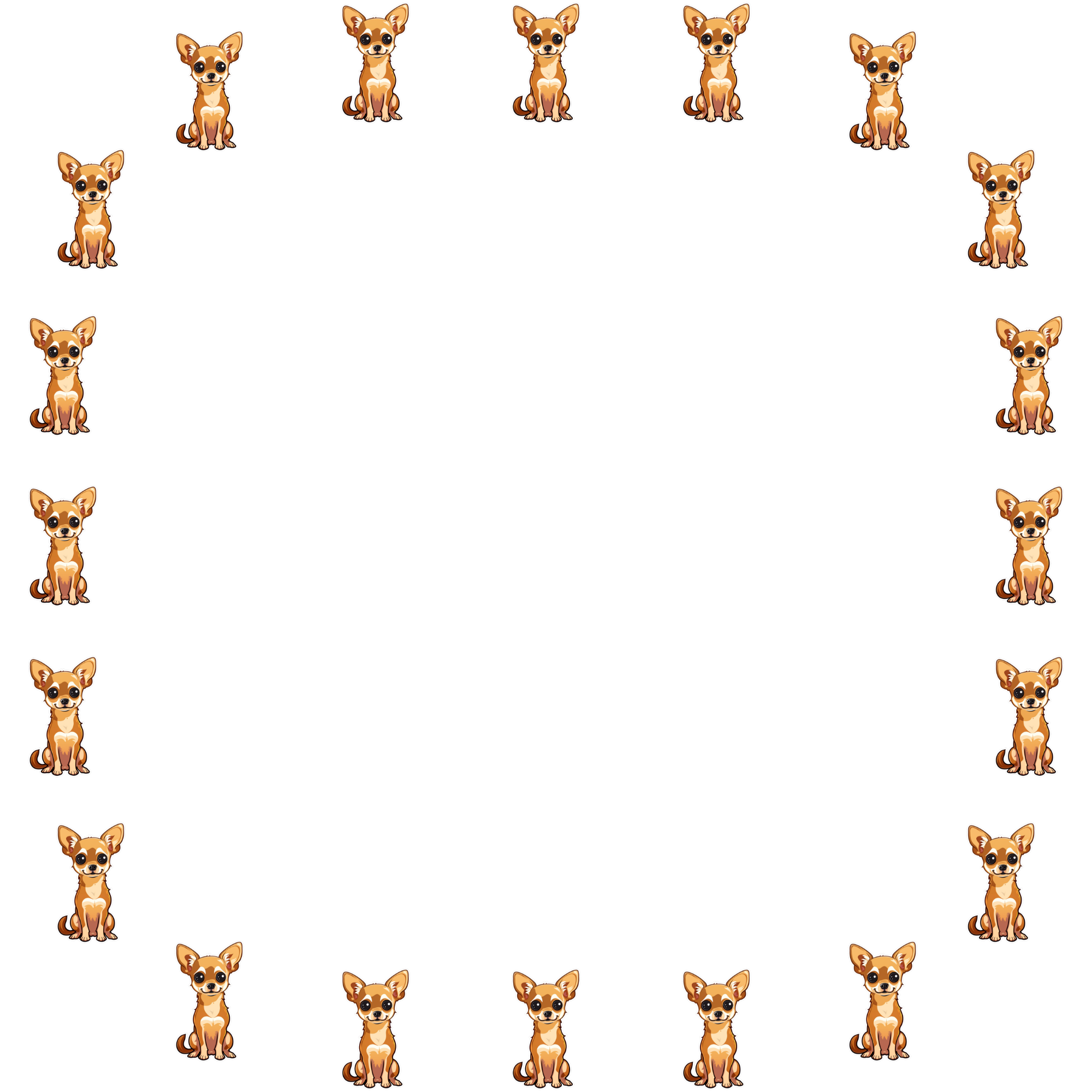
Many products have rounded corners, or are round altogether. The rc parameter sets the corner radius of the canvas outline as a fraction of its shorter side, and the border follows the resulting shape. With the maximum value of 0.5 the outline becomes a circle on a square canvas, or a pill shape on a rectangular one.
Rounded corners: fx=bord(s:0.15;rc:0.3)
Circle: fx=bord(s:0.15;rc:0.5)
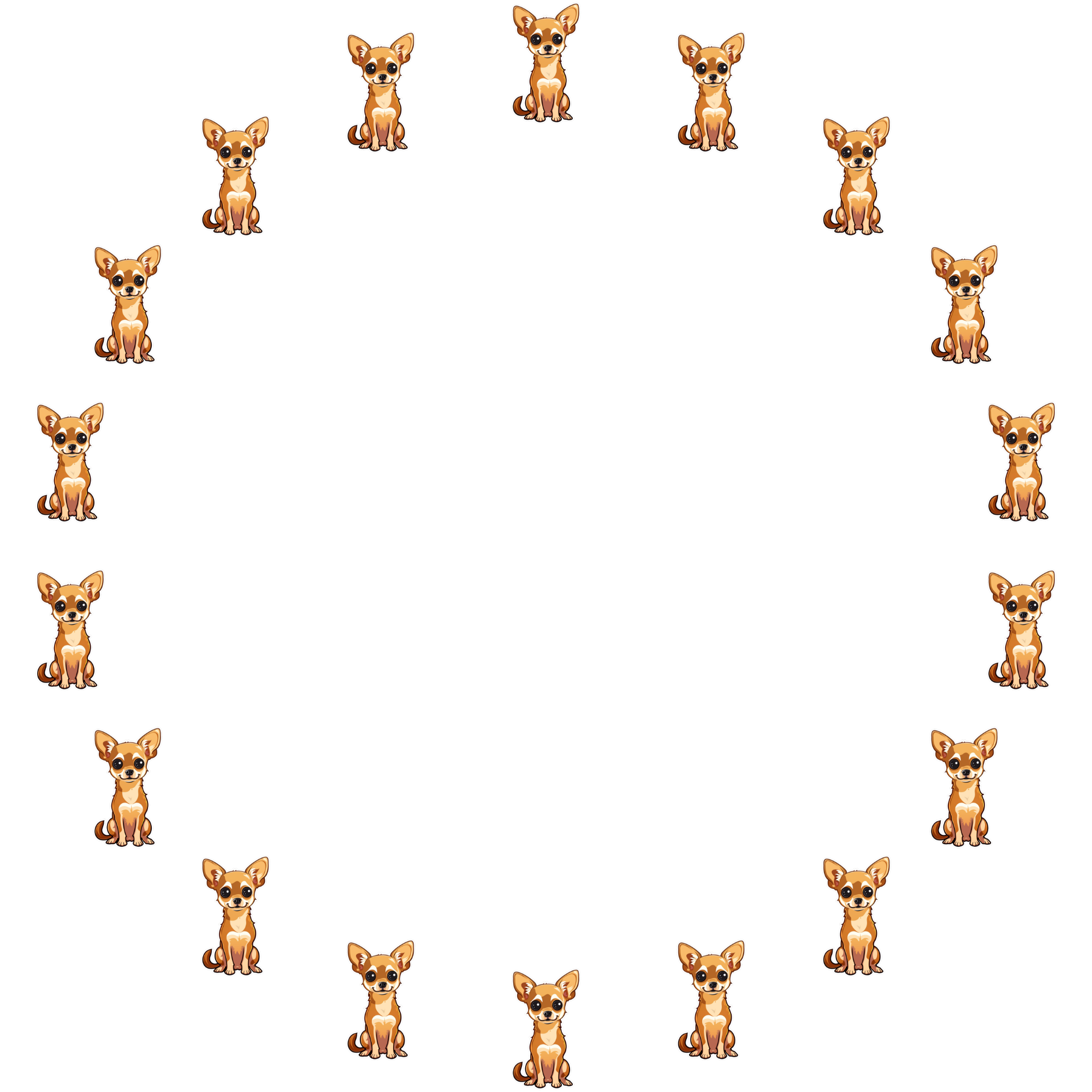
With small radii, where a rounded corner is shorter than the spacing between copies, each corner keeps its copy and the sides are spaced independently, just like on a sharp border. Once the corner is longer than the spacing, the copies are distributed evenly around the whole outline instead, starting from the top center, so that the result stays symmetric.
Following the outline (f)
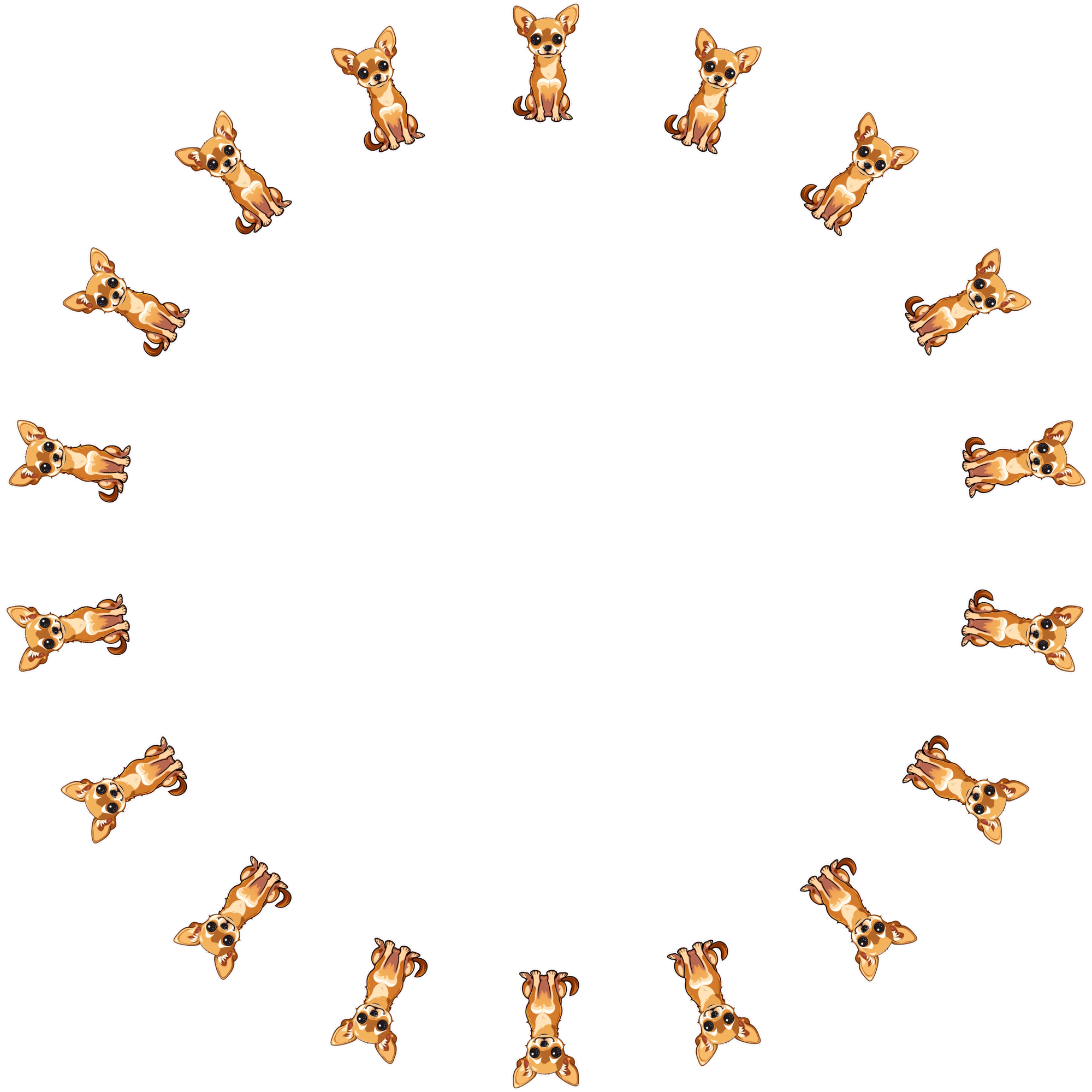
By default all copies keep their orientation. Setting f:1 rotates each copy to follow the outline, so that the top of the image always faces outwards. On a circle this produces a wreath, while on a sharp border the corner copies face diagonally.
Wreath: fx=bord(s:0.15;rc:0.5;f:1)
Frame: fx=bord(s:0.15;f:1)
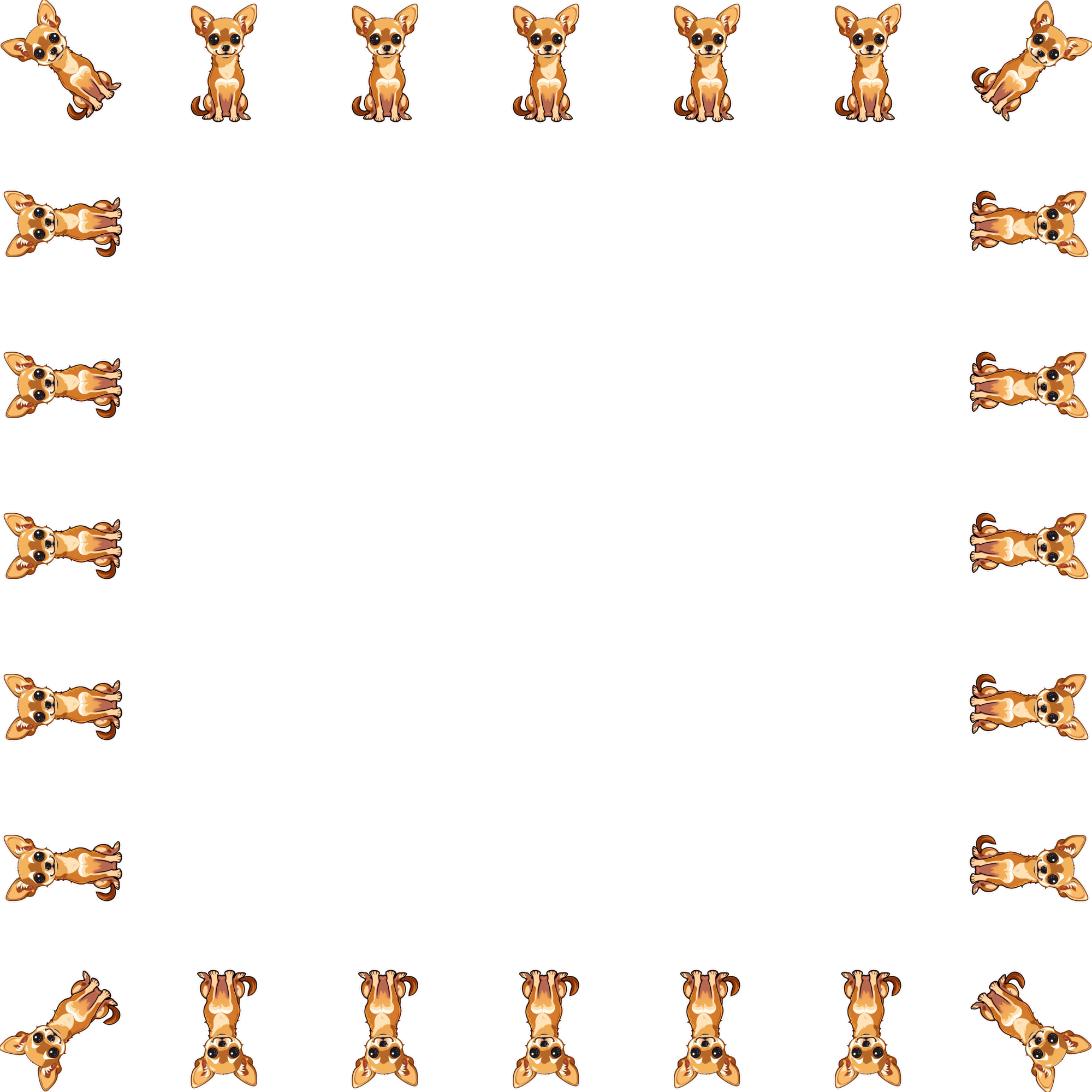
Sides (sides)
The sides parameter limits the border to some of the canvas edges. The value is any combination of the letters t, r, b and l for the top, right, bottom and left side. A copy that sits in a corner is kept if either of its adjacent sides is enabled.
For example, rails along the left and right edges only: fx=bord(s:0.15;sides:lr)
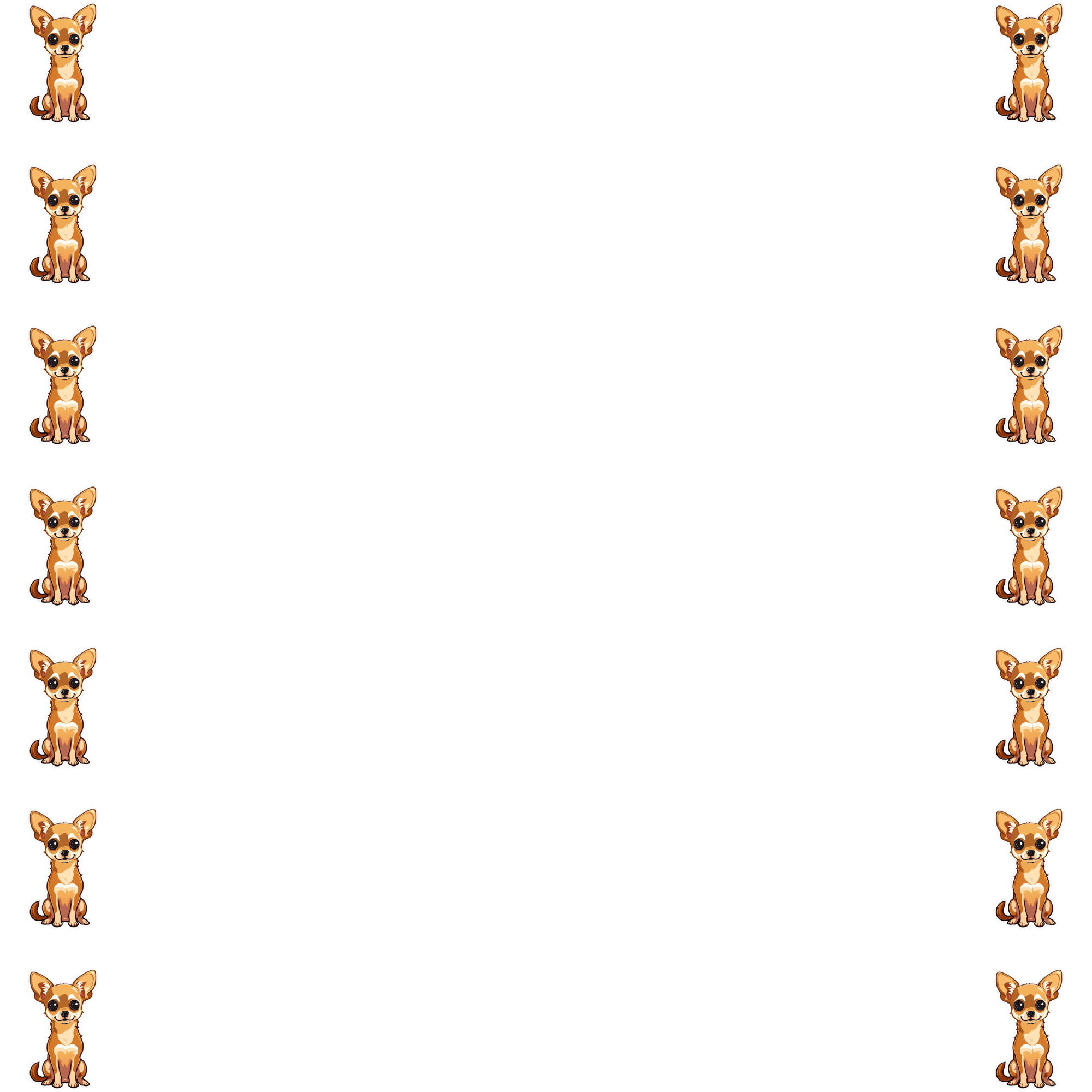
Fixed count (n)
Instead of deriving the number of copies from the spacing, the n parameter requests an exact total. The copies are distributed evenly along the outline; s and g then only set the copy size. On a sharp border the corners stay occupied, and the remaining copies are shared between the sides in proportion to their length.
For example: fx=bord(s:0.15;rc:0.5;n:12)
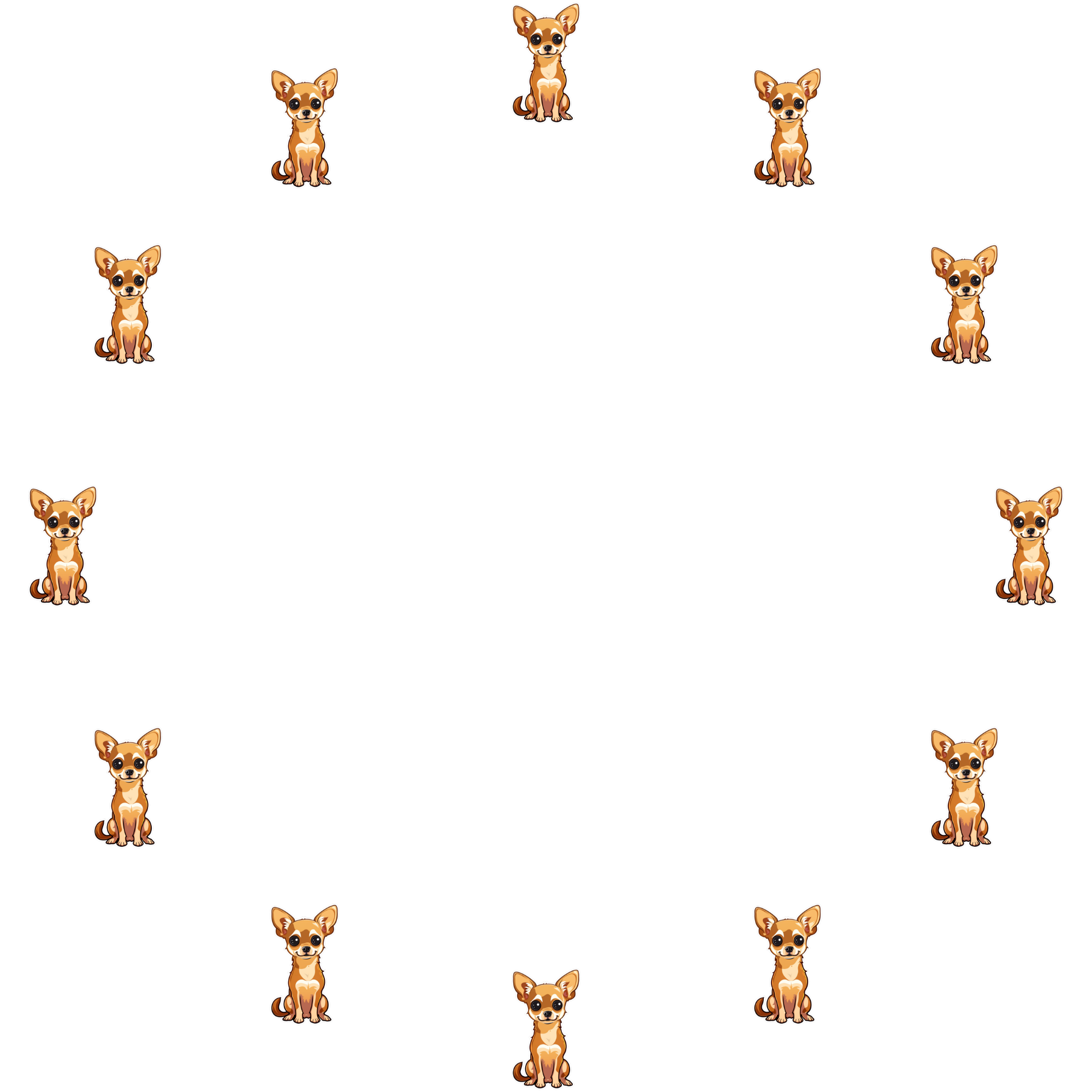
Rotation jitter (d, di, ds, dmin, dmax, dseed)
Both pattern filters can give each copy a slightly different rotation, which makes a pattern feel hand-placed. The parameters mirror the “dancing” letter options of text layers:
-
d:1enables the jitter -
dminanddmaxlimit the rotation angle in degrees,-15and15by default -
dsis the step between the possible angles,15by default. Angles are picked from the grid formed by the step within the limits, and two neighboring copies never receive the same angle -
diis the angle of the first copy,0by default -
dseedselects one particular random arrangement
For example: fx=grid(s:0.2;t:hex;d:1)
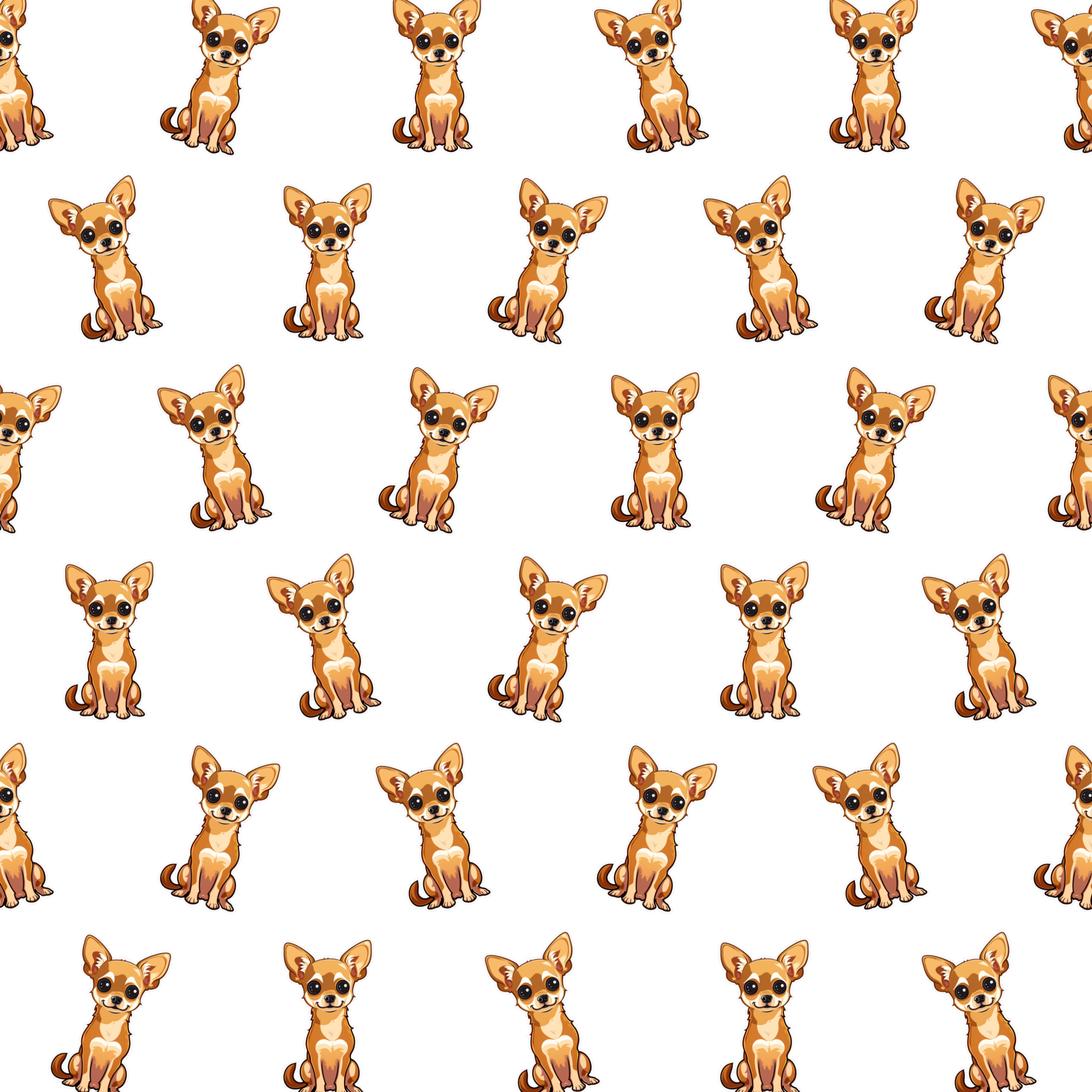
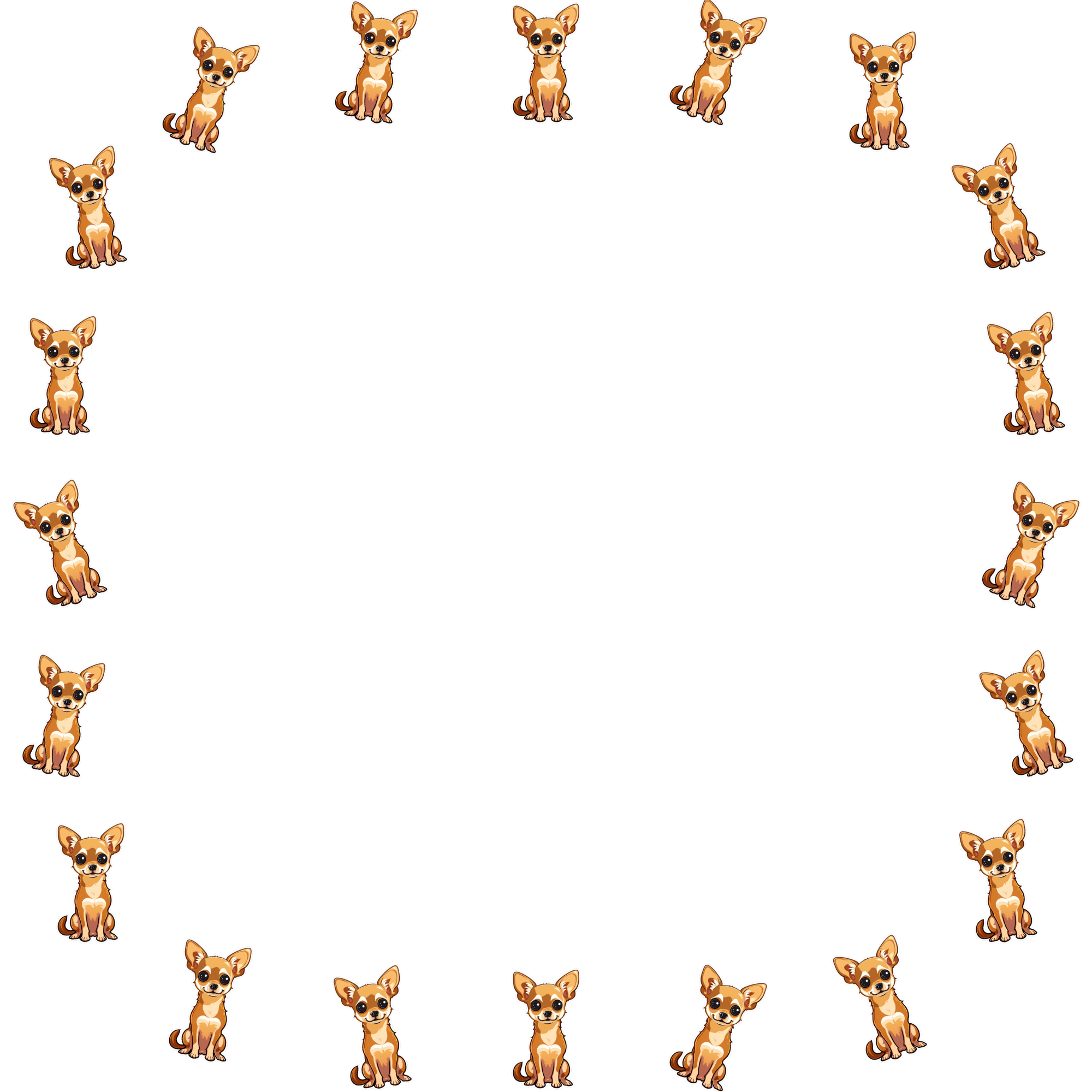
Finer steps and a wider range on a border: fx=bord(s:0.15;rc:0.3;d:1;dmin:-20;dmax:20;ds:10;dseed:7)
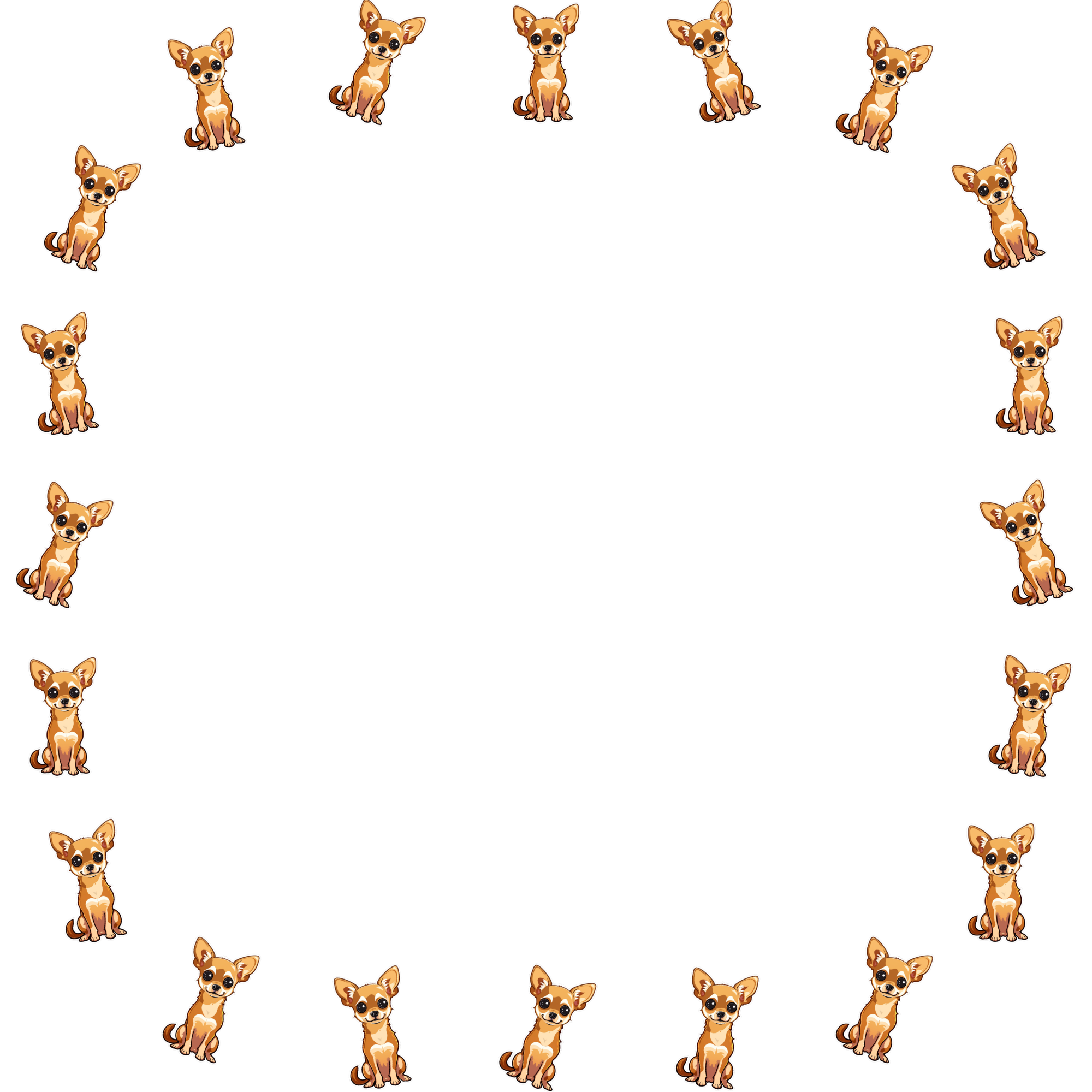
The arrangement is deterministic: the same parameters and the same source image always produce the same result, which keeps the output cacheable. When dseed is omitted, the seed is derived from the source image reference. To offer a “shuffle” option, change the seed value: fx=bord(s:0.15;rc:0.3;d:1;dmin:-20;dmax:20;ds:10;dseed:8)
Combining with other effects
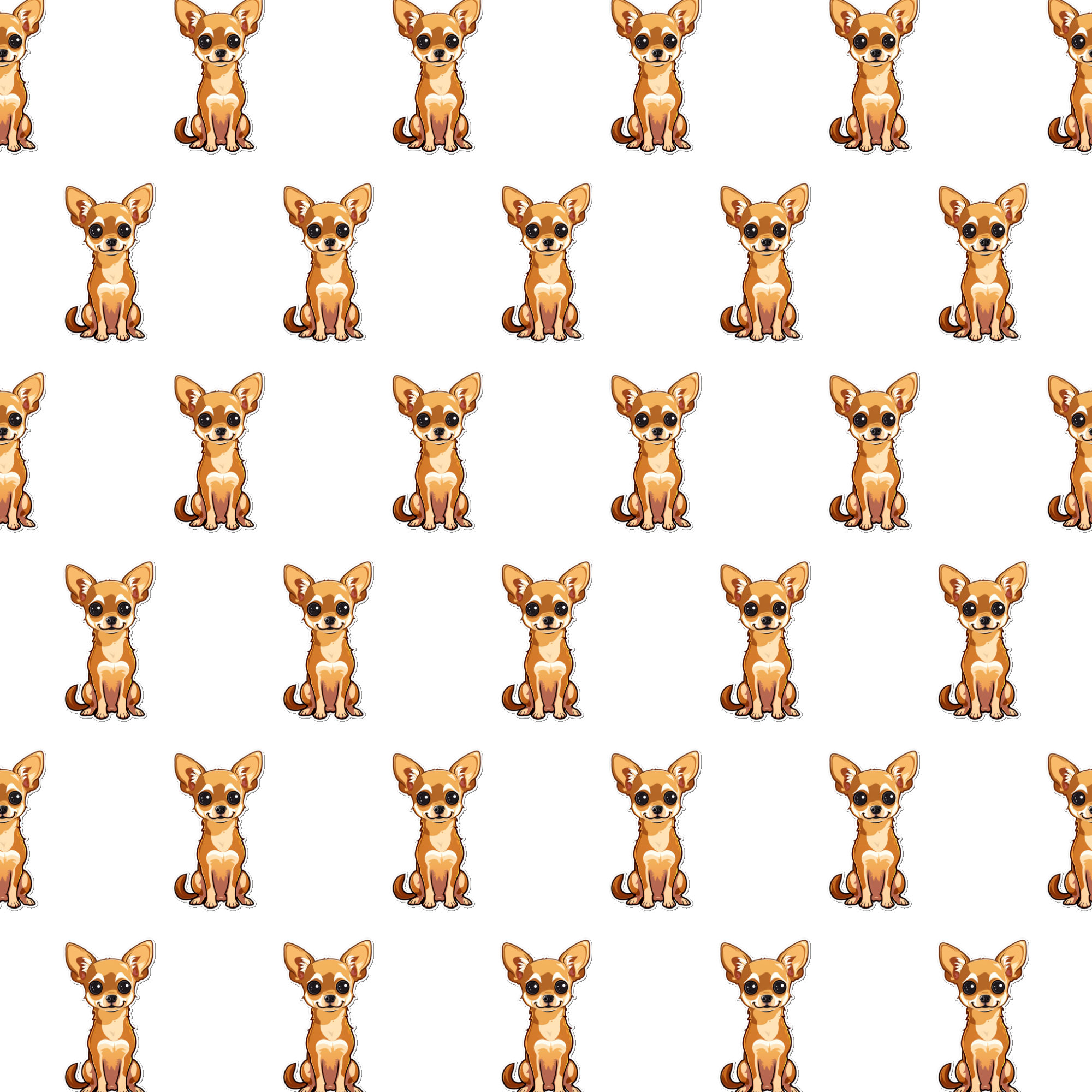
Other filters and effects of the layer apply to every copy. Drop shadows, glows and color adjustments can be combined with a pattern in the same fx command: fx=grid(s:0.2;t:hex),sdw(x:10;y:10;b:5;c:000000;o:0.5)
A pattern replaces the layer’s own placement. Layer position, anchor, skew, design surface (osize, oscale, opos) and 3D transform commands have no effect on a pattern layer, while rotate and orotate rotate every copy. A design placed on a print area with osize can therefore be turned into a pattern by adding the filter alone; the copies are sized by s rather than by oscale.
Pattern filters can be applied only to image layers. To repeat a text layer, render the text into a group first, and then apply the pattern to the group image.