
Blur and sharpen
Blur and sharpen filters are a family of filters built on a gaussian blur:
-
blursoftens a layer. -
hpassextracts the fine detail of a layer, to be blended with the original. -
shrpsharpens a layer, or softens it with a negative amount. -
dlitremoves broad lighting variation from a layer.
All of them are filter commands and are enabled using the fx command, see Filter options
Radius and transparency
Every filter in this family takes a radius s, the gaussian sigma, measured in pixels of the layer image. For image layers this is the resolution of the source image before it is scaled onto the canvas, so the same radius produces a stronger effect on a small source image than on a large one.
All filters keep the transparency of the layer. Transparent areas around a cut-out image do not bleed into its edges: colors near an edge are taken from the opaque pixels only.
Blur (blur)
Blur filter applies a gaussian blur. The radius s controls the strength of the blur.
By default only the content of the layer is blurred, while its outline stays as sharp as in the original: fx=blur(s:8)

To soften the outline as well, add e:1: fx=blur(s:8;e:1)

High pass (hpass)
High pass filter keeps only the detail finer than the radius s and turns everything else into flat mid-gray: fx=hpass(s:4)
https://fx.images.drivecommerce.com/api/v1/drive/image/?layer&src=dog&size=2000,1650&fx=hpass(s:4)
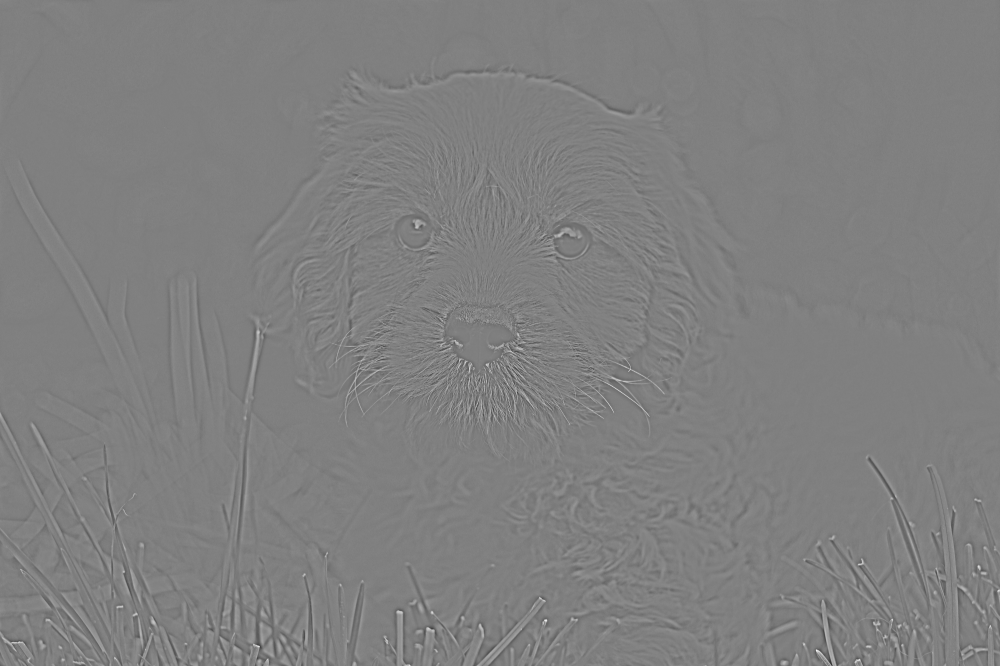
On its own the result looks like a gray relief of the edges. It becomes useful when it is blended onto the original image with one of the contrast blending modes, overlay, softlight or hardlight. Mid-gray leaves the image unchanged, so only the edges are affected: they gain contrast and the image looks crisper.
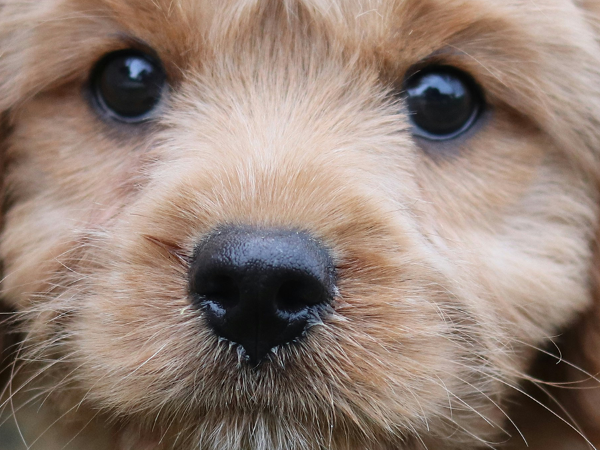
The examples below are cropped to the face of the dog, so that the fine detail can be compared at full resolution.
Original:
The same image twice, with the high pass copy blended on top: layer&src=dog&size=2000,1650&&layer&src=dog&size=2000,1650&fx=hpass(s:4)&blend=overlay
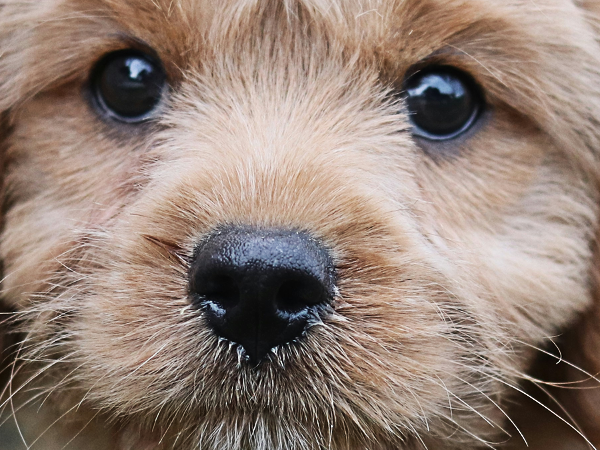
By default the detail is taken from luminance only and the result is gray. This avoids colored halos where edges of two different colors meet. To keep the color of the detail, as the Photoshop High Pass filter does, add c:1: fx=hpass(s:4;c:1)
Sharpen (shrp)
Sharpen filter is an unsharp mask: it extracts the detail finer than the radius s, the same way the high pass filter does, and adds it back to the image multiplied by the amount a. The detail is taken from luminance only and applied equally to all color channels, so edges become crisper without color fringes.
-
sbetween 0.5 and 2 sharpens fine detail. -
asets the strength, where 1 means 100%. Values between 0.5 and 1.5 are typical. -
tsets the threshold. Detail weaker thantlevels, on a scale from 0 to 255, is left unchanged. This keeps noise and fine textures such as skin from being sharpened.
The examples below use the same crop as the high pass examples, compare them with the original there.
For example: fx=shrp(s:1.5;a:1)
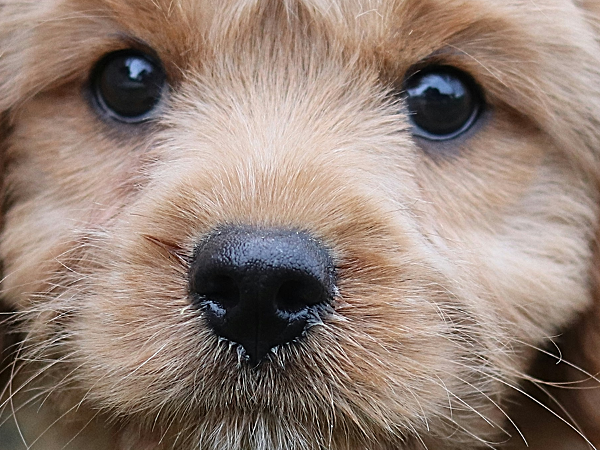
A large radius with a small amount enhances local contrast instead, similar to the clarity adjustment of photo editors: fx=shrp(s:40;a:0.5)
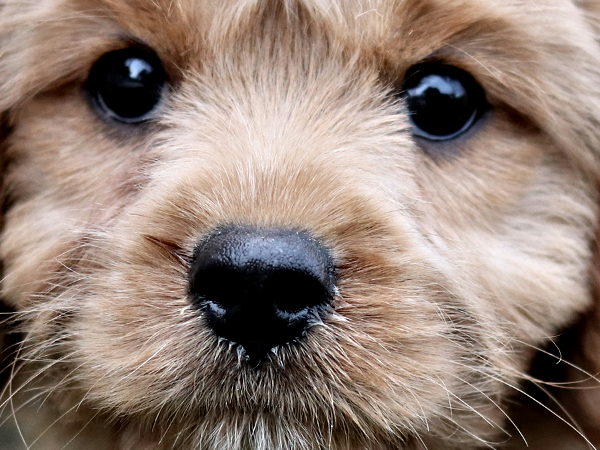
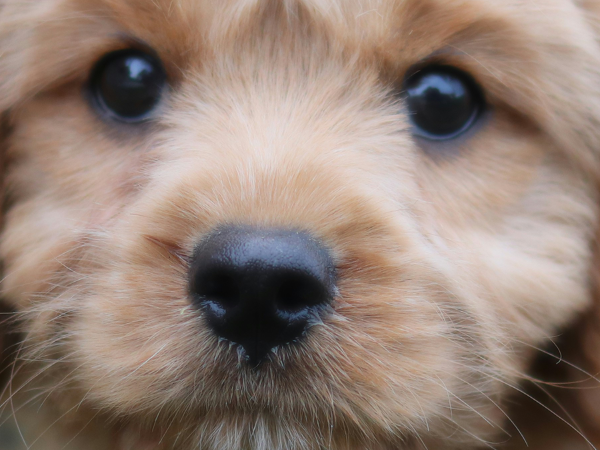
A negative amount removes detail instead of adding it, softening the image. a:-1 produces the same result as a blur of the same radius, while values between -1 and 0 soften partially: fx=shrp(s:4;a:-0.5)
Remove lighting (dlit)
Remove lighting filter evens out broad brightness variation, such as soft lighting, shading and vignetting. Brightness that changes over distances larger than the radius s is treated as lighting and divided out, while detail and texture finer than the radius are kept. Colors and the overall brightness of the image do not change.
-
sshould be larger than the objects that should keep their own brightness. A good starting point is 5 to 10 percent of the image size. -
asets the strength between 0 and 1. 1 flattens the lighting completely, 0.5 halves its contrast, which works similarly to the shadows and highlights adjustment of photo editors.
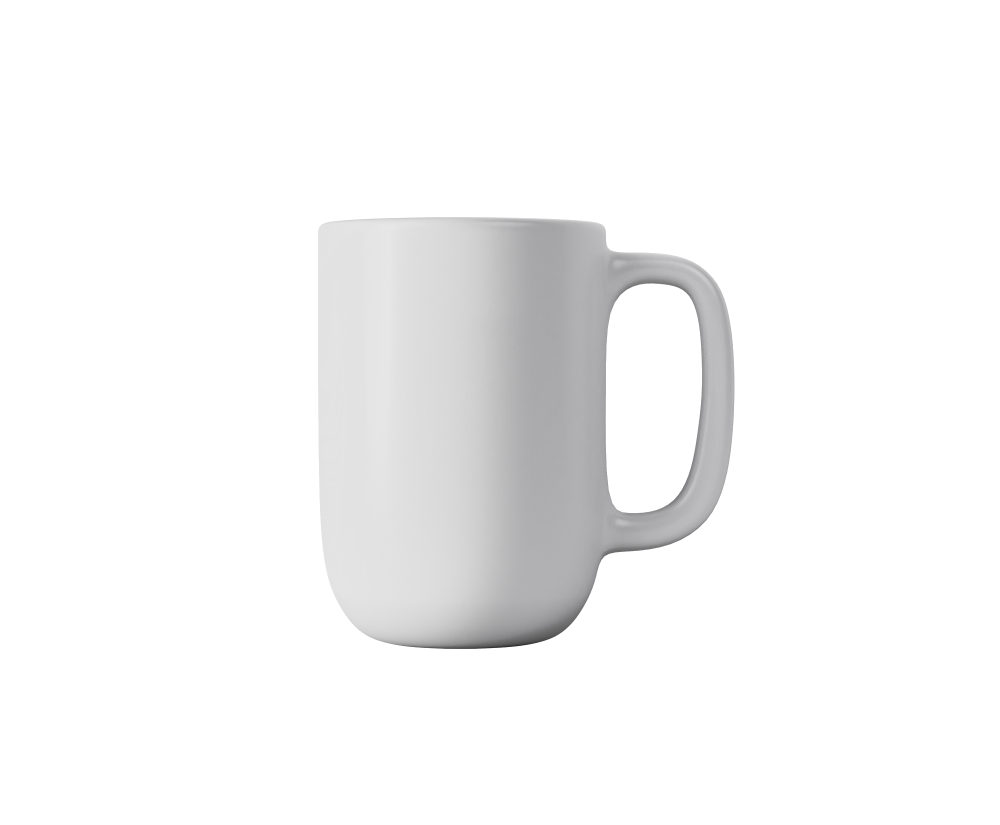
Original:
https://fx.images.drivecommerce.com/api/v1/drive/image/?layer&src=coffee
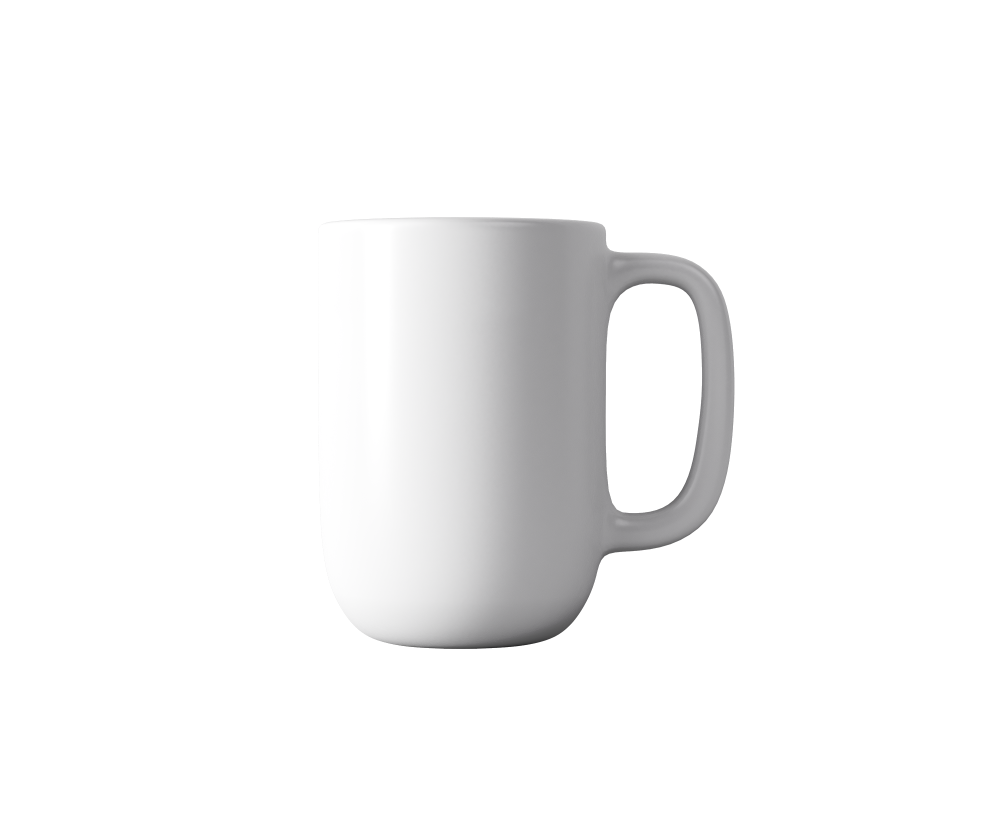
The shading of the mug removed completely: fx=dlit(s:100)
https://fx.images.drivecommerce.com/api/v1/drive/image/?layer&src=coffee&fx=dlit(s:100)
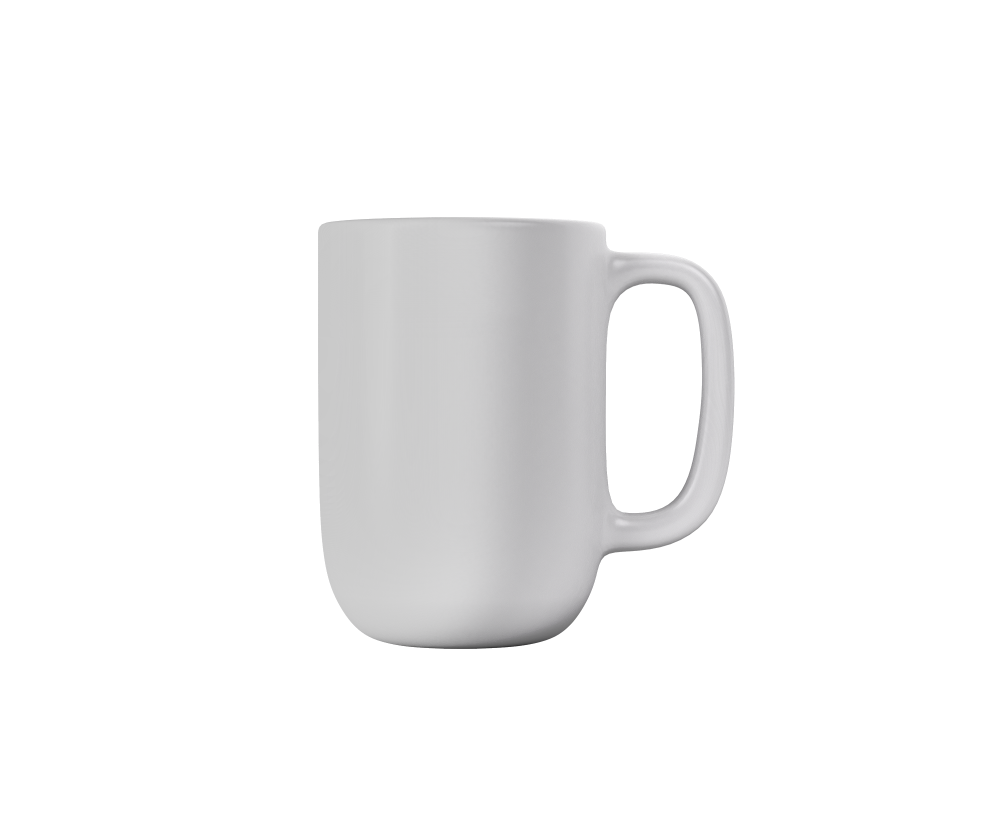
Half strength keeps some of the shape: fx=dlit(s:100;a:0.5)
https://fx.images.drivecommerce.com/api/v1/drive/image/?layer&src=coffee&fx=dlit(s:100;a:0.5)
The filter cannot tell a shadow from an object that is simply darker. Areas larger than the radius are evened out no matter what causes their brightness, and strong edges between bright and dark areas may show a faint glow or rim. Sharp-edged cast shadows are brightened inside, but their outline remains visible. Dark areas are brightened at most 4 times, to keep noise from showing.